Plans & Documents
Generate your continuity and privacy documents from the business impact information you have already recorded.
What the page is for
Plans & Documents is a page in the Lavawall® console, in the Business continuity area. Lavawall is the RMM, security, and compliance platform from ThreeShield, built and hosted in Canada. About this feature.
Writing an incident response plan, disaster recovery plan or business continuity plan from scratch takes a long time, and the result goes out of date as soon as a vendor or process changes. This page writes those documents for you from your own business impact assessment: your vendors, processes, data flows and questionnaire answers.
There is one card per document: Incident Response Plan, Disaster Recovery Plan, Business Continuity Plan, Foreign Processing Disclosure, Data Flow Documentation and Privacy Policy Addendum. Generate a document once, then open it in the document editor to review, edit and approve it. When your data changes, regenerate the data sections to bring the document up to date. Your manual edits are saved to version history first.
The page also offers a full privacy policy matched to your industry when your company profile includes your industry and operating locations.
What you see
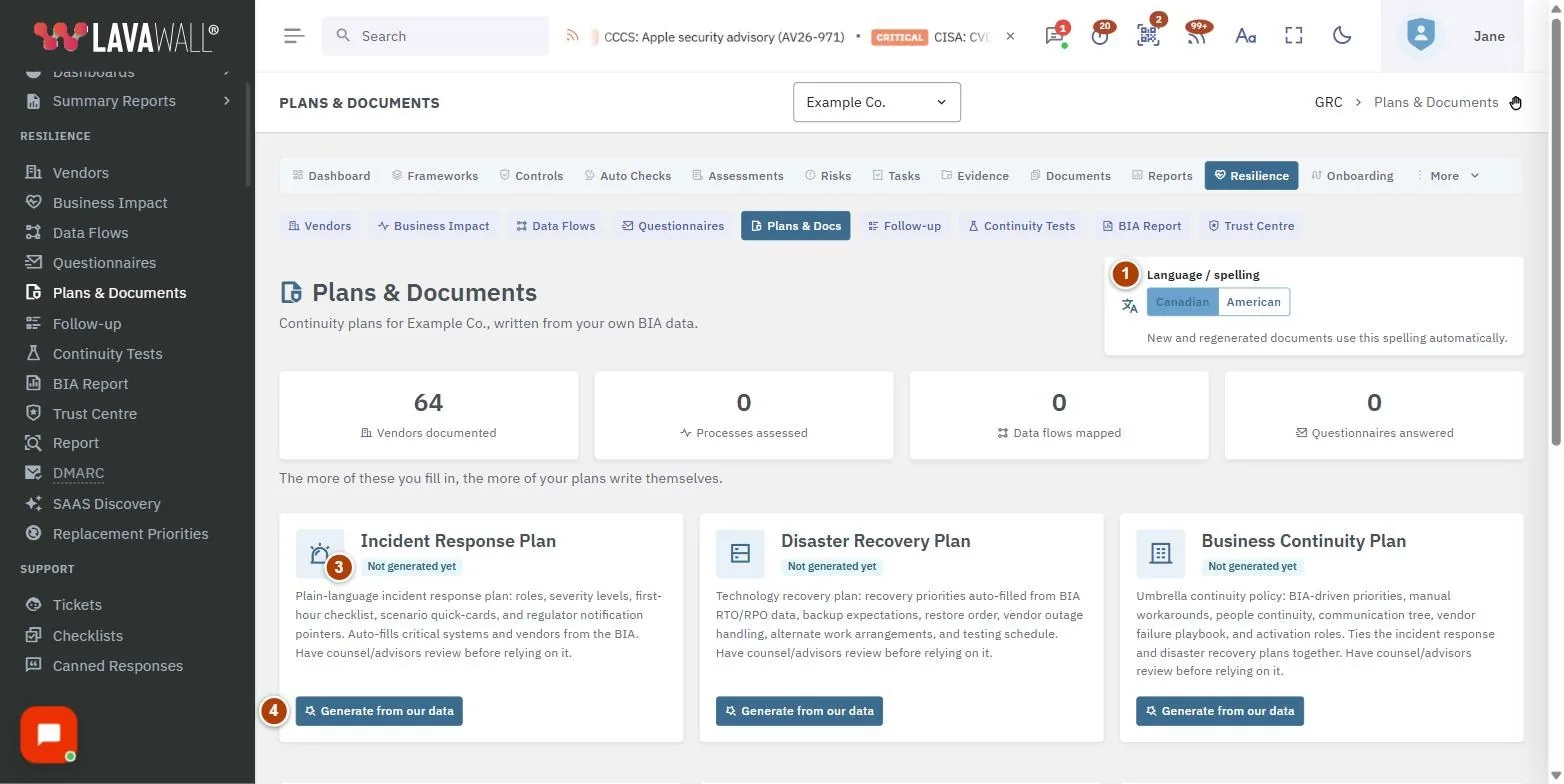
- Language / spelling: choose Canadian or American spelling for new and regenerated documents.
- Progress tiles: how many vendors are documented, processes assessed, data flows mapped and questionnaires answered. Each links to the page where you record it. The more you fill in, the more of your plans write themselves.
- Document cards: one card per plan, with a short description and a badge showing its status and version, or Not generated yet.
- Card buttons: Generate from our data for a new document, or Open in editor and Regenerate data sections for one that already exists.
- Privacy Policy (industry pack): a link to a full privacy policy template for your industry, or a prompt to set your company profile.
How to generate a plan
- Check the progress tiles. If a count is low, add the missing information first (for example on Vendor Inventory or Business Impact Assessment).
- On the plan's card, select Generate from our data.
- When the page reloads, select Open in editor to review the document, make any edits and move it through approval in the Document Library.
How to update a plan after your data changes
- On the plan's card, select Regenerate data sections.
- Confirm Rewrite it in the Rewrite this plan from fresh data? dialog. The document is rebuilt from the template and your current data; your manual edits are saved to version history first.
- Select Open in editor to review the new version.
How to choose Canadian or American spelling
- Under Language / spelling, choose Canadian or American.
- The setting saves straight away. New and regenerated documents use this spelling automatically.
How to get an industry privacy policy
- Scroll to Privacy Policy (industry pack).
- Select the policy shown to start a new document from it in the Document Library.
- If no policy is shown, select Set company profile, add your industry and operating locations in the compliance wizard, then come back.
Tips
- Start with the Business Continuity Plan and Disaster Recovery Plan. They draw most heavily on your processes and recovery objectives.
- The Privacy Policy Addendum is the piece that ties your vendors, AI use and foreign processing into your privacy policy. It still works if no industry privacy policy matches.
- Regenerate after big changes, such as adding a critical vendor or finishing a round of questionnaires.
- Generated documents live in the Document Library alongside your other policies, so reviews and approvals work the same way.
Troubleshooting
- A card shows "Template not installed" or "Template pack not loaded".
- The template for that document is not available for your account. Contact support.
- "No industry privacy-policy pack matched your company profile yet."
- Set your industry and operating locations in the compliance wizard, then check back.
- The spelling options are greyed out.
- Your compliance role does not allow changing company-wide settings. Ask an administrator.
- "Could not generate the document."
- Try again. If it keeps happening, contact support with the name of the plan.
Task guides that use this page
Related articles
Still need help?
Search the support centre, or contact our support team and tell us which page you were on:
- Chat now: use the chat button in the bottom-right corner of this page to reach our team right away. Where cookie consent is needed, the chat starts after you accept (cookie settings).
- Email: send our support team a message through the contact page. It goes straight to a person.
- Phone:
 AB: 1-403-538-5053
 US: 1-406-988-7333
 UK: +44 20 3695 9786
Names, companies, devices and figures in the pictures are examples. Other product and company names are trademarks of their respective owners.