SharePoint Monitor
See who viewed, changed, deleted or shared files on your SharePoint sites, and when and from where.
What the page is for
SharePoint Monitor is a page in the Lavawall® console, in the Microsoft 365 area. Lavawall is the RMM, security, and compliance platform from ThreeShield, built and hosted in Canada. About this feature.
When a file goes missing, a document is leaked, or someone downloads far more than usual, you need to know exactly who did what. This page shows SharePoint activity from your Microsoft 365 audit log: file and folder uploads, edits, deletions, moves, downloads, views and sharing, along with page and site changes.
Each event shows the time, the person, the site, the file or folder, the kind of item, the operation, the IP address and location, and whether it succeeded. A chart shows which people generated the most activity. Quick filters let you jump straight to write, read or sharing activity, and you can hide background system activity and Microsoft's own IP addresses to focus on real people.
Activity is collected automatically once Microsoft 365 is connected.
What you see
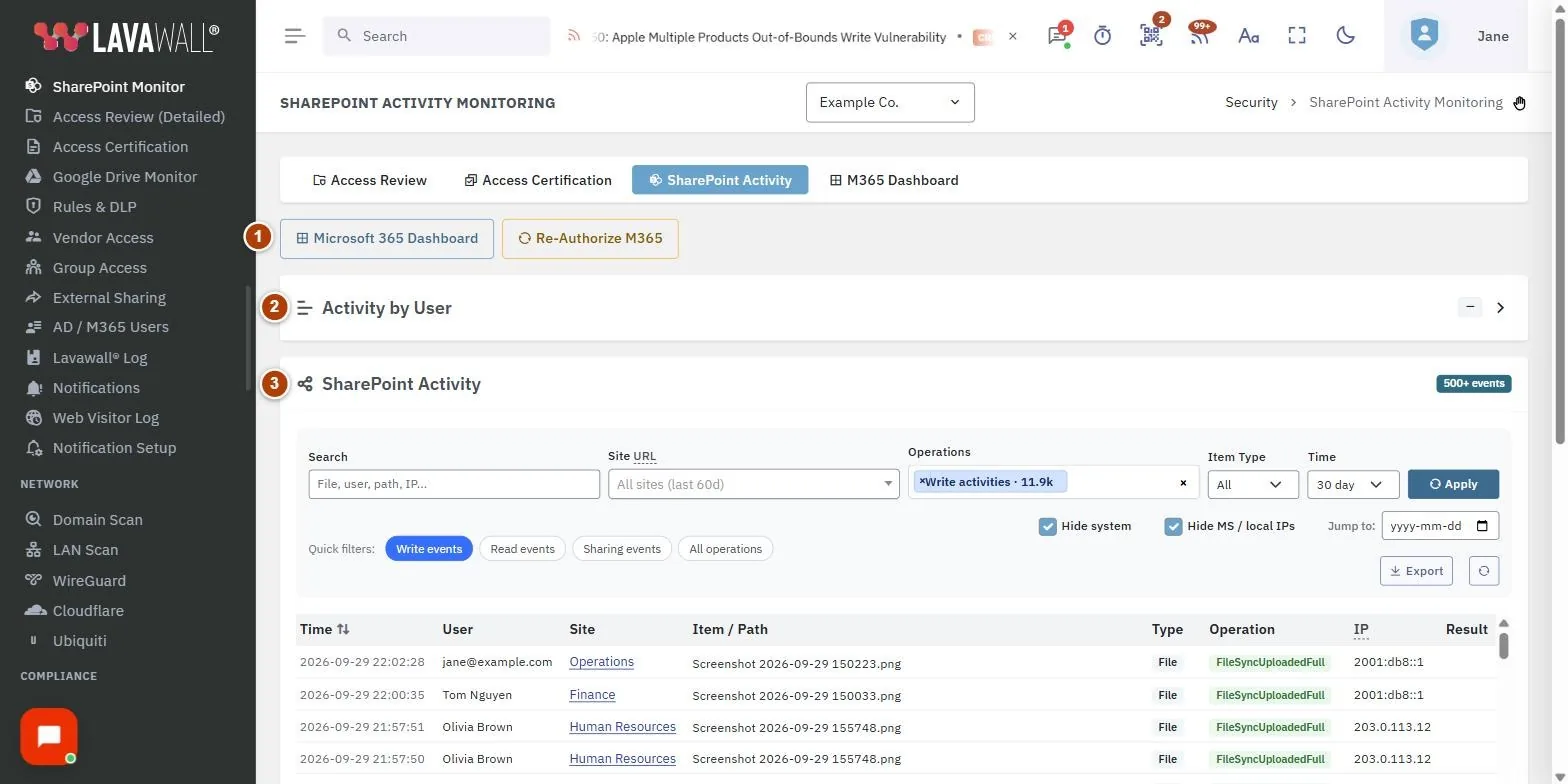
- Quick actions: Microsoft 365 Dashboard and Re-Authorize M365 (or Connect Microsoft 365 if not connected).
- Activity by User: a collapsible chart of activity per person for the current filters.
- SharePoint Activity header: the number of events.
- Filters: Search, Site URL, Operations, Item Type, Time and Apply.
- Quick filters and options: Write events, Read events, Sharing events, All operations; Hide system; Hide MS / local IPs; Jump to a date; Export; and reset.
- Activity table: Time, User, Site, Item / Path, Type, Operation, IP and Result, with Load more at the bottom.
How to find who changed or deleted a file
- Click Write events.
- Type the file name or part of its path in Search.
- Optionally choose the Site URL and widen Time (24 hours, 7 days, 30 days, 90 days or All).
- Click Apply. The table shows each upload, edit, rename, move and delete with who did it.
How to review file sharing
- Click Sharing events.
- Click Apply.
- Look for sharing to outside people and Anonymous badges, which mark activity through anonymous links.
How to investigate one person's activity
- Expand Activity by User to see who is most active.
- Type the person's name or email in Search.
- Click Read events to look for unusual downloads or views.
- Use Jump to to go to a specific date.
How to export activity
- Set the filters you want.
- Click Export to download a CSV file with time, user, site, path, item type, operation, IP, country, city, result and sharing details.
Tips
- Keep Hide system and Hide MS / local IPs ticked to focus on people rather than background services.
- Your filters are remembered for each company in this browser. Click the reset button to go back to the defaults.
- Choose several Operations at once to build your own filter.
- Failed operations are shown in red in the Result column.
- Use Access Review to see who currently has access, and this page to see what they actually did.
Troubleshooting
- "Microsoft 365 is not connected for this company."
- Click Connect Microsoft 365 and authorize as a Microsoft 365 administrator.
- "SharePoint File Monitoring isn't on your plan."
- Click View plans & subscribe to add it.
- "No SharePoint activity found for the selected filters."
- Widen Time, choose All operations, or untick Hide system.
- "No user activity to chart with the current filters."
- Widen the filters; the chart follows the table's filters.
Task guides that use this page
Related articles
Still need help?
Search the support centre, or contact our support team and tell us which page you were on:
- Chat now: use the chat button in the bottom-right corner of this page to reach our team right away. Where cookie consent is needed, the chat starts after you accept (cookie settings).
- Email: send our support team a message through the contact page. It goes straight to a person.
- Phone:
 AB: 1-403-538-5053
 US: 1-406-988-7333
 UK: +44 20 3695 9786
Names, companies, devices and figures in the pictures are examples. Other product and company names are trademarks of their respective owners.