Access Review
See who can reach every SharePoint site, Team, folder and mailbox in your Microsoft 365 tenant, and approve or deny each grant.
What the page is for
Access Review is a page in the Lavawall® console, in the Microsoft 365 area. Lavawall is the RMM, security, and compliance platform from ThreeShield, built and hosted in Canada. About this feature.
Access in Microsoft 365 builds up over time: people join Teams, files get shared with guests, and mailbox delegates and forwarding rules get added and forgotten. Access Review brings all of that into one place so you can check it regularly.
The page shows your SharePoint sites and Teams and who has access to each, the files and folders that have their own permissions instead of inheriting from the site, every guest with their invitation state and last activity, mailbox delegation and forwarding, and a list of grants waiting for a decision. You can look at access from a site's point of view or from a person's point of view.
Reviewers can approve, deny or flag each grant. Where your organization allows it, an administrator can also queue removal of a grant directly in Microsoft 365. Data comes from your connected Microsoft 365 tenant; the time of the last sync is shown at the top of the page.
What you see
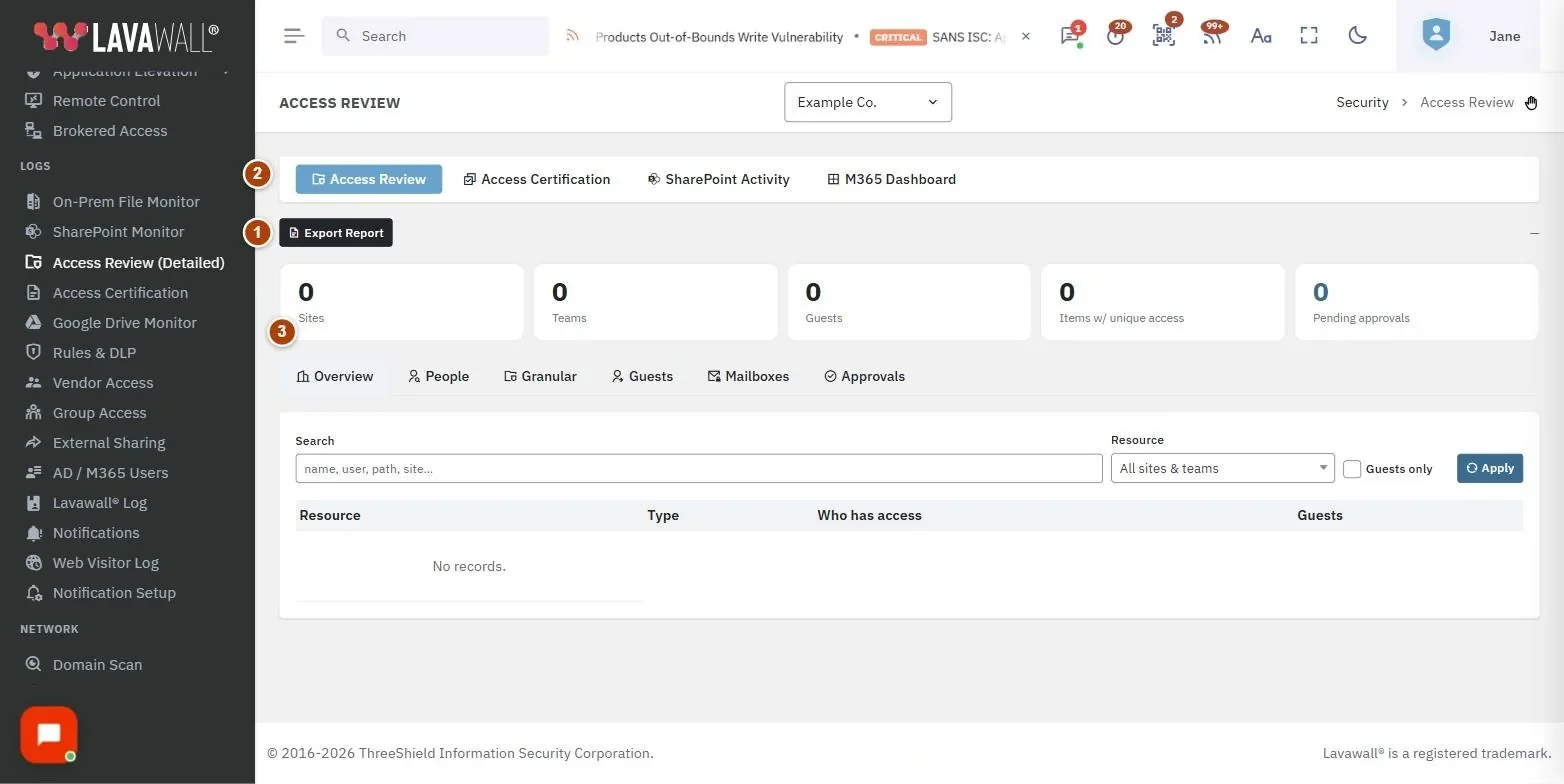
- Export Report: opens a printable access review report in a new tab. The last sync time is shown alongside.
- Summary tiles: Sites, Teams, Guests, Items w/ unique access and Pending approvals.
- Tabs: Overview, People, Granular, Guests, Mailboxes and Approvals.
- Filters: Search, Resource (a site or Team), Guests only and Apply.
- Results table: changes with the tab. For example, Overview shows Resource, Type, Who has access and Guests; Approvals shows Resource, Principal, Access, Guest, Status and Action.
How to see who has access to a site or Team
- Open the Overview tab.
- Find the site in the list, or pick it in Resource and click Apply.
- Check the Type badge: Team site, SharePoint site or OneDrive.
- Click the row to expand it and see the site's SharePoint groups (Owners, Members, Visitors) and the members of its backing group.
How to see everything one person can reach
- Open the People tab.
- Search for the person and click their name.
- Review their direct file and folder grants, sites reachable through group membership, Team memberships, group memberships and mailbox access.
- Click All people to go back.
How to review files and folders with their own permissions
- Open the Granular tab.
- Optionally choose a site in Resource and click Apply.
- Review each folder or file listed. Only items whose permissions differ from their parent are shown; items that simply inherit are not listed.
How to review guests and mailboxes
- Open the Guests tab to see each guest's Email / UPN, State, Invited by, Last login and Last access. A not accepted badge means the guest never accepted the invitation.
- Open the Mailboxes tab to see Shared mailboxes, Delegation and Forwarding. Look for flags such as external delegate, external forwarding and keeps a copy in mailbox.
How to approve, deny or flag access
- Open the Approvals tab. Tick Guests only to focus on guest access.
- For each grant, click the approve button, the deny button (you can enter an optional reason), or the flag button to mark it for an administrator to remove.
- If removal is enabled for your organization and you have permission, click the remove button and confirm to queue a real removal in Microsoft 365. It runs on the next collection cycle.
Tips
- Start with Guests and Mailboxes: external guests who never signed in and forwarding to outside addresses are the most common findings.
- Hover over badges and access levels for a plain-English explanation.
- Use People before someone leaves the organization to see everything they can reach.
- Use Access Certification when you want a formal sign-off of each user's access level to each Team and site.
Troubleshooting
- "Microsoft 365 is not connected for this company."
- Connect Microsoft 365 first. Access data appears after the next collection.
- "Access Review isn't enabled for this company."
- The add-on is not turned on in this company's subscription. Click Enable in billing.
- "You don't have permission to view access reviews for this company."
- Ask an administrator to grant you the Access Review permission.
- A site shows no Owners, Members or Visitors.
- The site's group information has not been collected yet. Check again after the next sync.
- "No item-level access found."
- Every file and folder in scope inherits its site's permissions, so there is nothing extra to review.
- "Read-only connection: authorize read and write access to use this."
- The company connected Microsoft 365 with read access only, so Lavawall does not change anything in its tenant and the button is disabled. A Microsoft 365 administrator can click Authorize read and write access and grant consent; the button works after that.
Task guides that use this page
Related articles
Still need help?
Search the support centre, or contact our support team and tell us which page you were on:
- Chat now: use the chat button in the bottom-right corner of this page to reach our team right away. Where cookie consent is needed, the chat starts after you accept (cookie settings).
- Email: send our support team a message through the contact page. It goes straight to a person.
- Phone:
 AB: 1-403-538-5053
 US: 1-406-988-7333
 UK: +44 20 3695 9786
Names, companies, devices and figures in the pictures are examples. Other product and company names are trademarks of their respective owners.