On-Prem File Monitor
Track who changed or deleted files on your file servers' shared folders, and spot unusual activity early.
What the page is for
On-Prem File Monitor is a page in the Lavawall® console, in the Logs & monitoring area. Lavawall is the RMM, security, and compliance platform from ThreeShield, built and hosted in Canada. About this feature.
The On-Prem File Monitor records file changes in shared folders on your Windows servers and computers. For each event you see when it happened, which computer, which user, the file path, and what kind of change it was: write, delete, append or deleting items inside a folder.
You choose which shares to monitor. Once a share is added, the Lavawall agent on that computer detects it and starts tracking file changes on its next sync. A chart shows activity by user, which makes a sudden burst of deletes or writes from one account easy to see.
What you see
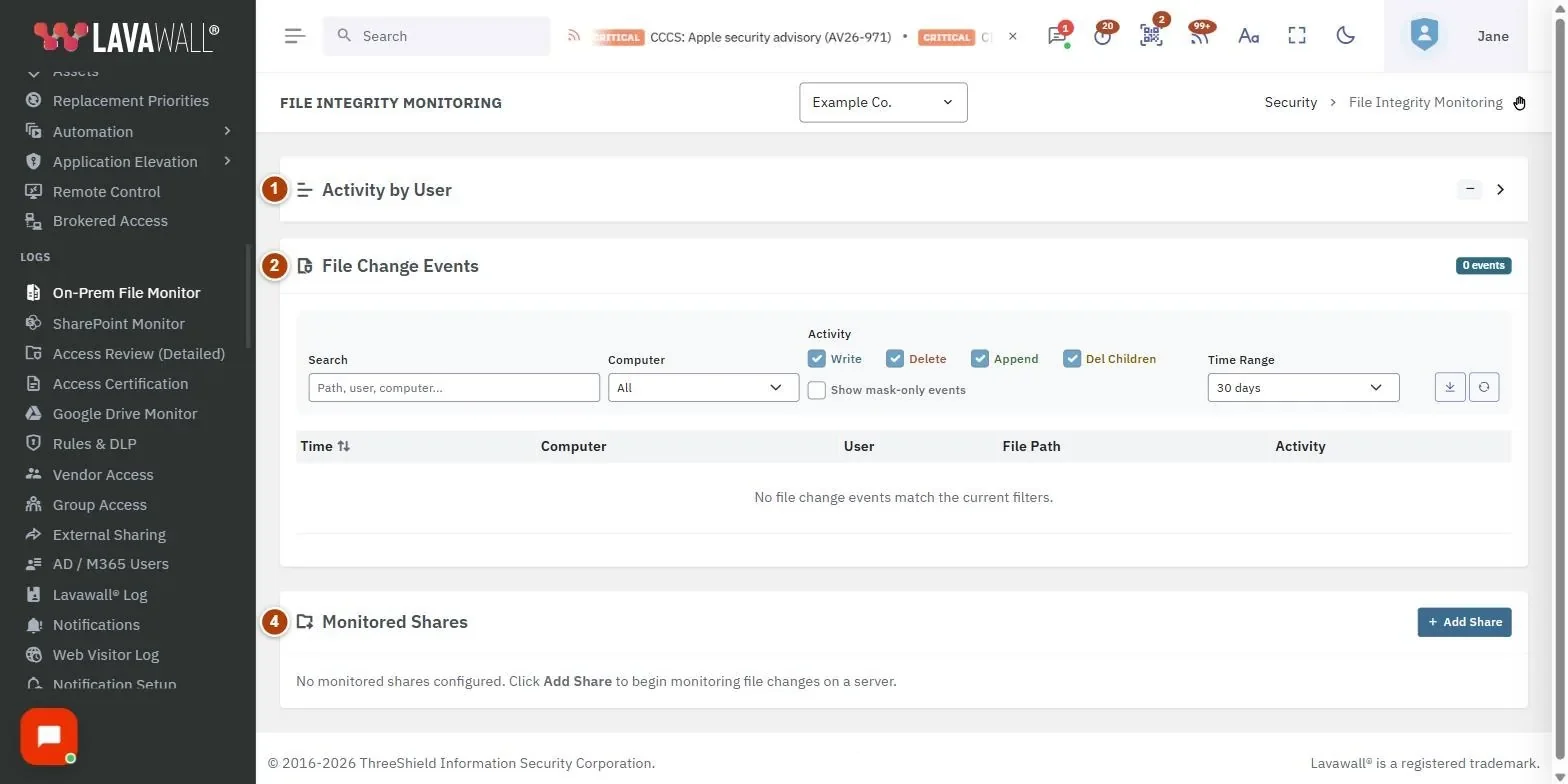
- Activity by User: a collapsible chart of file activity per user, coloured by type of change.
- File Change Events: filters for Search, Computer, Activity, Time Range, with export and reset buttons.
- Events table: Time, Computer, User, File Path and Activity.
- Monitored Shares: each monitored share's server, share name, path, type, current users and permissions, with Add Share.
- Add Monitored Share: the dialog for adding a share.
How to use On-Prem File Monitor
How to start monitoring a share
- In Monitored Shares, click Add Share.
- Choose the Server / Device (servers and workstations are listed separately).
- Enter the Share Name (for example SharedDocs$) and Share Path (for example D:\Shared\Documents).
- Click Add Share. Tracking begins on the agent's next sync.
How to find who deleted a file
- Under Activity, leave only Delete (and Del Children for folders) ticked.
- Type part of the file or folder name in Search.
- Choose a wider Time Range if needed: 7 days, 30 days, 90 days or All.
- Read the User and Time columns.
How to review a user's activity
- Expand Activity by User.
- Look for users with unusually large bars, especially red (delete) or blue (write).
- Type the user's name in Search to list their events.
How to export events
- Set your filters.
- Click the export button to download a CSV file of the events.
How to stop monitoring a share
- In Monitored Shares, click the remove button on the share and confirm.
- If no other shares remain on that computer, file change tracking is turned off for it.
Tips
- Colours: blue is write, red is delete, green is append, amber is deleting items inside a folder, grey is other.
- Show mask-only events adds events with no specific change flag, usually reads or open-only access. They are hidden by default because they are noisy.
- Your filters are remembered on this browser. Use the reset button to clear them.
- Click a server name in Monitored Shares to open that computer's detail page.
Troubleshooting
- "No monitored shares configured."
- Click Add Share to begin monitoring a share.
- No events after adding a share.
- Tracking starts on the agent's next sync. Check the agent is online on that computer.
- "Please fill in all fields."
- Choose a device and enter both the share name and the share path.
- "No user activity to chart with the current filters."
- Widen the time range or tick more activity types.
Related articles
Still need help?
Search the support centre, or contact our support team and tell us which page you were on:
- Chat now: use the chat button in the bottom-right corner of this page to reach our team right away. Where cookie consent is needed, the chat starts after you accept (cookie settings).
- Email: send our support team a message through the contact page. It goes straight to a person.
- Phone:
 AB: 1-403-538-5053
 US: 1-406-988-7333
 UK: +44 20 3695 9786
Names, companies, devices and figures in the pictures are examples. Other product and company names are trademarks of their respective owners.