People Security
Keep a register of joiners, leavers and background checks, and spot any leaver whose account is still switched on.
What the page is for
People Security is a page in the Lavawall® console, in the Compliance (GRC) area. Lavawall is the RMM, security, and compliance platform from ThreeShield, built and hosted in Canada. About this feature.
Most compliance frameworks ask you to prove that new staff were onboarded properly, that people who left were offboarded and had their access removed, and that background checks were done where required. People Security keeps that register for you.
If your Microsoft 365 or Google Workspace directory is connected, Sync from directory fills the register for you: new accounts are added, names, job titles and departments are refreshed, and people who have gone from the directory are marked as leavers. If a leaver's account is still enabled, the row is flagged in red and an issue is raised for each one. Without a connected directory, you add people by hand.
When an auditor asks for proof, Snapshot to evidence saves the register as an encrypted spreadsheet against the personnel control it supports, where it waits for review like any other evidence.
What you see
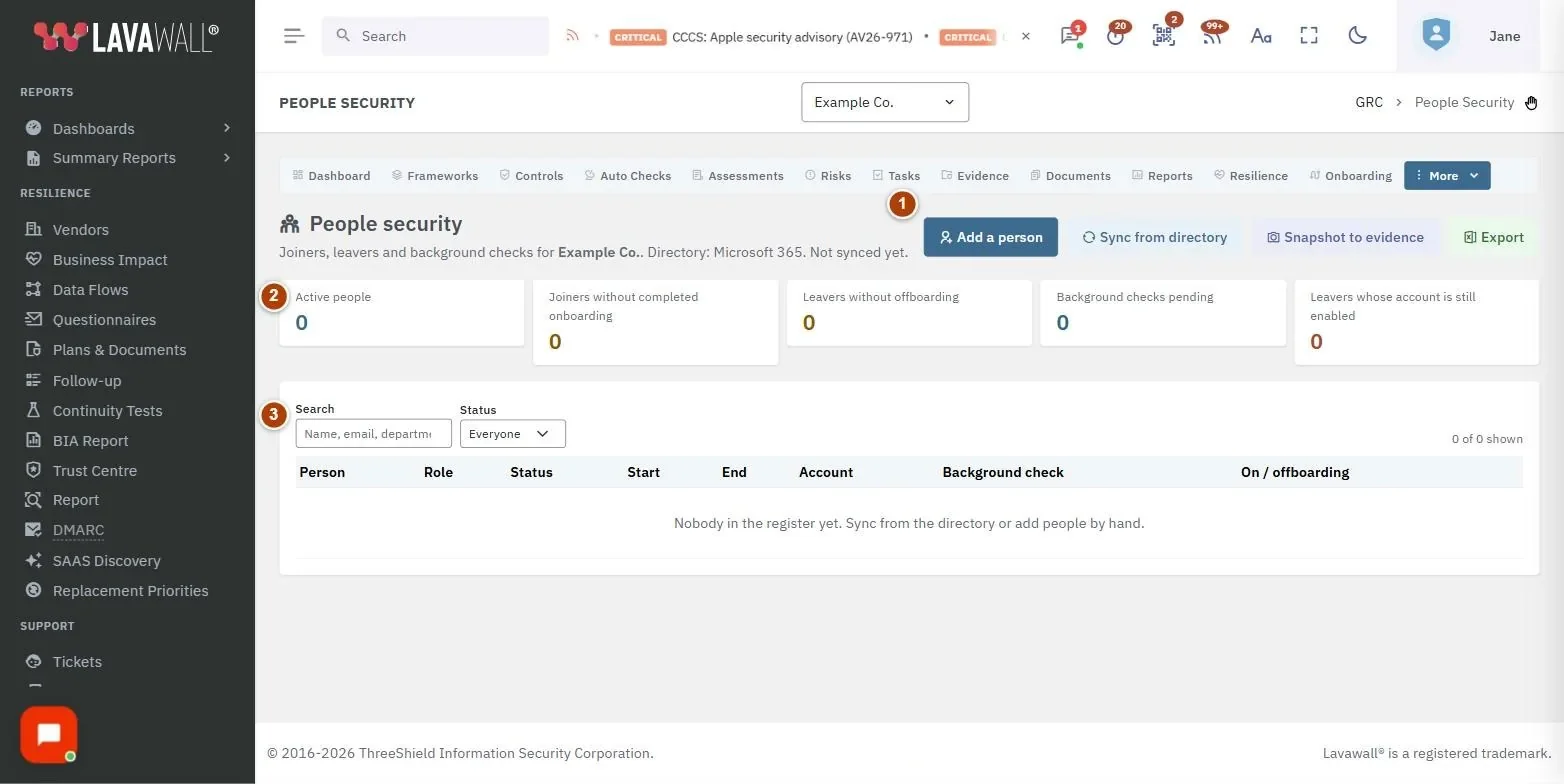
- Header and actions: the directory the register syncs from and when it last synced, plus Add a person, Sync from directory, Snapshot to evidence and Export.
- Summary tiles: Active people, Joiners without completed onboarding, Leavers without offboarding, Background checks pending and Leavers whose account is still enabled. Click a tile to filter the table.
- Search and Status filter: search by name, email or department, and show Everyone, Active or Leavers.
- People table: Person, Role, Status, Start, End, Account, Background check and On / offboarding, with quick buttons to record what is outstanding.
- Person dialog: opens when you click a name or Add a person.
How to sync from your directory
- Select Sync from directory.
- The Directory sync summary shows how many accounts were read, added, updated and marked as leavers.
- If any leaver still has an enabled account, the summary says so and an issue is raised for each one. Disable those accounts, then sync again to close the red flags.
How to add or edit a person
- Select Add a person, or click a person's name in the table.
- Fill in Email (new people only), Name, Job title, Department, Status, Start date and End date.
- Set Background check and Checked on if a check applies.
- Turn on Onboarding done or Offboarding done when those steps are complete.
- Select Save.
How to record onboarding, offboarding or a background check quickly
- Find the person in the table. Outstanding items show as buttons at the end of the row: Onboarding done, Offboarding done or Check complete.
- Click the button and confirm with Record it. Today's date is recorded.
How to save the register as evidence
- Select Snapshot to evidence.
- Search for the personnel control the register supports (for example termination, onboarding or screening) and click it.
- Select Save snapshot.
- Use Open the evidence in the confirmation to review the new evidence item.
How to export the register
- Select Export.
- A spreadsheet of the register downloads, named with your company and today's date.
Tips
- Start with the red Leavers whose account is still enabled tile. These rows are highlighted in red in the table and are the most important to fix.
- A leaver with no end date is given today's date when you save.
- For people synced from a directory, name, job title and department are refreshed on every sync, so edit those in the directory rather than here.
- The Account column shows "Not in directory" for people you added by hand.
Troubleshooting
- "No directory is connected, so people are added by hand."
- Connect Microsoft 365 or Google Workspace to sync automatically, or use Add a person.
- "Nobody in the register yet."
- Select Sync from directory or add people by hand.
- "Evidence storage is not configured on this server."
- Snapshots cannot be saved until evidence storage is available. Contact your administrator or support.
- "Choose a control."
- Pick a control from the list in the snapshot dialog before saving.
- I don't see the buttons.
- Adding, syncing and snapshots need a GRC role that can edit; Export needs a role that can export.
Task guides that use this page
Related articles
Still need help?
Search the support centre, or contact our support team and tell us which page you were on:
- Chat now: use the chat button in the bottom-right corner of this page to reach our team right away. Where cookie consent is needed, the chat starts after you accept (cookie settings).
- Email: send our support team a message through the contact page. It goes straight to a person.
- Phone:
 AB: 1-403-538-5053
 US: 1-406-988-7333
 UK: +44 20 3695 9786
Names, companies, devices and figures in the pictures are examples. Other product and company names are trademarks of their respective owners.