Patch Config
Set how patching behaves for a type of company, a company, a single device or a single application, and let everything else inherit sensible defaults.
What the page is for
Patch Config is a page in the Lavawall® console, in the Devices area. Lavawall is the RMM, security, and compliance platform from ThreeShield, built and hosted in Canada. About this feature.
Patch Config holds your patching rules as a list of config rows. Each row has a scope (who it applies to) and overrides (what it changes). Anything a row does not set is inherited from a broader rule, so you only write down the exceptions.
Scopes can be combined from four filters: a company type, one or more companies, specific devices within those companies, and a specific application patch. For example, one row could apply to all companies of one type, while another row changes the setting for one server at one client.
The list of existing rows is on the left, and the Create Patch Config form is on the right.
What you see
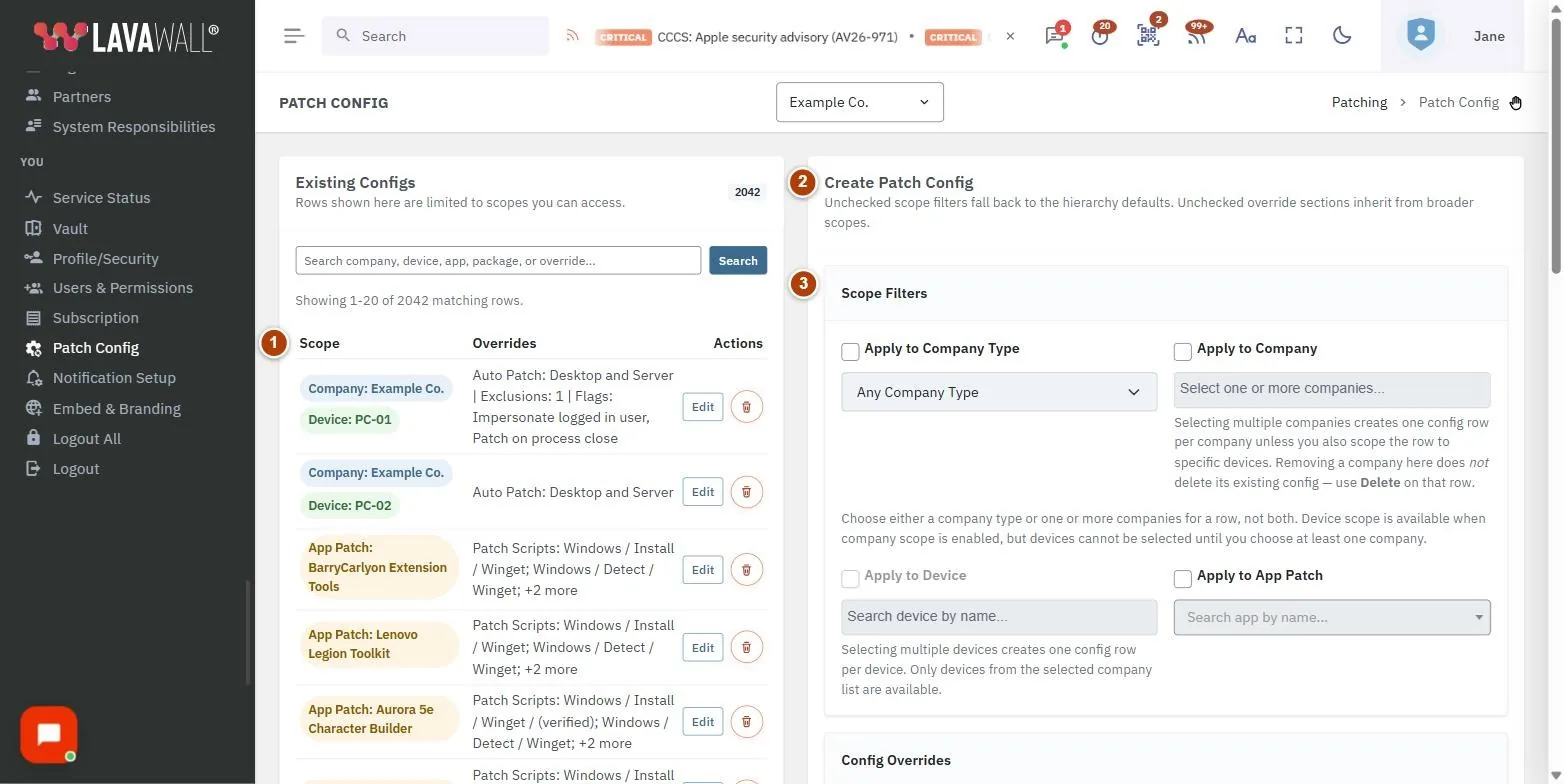
- Config list: your existing patch config rows, with search, paging, and actions to edit or Delete a row.
- Create Patch Config (or Edit Patch Config): the form for a new or selected row, with a reminder that unchecked filters and sections inherit from broader scopes.
- Scope Filters: Apply to Company Type, Apply to Company, Apply to Device and Apply to App Patch, each with a tick box and a picker.
- Override sections: the patch settings this row changes. Leave a section unticked to inherit it.
- Save Config: saves the row. Success and error messages appear at the top of the page.
How to manage patch rules
How to create a rule for a company type
- Tick Apply to Company Type and pick the type.
- Tick the override sections you want to change and set their values.
- Click Save Config.
How to create a rule for one or more companies
- Tick Apply to Company and pick one or more companies.
- Set the overrides and click Save Config. One row is created for each company you picked.
How to create a rule for specific devices
- Tick Apply to Company and choose at least one company.
- Tick Apply to Device and pick the devices. Only devices from the chosen companies are offered.
- Set the overrides and click Save Config. One row is created for each device.
How to create a rule for one application
- Tick Apply to App Patch and search for the application.
- Combine it with a company or device scope if needed, set the overrides and click Save Config.
How to edit or delete a rule
- In the config list, choose a row to edit. The form title changes to Edit Patch Config.
- Change the overrides and click Save Config, or click New Row to go back to creating a new rule.
- To remove a rule, use the row's Delete action.
Tips
- Use either a company type or companies for a row, not both.
- You can tick Apply to Device before choosing companies, but the device picker stays locked until at least one company is selected.
- Removing a company from the picker while editing does not delete that company's existing row. Use Delete on that row instead.
- Keep broad defaults at the company-type level and add narrow exceptions for single devices or applications.
Troubleshooting
- "Choose at least one company before selecting devices."
- Select a company under Apply to Company first.
- An older rule says it applies to a specific package.
- Package scope can no longer be edited on this page. Adjust its overrides here, or delete the row.
- "Please log in to manage patch config."
- Your session has ended. Sign in again.
Related articles
Still need help?
Search the support centre, or contact our support team and tell us which page you were on:
- Chat now: use the chat button in the bottom-right corner of this page to reach our team right away. Where cookie consent is needed, the chat starts after you accept (cookie settings).
- Email: send our support team a message through the contact page. It goes straight to a person.
- Phone:
 AB: 1-403-538-5053
 US: 1-406-988-7333
 UK: +44 20 3695 9786
Names, companies, devices and figures in the pictures are examples. Other product and company names are trademarks of their respective owners.