Add User
Give a colleague or client their own Lavawall sign-in, with the right role and only the modules they need.
What the page is for
Add User is a page in the Lavawall® console, in the Account & users area. Lavawall is the RMM, security, and compliance platform from ThreeShield, built and hosted in Canada. About this feature.
This page creates a new Lavawall user for your own company or for one of your client companies. You choose the organization, the user type (role), enter their name, phone and email, and optionally send them an invitation email.
You can also limit which of the organization's subscribed modules the new user can open. Leave Unrestricted on to let the company's subscription decide, or pick specific modules.
When the user is created you are taken back to Users & Permissions. New users also receive your organization's default remote access setting from the Access Policy.
What you see
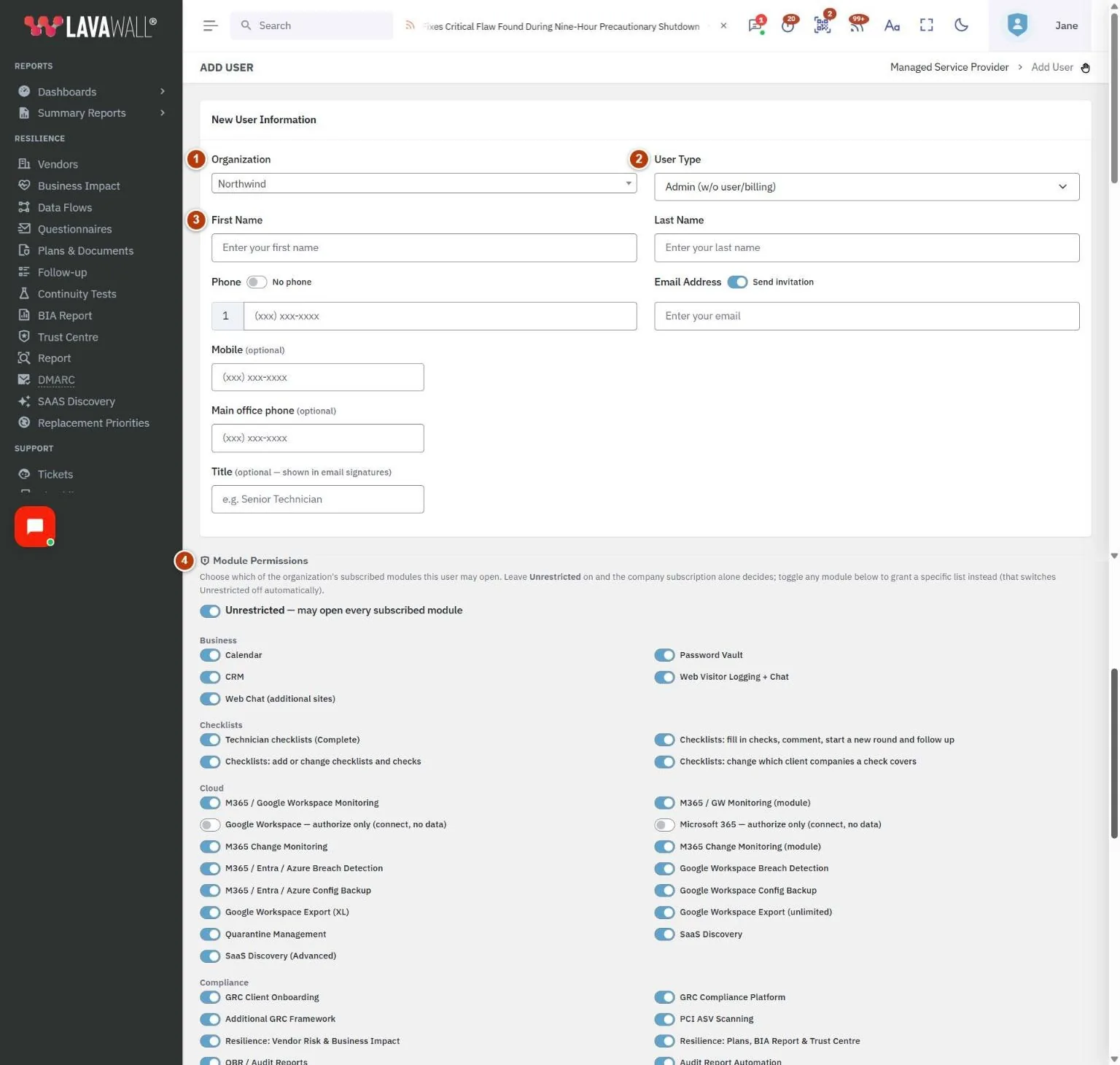
- Organization: a searchable list of your company and your client companies.
- User Type: the role the new user will have.
- Name and contact fields: First Name, Last Name, Phone (with a No phone switch), Mobile, Main office phone, Title and Email Address (with a Send invitation switch).
- Module Permissions: Unrestricted, or a switch for each optional module the organization subscribes to.
- Create User: creates the account.
How to add a user
- Choose the Organization the user belongs to.
- Choose the User Type.
- Enter First Name, Last Name and Email Address. Enter a Phone number, or turn on No phone.
- Optionally add Mobile, Main office phone and Title. The title is shown in email signatures.
- Leave Send invitation on to email the user a link to sign in.
- Click Create User.
How to limit which modules a user can open
- Under Module Permissions, turn on the switch for each module the user should have. Turning any on switches Unrestricted off automatically.
- To give access to everything the organization subscribes to, turn Unrestricted back on.
- Click Create User. You can change this later from Edit on Users & Permissions.
User types
- Super Admin: full control, including users and billing (your own company only; only a Super Admin can assign it).
- MSP Client Administrator: manages users at your client companies (your own company only; only a Super Admin can assign it).
- Admin (w/o user/billing): administers the company without managing users or billing.
- Billing only, Read only, Reports and questionnaires only: limited access.
- Client Local IT: for the client's own IT person.
- Status & tickets only: sees only the Service Status page and their own tickets.
Language
The Language field sets the language the new user sees in the console, so you can onboard someone in their own language. Leave it on Company default to follow the organization's setting.
The invitation email is sent in that person's language: their own setting, otherwise their organization's default, otherwise your language. See Choose the console language.
Tips
- The User Type list changes with the organization: MSP-level roles are offered only for your own company.
- An MSP Client Administrator can create only Read only, Reports and questionnaires only, Client Local IT, and Status & tickets only users, and only at client companies.
- Use Status & tickets only for client staff who just need to raise and follow tickets.
- A photo can be added later from Edit User or by the user on their Profile.
Troubleshooting
- "Validation Errors"
- lists what to fix: a missing first or last name, a phone number shorter than 10 digits, or an invalid email.
- "This email is already in use."
- Each email can belong to only one Lavawall user.
- "You cannot assign this role."
- Your own role cannot grant the type you chose.
- "Your security token expired before the user could be created."
- Usually caused by the console being open in another tab. No user was created; check the details and click Create User again.
- "User was created, but the invitation email could not be sent."
- Tell the user to sign in at the console address directly.
Task guides that use this page
Related articles
Still need help?
Search the support centre, or contact our support team and tell us which page you were on:
- Chat now: use the chat button in the bottom-right corner of this page to reach our team right away. Where cookie consent is needed, the chat starts after you accept (cookie settings).
- Email: send our support team a message through the contact page. It goes straight to a person.
- Phone:
 AB: 1-403-538-5053
 US: 1-406-988-7333
 UK: +44 20 3695 9786
Names, companies, devices and figures in the pictures are examples. Other product and company names are trademarks of their respective owners.