Microsoft 365 Applications
See every application connected to your Microsoft 365 tenant, what it is allowed to do, who approved it and whose data it has reached.
What the page is for
Microsoft 365 Applications is a page in the Lavawall® console, in the Microsoft 365 area. Lavawall is the RMM, security, and compliance platform from ThreeShield, built and hosted in Canada. About this feature.
Users and administrators can connect third-party applications to Microsoft 365 and grant them access to mail, files and directory data. A malicious or over-privileged app can read data long after anyone remembers approving it. This page lists every application in your tenant with its publisher, permissions and risk, so you can spot the ones that should not be there.
Lavawall flags apps that look risky: apps flagged as suspicious, apps that match a known rogue app, and apps holding a high-risk permission. Apps you have marked as trusted and apps that have been removed are not counted as risky. The count matches the figure on the Microsoft 365 dashboard.
Click any app to see its full details, including who approved it, which users consented, and which users' data it accessed in the background or interactively. Data comes from your connected Microsoft 365 tenant.
What you see
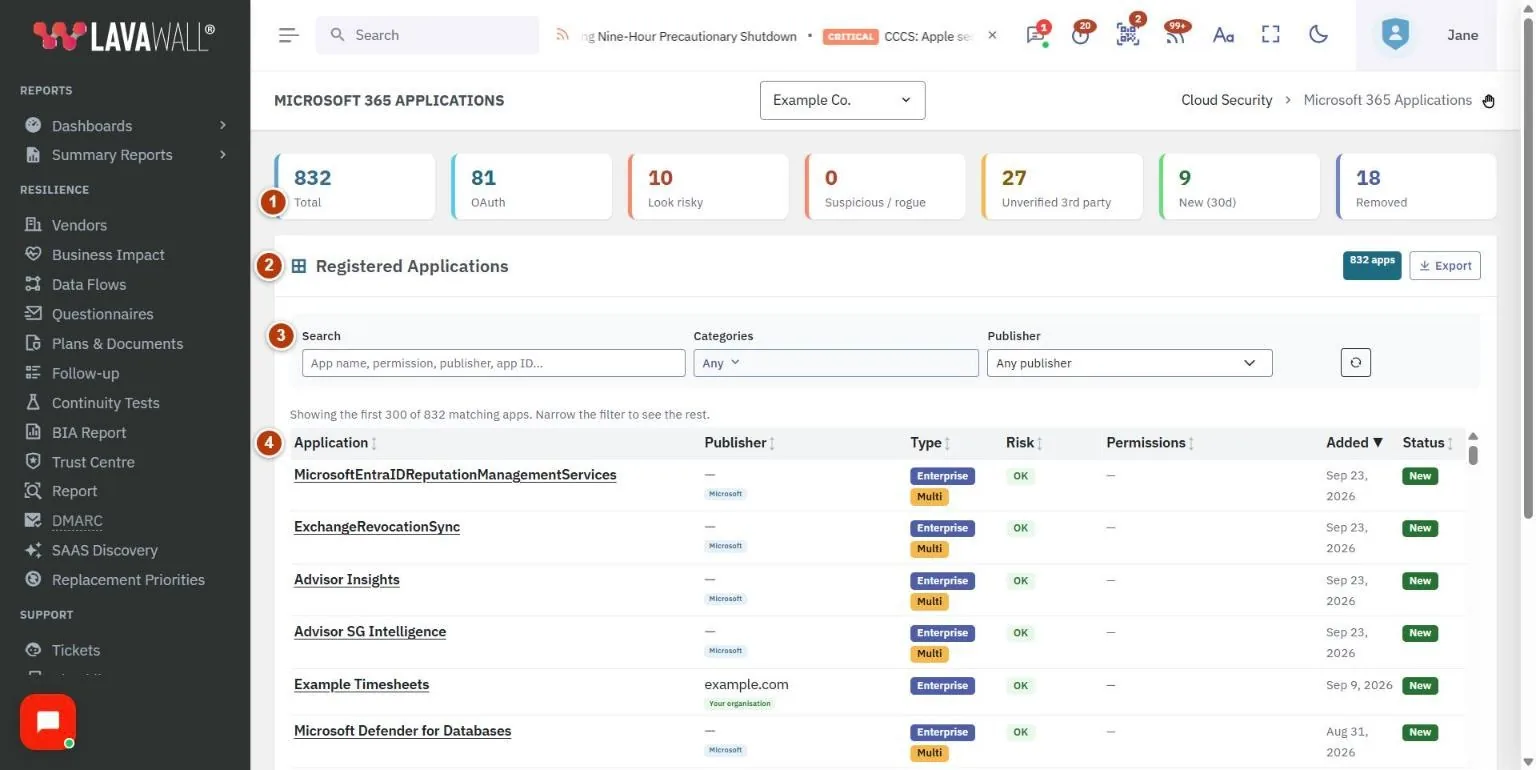
- Summary boxes: Total, OAuth, Look risky, Suspicious / rogue, Unverified 3rd party, New (30d) and Removed. Click a box to filter the table to that category; Total clears all filters.
- Registered Applications header: the number of apps and Export.
- Filters: Search (app name, permission, publisher or app ID), Categories (choose one or more, including Approved and Not approved), Publisher (an owner type or a single publisher; type to search the list), and a reset button.
- Applications table: Application, Publisher, Type, Risk, Permissions, Added and Status. Approved apps show an Approved badge in Status. Every column sorts.
- Application details: a window with the app's approval status, publisher and owner, links, consent, its permissions, Approved by, Consented and Users whose data it accessed.
How to find risky applications
- Click the Look risky box, or open the page from the risky-apps figure on the Microsoft 365 dashboard.
- Check the Risk column: High-risk perms (red), Elevated perms (amber), OK or Trusted. Hover over the badge to see why.
- Rows highlighted in red are suspicious or match a known rogue app.
How to review an application
- Click the app's name.
- Review Publisher, Verified publisher, Owner (Microsoft, your organization or a third party) and the publisher's links.
- Review the Permissions list. Each permission shows its type, the resource it applies to, whether it is granted or only requested, its risk and a description.
- Check Approved by to see who consented and when.
- Check Consented to see whether it has admin consent for all users or which users approved it.
- Check Users whose data it accessed for the last background and interactive access by user.
How to approve an application
Approve an app once your organization has reviewed it and accepts it. Lavawall's automatic compliance checks, such as the checks for unapproved AI apps, then treat it as accepted. Approval is recorded in the activity log with your name.
- Click the app's name.
- At the top of the window, click Approve.
- Add a note if you want, for example who asked for it or what it may be used for, and click Approve.
- To undo it, open the app again and click Remove approval.
Only a Super Admin or Admin, an MSP Client Administrator (for client organizations) or Client Local IT (for their own organization) can approve apps. Approving an app in Lavawall does not change anything in Microsoft 365.
How to filter and export
- Type in Search, choose Categories (for example Unverified 3rd party and Has granted permissions) and pick a Publisher.
- Click a column heading to sort.
- Click Export to download the filtered list as a CSV file.
- Click the reset button to clear all filters.
Tips
- Permission colours run from green (low risk) through yellow and orange to red (high risk). Click the coloured bar in the Permissions column to show all of an app's permissions.
- Permissions shown in italics are requested but not granted.
- Third-party apps without a Microsoft verified publisher deserve a closer look.
- Use New (30d) after an incident to see what was added recently.
Troubleshooting
- "Publisher details appear after the next Microsoft 365 sync"
- : publisher information is not available yet. Check again after the next sync.
- "No consent events for this app in the audit history held"
- : Microsoft keeps about 30 days of audit history. Older approvals appear only if Lavawall was already connected at the time.
- "Could not load applications"
- : refresh the page. If it persists, check that Microsoft 365 is still connected.
Task guides that use this page
Related articles
Still need help?
Search the support centre, or contact our support team and tell us which page you were on:
- Chat now: use the chat button in the bottom-right corner of this page to reach our team right away. Where cookie consent is needed, the chat starts after you accept (cookie settings).
- Email: send our support team a message through the contact page. It goes straight to a person.
- Phone:
 AB: 1-403-538-5053
 US: 1-406-988-7333
 UK: +44 20 3695 9786
Names, companies, devices and figures in the pictures are examples. Other product and company names are trademarks of their respective owners.