Elevation Printers
Give people the printers they need without giving them administrator rights: the Lavawall agent installs the driver and adds the printer for them.
What the page is for
Elevation Printers is a page in the Lavawall® console, in the Application elevation area. Lavawall is the RMM, security, and compliance platform from ThreeShield, built and hosted in Canada. About this feature.
Since the PrintNightmare fixes, a standard Windows user cannot install a printer driver, and that is often the reason people are handed local administrator rights. On this page you publish printers to your organization's computers, and the Lavawall agent (which already runs with system rights) installs the driver and creates the printer. Nobody is prompted and nobody is given administrator rights.
You can publish a network printer with its own IP address, which is added for everyone who uses the computer, or a queue on a print server, where the agent installs the driver so people can add the queue themselves without a prompt.
The page also shows how many computers have reported, which are behind the current list, and which could not install a printer and why.
What you see
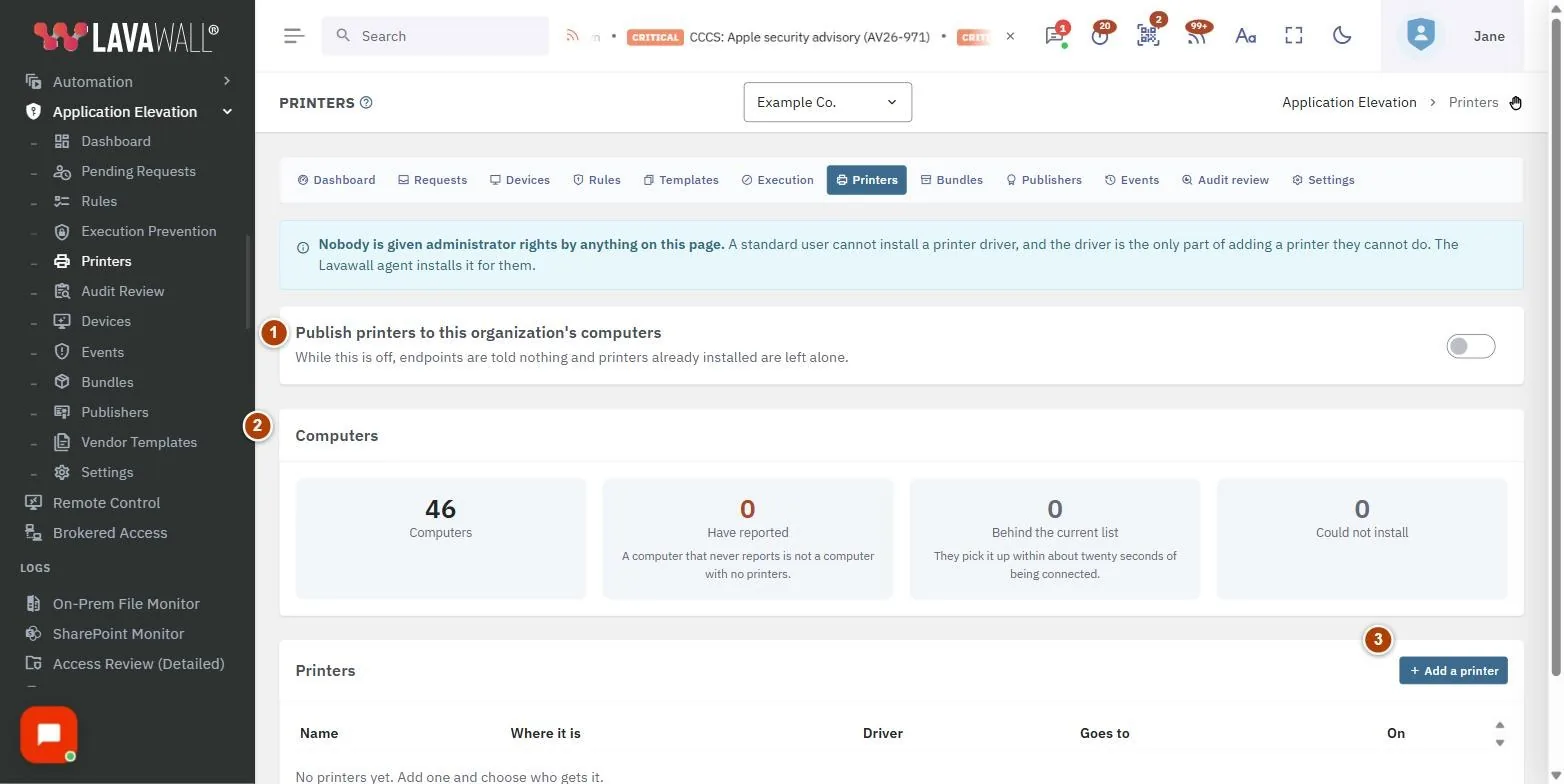
- Publish printers to this organization's computers: the on/off switch for the whole feature.
- Computers: tiles for Computers, Have reported, Behind the current list, Could not install and, when relevant, Print spooler stopped.
- Printers: Name, Where it is, Driver, Goes to, On, with Edit and Withdraw, plus Add a printer.
- Computers that could not install a printer: Computer, Printer, Why and Reported. Shown only when there are failures.
- Add a printer dialog: Name people will see, Kind, IP address or host name (or Print server name and Share name), Port, Driver name, Note and Give it to every computer in this organization.
How to use Elevation Printers
How to turn printer publishing on
- Turn on Publish printers to this organization's computers.
- Assigned computers now install published printers on their own.
How to add a network printer
- Select Add a printer.
- Enter the Name people will see, for example "Front office".
- Leave Kind on Network printer (its own IP address) and enter its IP address or host name, such as 203.0.113.25.
- Leave Port at 9100 unless you know otherwise.
- Enter the Driver name, exactly as Windows lists it. "Microsoft IPP Class Driver" works for most modern network printers.
- Tick Give it to every computer in this organization, then select Save.
How to publish a print server queue
- Select Add a printer and choose Queue on a print server.
- Enter the Print server name and Share name, plus the driver name.
- Select Save. People can then add the queue themselves without being prompted.
How to change or remove a printer
- Select Edit on the printer's row, change the details and select Save.
- To remove it, select Withdraw and confirm. Computers remove it when they next check in; the driver stays, so anyone who added it themselves keeps working.
Tips
- The driver must already be on the computer or ship with Windows.
- The On column shows how many computers have the printer; for print server queues it shows how many are ready. Failures appear in red.
- Connected computers pick up changes within about twenty seconds.
- A computer that never reports is not the same as a computer with no printers. Check Have reported.
- Turning the switch off tells computers nothing new and leaves printers already installed alone.
Troubleshooting
- "Print spooler stopped" tile appears.
- : No printer can install on those computers until the Windows Print Spooler service runs.
- A computer is listed under "Computers that could not install a printer".
- : Read the Why column; the most common cause is a driver name that does not exactly match what Windows lists.
- "Goes to" shows "Nobody yet".
- : Edit the printer and tick Give it to every computer in this organization.
- "You do not have permission to manage printers."
- : Publishing a printer installs a driver on every computer it reaches, so it needs the elevation Admin permission.
- "Application Elevation is not switched on for this organization."
- : Printers are part of the elevation module; switch it on first.
Related articles
Still need help?
Search the support centre, or contact our support team and tell us which page you were on:
- Chat now: use the chat button in the bottom-right corner of this page to reach our team right away. Where cookie consent is needed, the chat starts after you accept (cookie settings).
- Email: send our support team a message through the contact page. It goes straight to a person.
- Phone:
 AB: 1-403-538-5053
 US: 1-406-988-7333
 UK: +44 20 3695 9786
Names, companies, devices and figures in the pictures are examples. Other product and company names are trademarks of their respective owners.