Application Elevation Dashboard
See at a glance how Application Elevation is running: which mode each company is in, how many computers are enrolled, what is waiting for approval, and which computers have administrator elevation switched on right now.
What the page is for
Application Elevation Dashboard is a page in the Lavawall® console, in the Application elevation area. Lavawall is the RMM, security, and compliance platform from ThreeShield, built and hosted in Canada. About this feature.
Application Elevation lets people work without local administrator rights. When a program needs administrator rights, the Lavawall agent checks it against your rules and either allows it, blocks it, or asks for approval. This dashboard is the starting point for that module.
For a single company it shows the module status (Disabled, Audit only, Enforce, or Enforce + Ringfence), the version and age of the rule bundle sent to its computers, counts of enrolled devices, pending requests and decisions in the last 24 hours, recent events, and quick links to the rest of the module. The counts refresh automatically every 30 seconds.
With All companies selected, MSPs see every company in their account in one table, where they can switch Application Elevation on for each customer and choose its mode without leaving the page.
If Application Elevation is included in your plan but not yet switched on for this company, the page explains that turning it on does not enforce anything, and offers Enable Application Elevation.
What you see
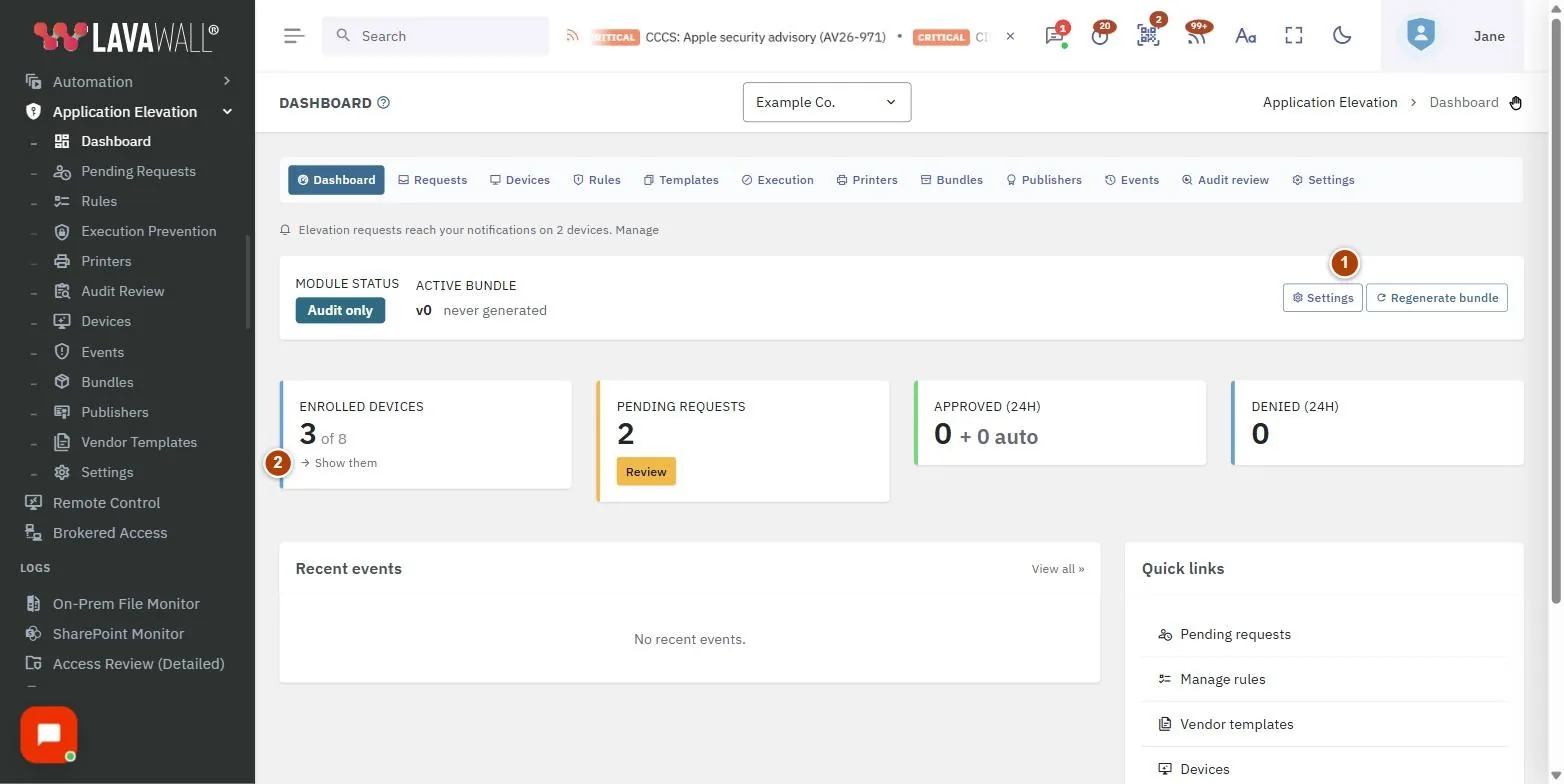
- Module status bar: the current mode, the active bundle version and how long ago it was generated, with Settings and Regenerate bundle.
- Stat tiles: Enrolled devices (of eligible devices, with Show them), Pending requests (with Review), Approved (24h) plus automatic approvals, and Denied (24h).
- Administrator elevation is ON: computers where a technician has switched on elevation for a period, who granted it, minutes left, and Turn off. Shown only while at least one is active.
- Companies in this account: with All companies selected: each company, an on/off switch, its Mode, Windows devices, Enrolled, Pending and Open.
- Recent events: the latest elevation activity, with View all.
- Quick links: Pending requests, Manage rules, Vendor templates, Devices, Audit review and Bundle history.
How to use Application Elevation Dashboard
How to switch Application Elevation on for a company
- Select the company in the company selector.
- Select Enable Application Elevation.
- The page reloads into the dashboard. Go to Settings and pick an operating mode. Start with Audit.
How to switch it on for several customers (MSPs)
- Choose All companies in the company selector.
- In Companies in this account, turn on the switch for each customer.
- Choose each customer's Mode. Start with Audit only.
- Select Open on a row to see that company's own dashboard.
How to see which computers are enrolled
- Select the Enrolled devices tile.
- The Devices page opens filtered to enrolled computers.
How to review waiting requests
- On the Pending requests tile, select Review.
- Approve or deny each request on the Pending Requests page.
How to end a technician elevation early
- In Administrator elevation is ON, find the computer.
- Select Turn off and confirm. Programs on that computer need approval again straight away.
How to push rule changes now
- Select Regenerate bundle in the status bar.
- Computers pick up the new bundle on their next check-in.
Tips
- Audit only watches and records what would have been blocked and blocks nothing. It builds the history that your approval rules are built from, so always start there.
- Enforce acts on your rules. Enforce + Ringfence also restricts what an allowed program may itself launch.
- The Pending requests tile turns amber when anything is waiting; Denied turns red when anything was denied in the last day.
- "Active bundle: never generated" means no rule bundle has been built yet; select Regenerate bundle.
- Bundle version is per company, so with All companies selected the status bar says to open a company to see it.
Troubleshooting
- "Application Elevation is included in your plan: turn it on to get started."
- : The module is available but not switched on for this company. An administrator selects Enable Application Elevation, or switches it on in Settings.
- "You don't have permission to view Application Elevation."
- : Ask an administrator for the elevation View permission.
- "The summary counts could not be read just now…"
- : The tiles are out of date for this load; everything else on the page is current. Reload in a minute.
- A yellow banner says technician grants are still being accepted without a signature.
- : Some computers accepted an unsigned technician grant in the last 30 days, usually because they run an older agent. Update those computers; the banner disappears when the count reaches zero.
- Saving a mode in the company table fails with "No active Application Elevation subscription on the billing account."
- : Subscribe first, then switch the customer on.
Task guides that use this page
- Remove local admin rights safely with Application Elevation
- Help a user who needs administrator rights
Related articles
Still need help?
Search the support centre, or contact our support team and tell us which page you were on:
- Chat now: use the chat button in the bottom-right corner of this page to reach our team right away. Where cookie consent is needed, the chat starts after you accept (cookie settings).
- Email: send our support team a message through the contact page. It goes straight to a person.
- Phone:
 AB: 1-403-538-5053
 US: 1-406-988-7333
 UK: +44 20 3695 9786
Names, companies, devices and figures in the pictures are examples. Other product and company names are trademarks of their respective owners.