Offline Elevation Approval
Approve administrator rights on a computer that cannot reach the internet: scan its QR code, pick a duration, and read out the code it asks for.
What the page is for
Offline Elevation Approval is a page in the Lavawall® console, in the Application elevation area. Lavawall is the RMM, security, and compliance platform from ThreeShield, built and hosted in Canada. About this feature.
Sometimes the computer that needs help is offline, for example on a site with no network or before its network is fixed. The user presses the technician hotkey, and the elevation agent shows a QR code containing an approval challenge. You scan it with the scanner in the console's top bar, on a phone or computer where you are signed in.
This page shows which computer and user the request is for, lets you choose how long elevation should last, and then shows a twelve-character response code. You read it out, the user types it in, and elevation is on until the time runs out. A banner shows on their screen for the whole period. The computer never needs a network connection.
Each computer has its own approval key, so a code works only for the computer that asked.
What you see
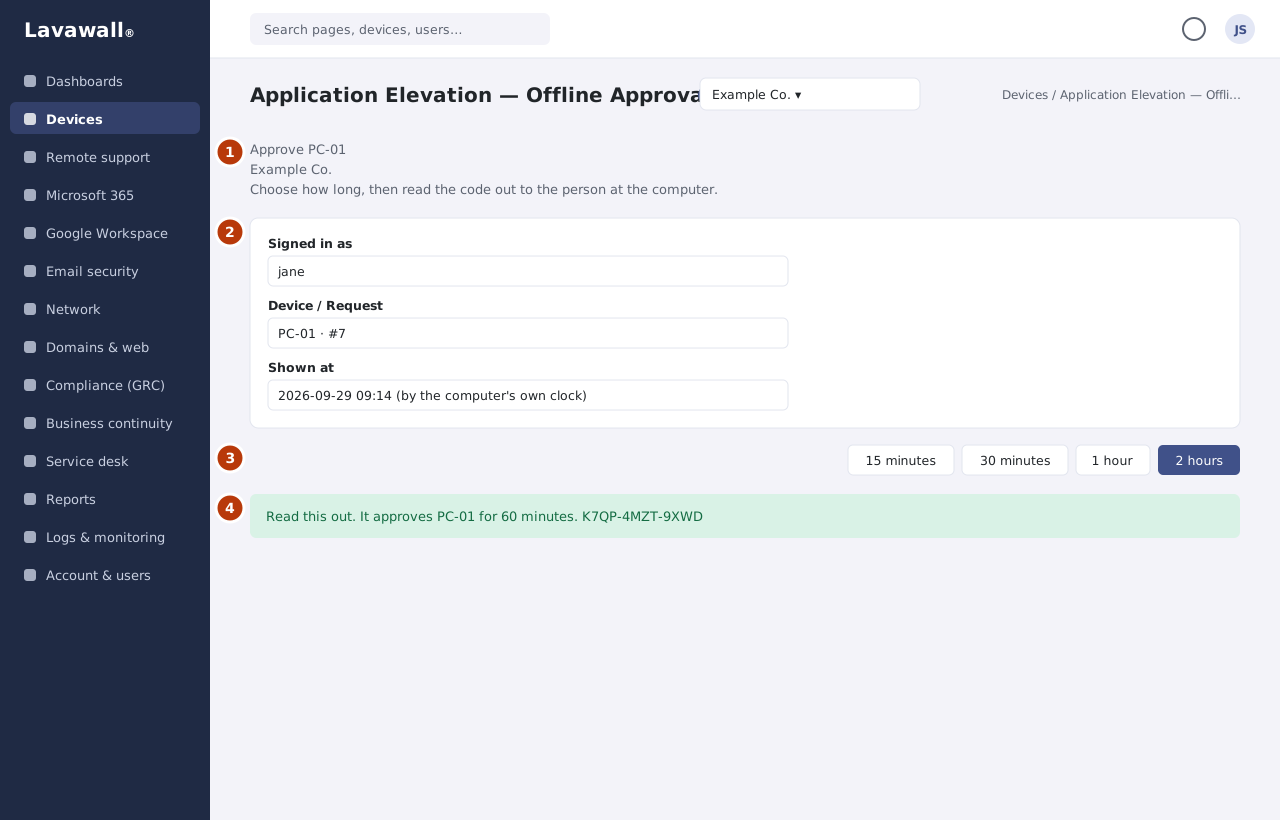
- Approve PC-01: the computer name and company.
- Request details: Signed in as, Device, Request number and Shown at (by the computer's own clock).
- Duration buttons: one button per allowed duration.
- Response code: "Read this out. It approves PC-01 for 60 minutes." with the code in large type.
How to use Offline Elevation Approval
How to approve an offline computer
- Ask the user to press the technician hotkey on the computer.
- In the console, select the scanner button in the top bar and point your camera at the QR code. If the camera cannot focus, choose Camera not co-operating? Type the code instead and type what the user reads to you.
- Check the computer name, company and signed-in user.
- Select how long elevation should last.
- Read the code out. The user types it in and elevation starts.
How to handle a misheard code
- Select a duration again to reissue the code.
- If the page warns that a code was already issued and the computer accepted one, ask the user to press the hotkey again and scan the new QR code.
Tips
- Make sure the right customer is selected at the top of the console before scanning.
- Use the shortest duration that gets the job done.
- The same scanner also handles online approvals, which open Pending Requests instead.
Troubleshooting
- "Sign in first, then scan the code again."
- : You are not signed in on this device.
- "That code is from the old approval design."
- : Current approval codes start with "LWEO1.". Ask the user to press the hotkey on an up-to-date agent and scan the new code.
- "That code couldn't be read."
- : Scan again, or ask for the hotkey to be pressed once more.
- "That computer can't be approved offline yet."
- : It was set up before offline approval existed and has no approval key. It needs to reach Lavawall once; meanwhile, approve it from Pending Requests when it is back online.
- "That computer isn't one you manage."
- / "That computer isn't registered.": Switch to the right customer, or wait for the elevation agent to finish installing.
Related articles
Still need help?
Search the support centre, or contact our support team and tell us which page you were on:
- Chat now: use the chat button in the bottom-right corner of this page to reach our team right away. Where cookie consent is needed, the chat starts after you accept (cookie settings).
- Email: send our support team a message through the contact page. It goes straight to a person.
- Phone:
 AB: 1-403-538-5053
 US: 1-406-988-7333
 UK: +44 20 3695 9786
Names, companies, devices and figures in the pictures are examples. Other product and company names are trademarks of their respective owners.