Pending Elevation Requests
Approve or deny requests from people who need to run a program with administrator rights, and turn good decisions into rules so the same request does not come back.
What the page is for
Pending Elevation Requests is a page in the Lavawall® console, in the Application elevation area. Lavawall is the RMM, security, and compliance platform from ThreeShield, built and hosted in Canada. About this feature.
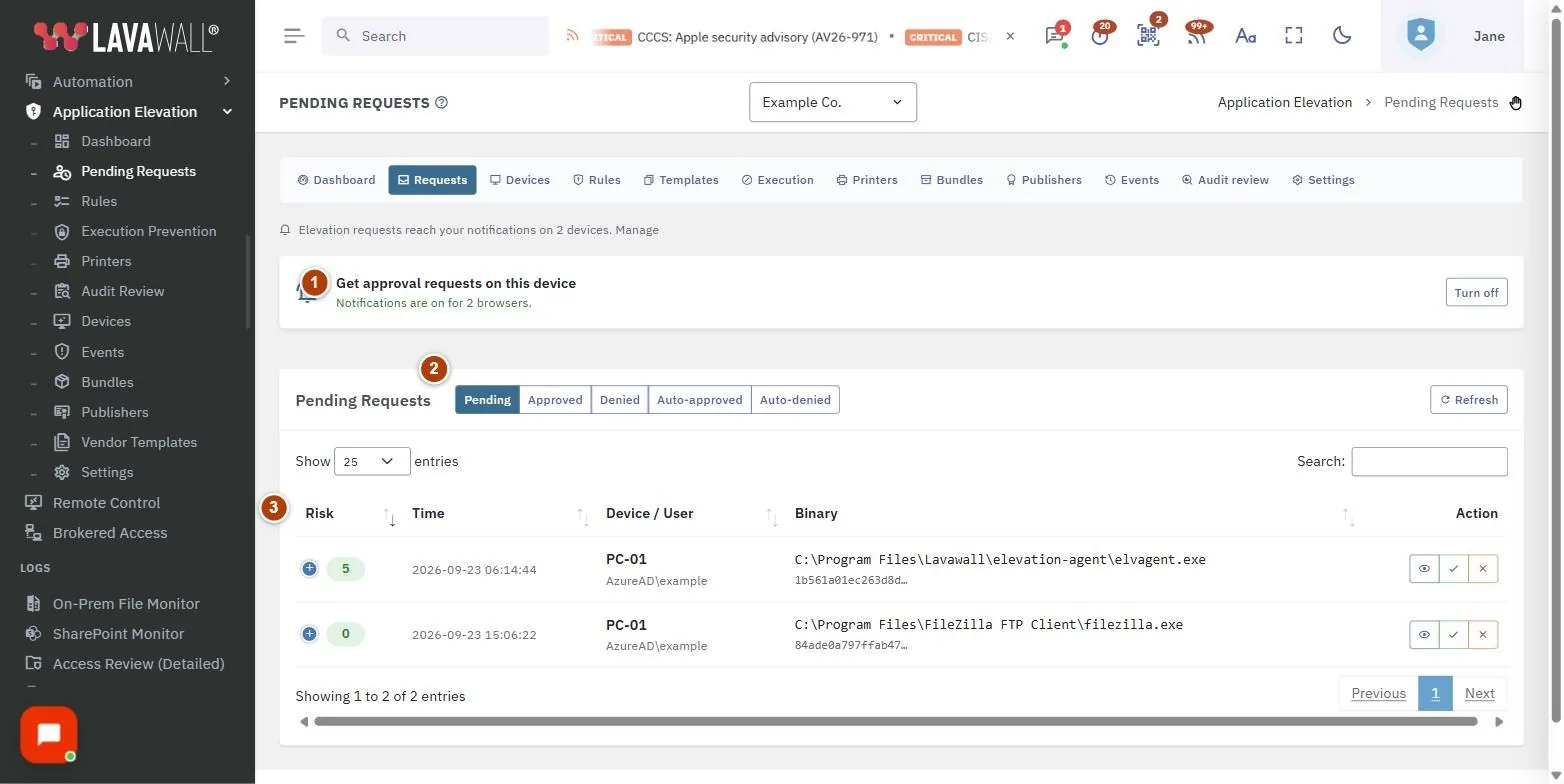
When a program asks for administrator rights on a computer running the Lavawall elevation agent and no rule decides it automatically, the request lands here. Each request shows a risk score, the computer and user, the program's path and file hash, and whether it is signed and by whom.
You can open the full details (including the parent program, command line, and a link to look the file up on VirusTotal), then approve or deny. An approval can be one-time, last for a set period, or become a permanent rule. The pending list refreshes itself every minute.
This is also where a technician lands after scanning the QR code a user brings up on their screen with the technician hotkey. From there you can switch on elevation for that computer for a set time, without the user needing to know an administrator password.
What you see
- Technician approval card: appears at the top after scanning a computer's QR code: "Approve elevation on PC-01?", For how long?, Approve and Not now.
- Status filter: Pending, Approved, Denied, Auto-approved and Auto-denied, plus Refresh.
- Requests table: Risk, Time, Device / User, Binary (with MSI name and hash), Signer, Company (when you manage child companies) and Action (or Outcome on the other tabs).
- Action buttons: View details (eye), Approve (tick) and Deny (cross) on each pending request.
- Approve / Deny elevation request dialog: Reason / notes, Approval TTL, Also create a rule from this request, and What should the rule match on?
How to use Pending Elevation Requests
How to approve a request
- On the Pending tab, select View details to check the program if you are unsure.
- Select Approve (the tick).
- Optionally type a Reason / notes; it is saved with the decision.
- Choose an Approval TTL: One-time only, 1 hour, 4 hours, 24 hours (default), 7 days, or Permanent (create rule).
- Select Approve to confirm.
How to approve and create a rule at the same time
- Select Approve on the request.
- Tick Also create a rule from this request, or choose Permanent (create rule) as the TTL.
- In What should the rule match on?, pick Publisher, Signing certificate, MSI product, This exact file, This exact MSI, or Path. The most specific option is chosen for you.
- Select Approve.
How to deny a request
- Select Deny (the cross).
- Add a reason if you want one recorded.
- Select Deny to confirm.
How to approve a technician session from a QR code
- Ask the user to press the technician hotkey (Ctrl+Alt+L unless you changed it in Settings).
- Scan the QR code on their screen with the scanner button in the console's top bar, on a phone or computer where you are signed in.
- Choose For how long? (15 minutes to 8 hours; your company default is preselected).
- Select Approve. The user sees a banner for the whole period, and the grant is recorded against your name.
How to look up past decisions
- Select Approved, Denied, Auto-approved or Auto-denied.
- The Outcome column shows the decision. Use View details for delivery times and ticket number.
Tips
- Risk scores are colour-coded: green under 30, amber 30 to 64, red 65 and above.
- A red shield and "Unsigned" in the Signer column is worth a closer look. Use the VirusTotal link in the details to check the file's reputation; nothing is uploaded.
- If a file is signed but the signature did not verify, the dialog warns you that a publisher rule will never match it. Choose the exact file instead.
- Publisher rules survive program updates; exact-file rules break on the next version.
- The details show when the notification was sent and when the decision reached the computer, which answers "I never got the notification".
- Turn on phone or desktop notifications from the card at the top of the page so you do not need to keep it open.
Troubleshooting
- "You don't have permission to approve elevation requests."
- : Ask an administrator for the elevation Approve permission.
- "That request is not in this view."
- : A link from a notification points to a request in another company, or one that has already been answered. Switch company or change the status filter.
- "That computer isn't one you manage."
- : The QR code came from a computer outside the customers you can access. Switch to the right customer and scan again.
- "That computer isn't registered."
- : The elevation agent has probably not finished installing on it.
- "That link didn't look right."
- or "Your session moved on while this page was open.": Ask the user to press the hotkey again, reload, and scan the new code.
Task guides that use this page
- Remove local admin rights safely with Application Elevation
- Help a user who needs administrator rights
Related articles
Still need help?
Search the support centre, or contact our support team and tell us which page you were on:
- Chat now: use the chat button in the bottom-right corner of this page to reach our team right away. Where cookie consent is needed, the chat starts after you accept (cookie settings).
- Email: send our support team a message through the contact page. It goes straight to a person.
- Phone:
 AB: 1-403-538-5053
 US: 1-406-988-7333
 UK: +44 20 3695 9786
Names, companies, devices and figures in the pictures are examples. Other product and company names are trademarks of their respective owners.