Caller ID
When a call comes in, see who is calling, their company and their computers, and open a ticket or log the call in one click.
What the page is for
Caller ID is a page in the Lavawall® console, in the Service desk area. Lavawall is the RMM, security, and compliance platform from ThreeShield, built and hosted in Canada. About this feature.
Many phone systems and softphones can open a web page when a call rings. Point yours at the Caller ID page and, as the call arrives, Lavawall looks up the caller's number and shows who it is. It matches the number against your CRM contacts (including prospects) and against end-user directory information from Active Directory and Microsoft 365 for the companies you manage.
For each match you see the person's name, job title, email, company and company type. If the person has computers with the Lavawall agent, they are listed with an online or offline indicator, a link to the device, and remote support shortcuts for devices that are online.
From the same screen you can start a New Ticket or Log Activity for the caller, already filled in with their details. If the caller is not known yet, you can create a contact for them, or update the details of an existing one.
What you see
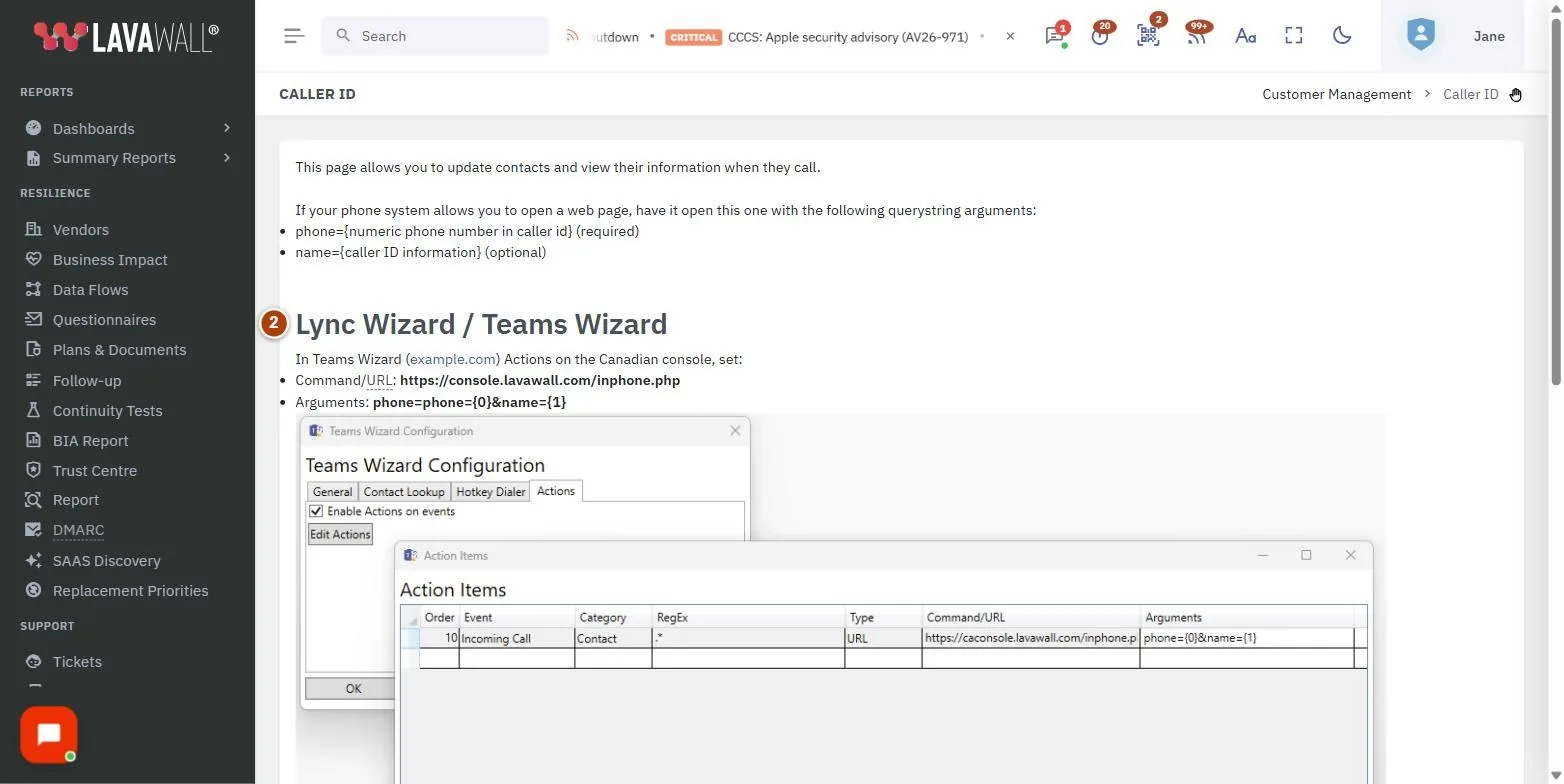
- Setup instructions: shown when the page is opened without a phone number: how to have your phone system open this page, with examples for Teams Wizard (Lync Wizard) and Zoiper 5.
- Caller identified: each match with name, job title, email, company, company type and where the match came from, with New Ticket and Log Activity buttons.
- Caller's devices: up to four of the person's computers, online status, a link to each device and remote support shortcuts for online devices.
- Contact form: Company, Caller ID, First Name, Last Name, City, Source, Phone and Email Address (or No email), with Create User or Update User.
- Quick actions: New Ticket and Log Activity for the caller in the form.
How to connect your phone system
- Open Caller ID from the menu without a call. The page shows the setup instructions.
- In your phone system or softphone, set an action that opens a web page when a call arrives.
- Have it open the Caller ID page address with the caller's number as
phone(required) and, optionally, the caller ID name asname. - For Teams Wizard or Zoiper 5, follow the example settings shown on the page.
- Make sure you are signed in to the console in the browser the phone system opens.
How to open a ticket for a caller
- When the call arrives and the page opens, check the Caller identified list.
- Select New Ticket on the matching person. A new ticket opens in a new tab with the caller and company filled in.
How to log a call in the CRM
- Select Log Activity on the matching person (or under the contact form).
- The CRM opens in a new tab with a new activity for the caller. If the person is not in the CRM yet, the contact is created from the details on this page.
How to add or update a caller's contact details
- In the contact form, choose the Company. You can also mark the caller as General Contact, Prospect, Not ideal client, SPAM Ignore in future or SPAM Blocked by IVR.
- Fill in First Name, Last Name, City, Source, Phone and Email Address, or tick No email.
- Select Create User for a new caller or Update User for a known one.
Tips
- Numbers are matched on their last 10 digits, so formatting and a leading country code 1 do not matter.
- The company type badge tells you at a glance whether the caller is a client, a prospect or a former client.
- Use the remote support shortcuts next to an online computer to connect while you are still on the call.
- Mark nuisance numbers as SPAM so you can recognise them next time.
Troubleshooting
- The page only shows setup instructions.
- It was opened without a phone number, or the number is shorter than seven digits. Check that your phone system passes the caller's number as
phone. - "Only available if logged in."
- Sign in to the console in the browser your phone system uses.
- No caller is identified.
- The number is not on any CRM contact or directory user for your companies. Create the contact with the form so the next call is recognised.
- "Please enter a valid email for the initial user."
- Enter a valid email address, or tick No email.
Task guides that use this page
Related articles
Still need help?
Search the support centre, or contact our support team and tell us which page you were on:
- Chat now: use the chat button in the bottom-right corner of this page to reach our team right away. Where cookie consent is needed, the chat starts after you accept (cookie settings).
- Email: send our support team a message through the contact page. It goes straight to a person.
- Phone:
 AB: 1-403-538-5053
 US: 1-406-988-7333
 UK: +44 20 3695 9786
Names, companies, devices and figures in the pictures are examples. Other product and company names are trademarks of their respective owners.