Authorize the Google Workspace Downloader
Sign the Windows export tool in to Lavawall from your browser, without copying and pasting a token.
What the page is for
Authorize the Google Workspace Downloader is a page in the Lavawall® console, in the Google Workspace area. Lavawall is the RMM, security, and compliance platform from ThreeShield, built and hosted in Canada. About this feature.
When you choose to sign in from the Google Workspace Downloader for Windows, the tool opens this page in your normal browser with a short code. You sign in to Lavawall the usual way (passkey, authenticator app or password), check that the code on the page matches the one in the tool, pick the company to export and approve.
The tool then receives its export token automatically and continues on its own. The token works for 7 days and appears on the Google Workspace Export page under Export Tokens.
What you see
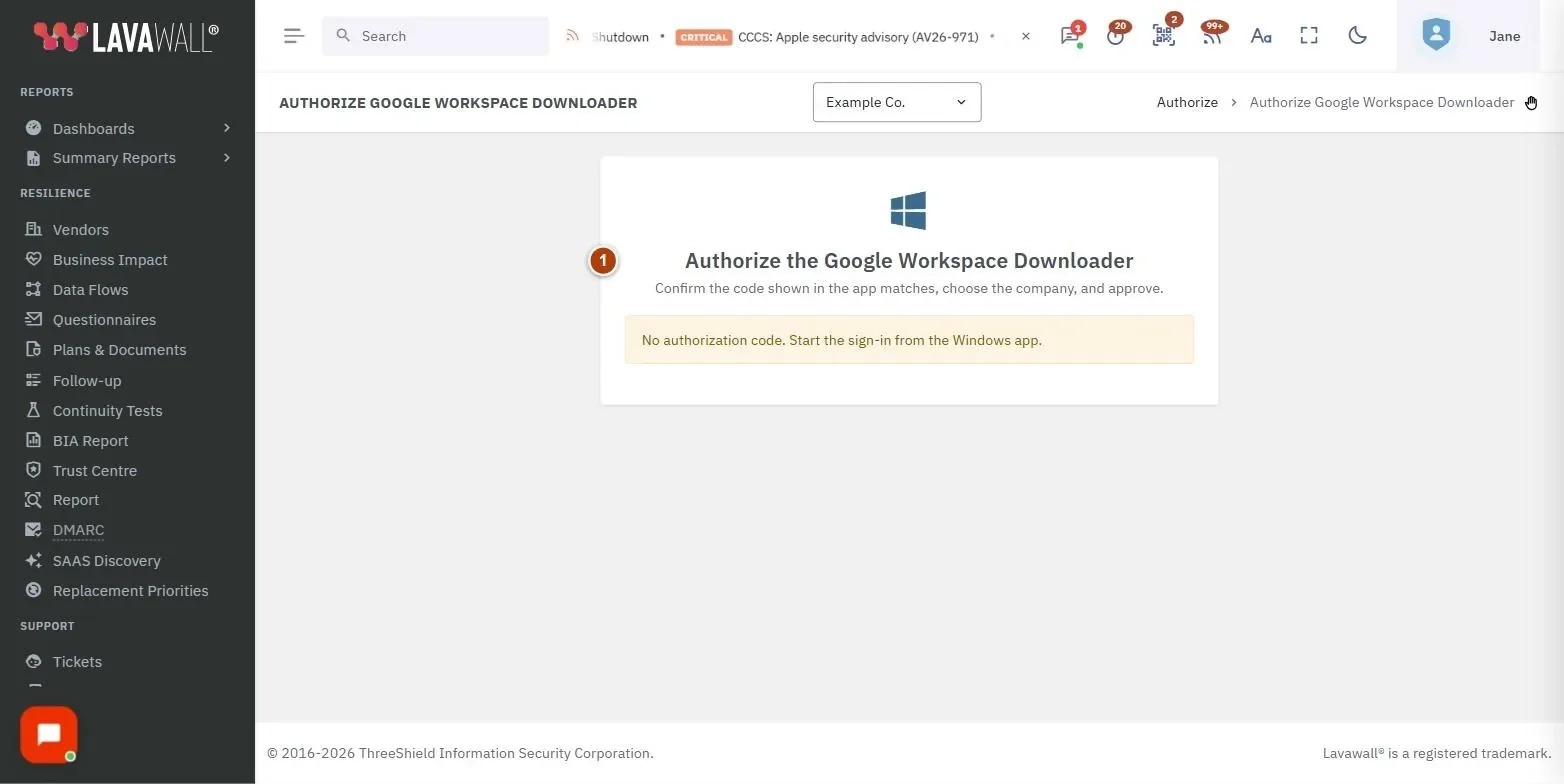
- Authorize the Google Workspace Downloader: the heading and a reminder to confirm the code, choose the company and approve.
- Code from the app: the code sent by the Windows tool, shown in large letters so you can compare it.
- Company to export: a list of the Google-connected companies you manage.
- Approve & Sign In the App and Cancel: approve the request or close the tab.
How to approve the Windows tool
- In the Google Workspace Downloader, start sign-in. Your browser opens this page.
- Sign in to Lavawall if asked. The sign-in window appears automatically.
- Compare Code from the app with the code the tool shows. Only continue if they match.
- Choose the organization in Company to export.
- Click Approve & Sign In the App.
- When you see "Approved", go back to the tool. You can close the browser tab.
How to cancel
- Click Cancel. The tab closes and the tool is not signed in.
Tips
- Always check the code. If you did not start sign-in yourself, click Cancel.
- A company marked "no admin email (re-authorize Google)" cannot be picked. Add the Google admin email on the Set up Google access page first.
- You can revoke the token later from Export Tokens on the Google Workspace Export page.
Troubleshooting
- "No authorization code. Start the sign-in from the Windows app."
- The page was opened directly. Start sign-in from the tool so it passes its code.
- "The code expired. Start sign-in again in the app."
- Codes are short-lived. Start sign-in again in the tool.
- "No Google-connected company is available on your account."
- Connect Google Workspace first, then retry.
- "Too many attempts. Please wait a few minutes and try again."
- Several wrong or expired codes were tried in a row. Wait and try again.
- "Your session expired."
- Refresh the page and approve again.
Task guides that use this page
Related articles
Still need help?
Search the support centre, or contact our support team and tell us which page you were on:
- Chat now: use the chat button in the bottom-right corner of this page to reach our team right away. Where cookie consent is needed, the chat starts after you accept (cookie settings).
- Email: send our support team a message through the contact page. It goes straight to a person.
- Phone:
 AB: 1-403-538-5053
 US: 1-406-988-7333
 UK: +44 20 3695 9786
Names, companies, devices and figures in the pictures are examples. Other product and company names are trademarks of their respective owners.