AWS Costs
Find idle resources, oversized servers and unused reservations in your AWS accounts, with an estimate of how much you could save each month.
What the page is for
AWS Costs is a page in the Lavawall® console, in the Cloud (AWS) area. Lavawall is the RMM, security, and compliance platform from ThreeShield, built and hosted in Canada. About this feature.
This page collects cost-saving recommendations from your connected AWS accounts. AWS Cost Explorer supplies rightsizing recommendations for EC2 servers on every AWS support plan. AWS Trusted Advisor adds idle-resource detection when the account has AWS Business or Enterprise Support.
A large figure at the top shows the total estimated monthly saving, and a breakdown shows where the savings are by category. The table lists each recommendation with the resource, region, account and estimated saving.
Recommendations refresh every 60 minutes. Savings figures are estimates in US dollars.
What you see
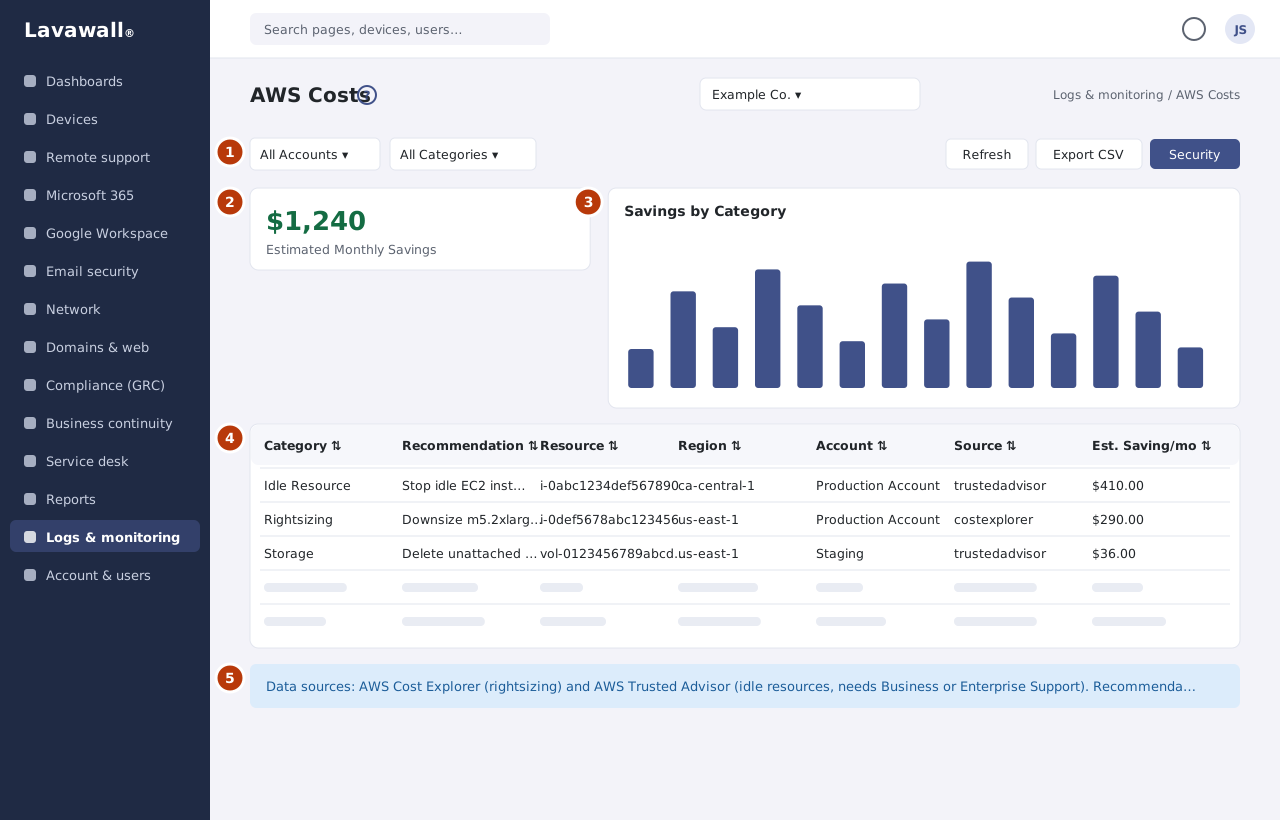
- Toolbar: All Accounts, All Categories (Idle Resources, Rightsizing, Reservations, Storage, Network), Refresh, Export CSV and Security (opens AWS Cloud Security).
- Estimated Monthly Savings: the total estimated saving and the number of recommendations.
- Savings by Category: how the savings split across categories.
- Cost Recommendations: the table with Category, Recommendation, Resource, Region, Account, Source and Est. Saving/mo, a status filter (Active, Dismissed, All), a dismiss button per row and paging.
- Data sources: a note on where recommendations come from and how often they refresh.
How to find the biggest savings
- Look at Savings by Category to see which category is largest.
- Choose that category in All Categories.
- Review each row in Cost Recommendations and act on it in AWS.
How to look at one account
- Choose the account in All Accounts. The totals and table update.
How to dismiss a recommendation
- Click the dismiss button at the end of the row.
- Confirm. The recommendation no longer counts toward your savings total.
- To see dismissed items again, set the status filter to Dismissed or All.
How to export recommendations
- Set All Accounts and All Categories as needed.
- Click Export CSV. The file includes active recommendations that match your account and category filters, with the estimated monthly saving in USD.
Tips
- Start with Idle Resources. Removing unused resources is usually the quickest saving.
- If you see no idle-resource recommendations, check whether the AWS account has Business or Enterprise Support. Trusted Advisor needs it.
- Make sure Cost Explorer & Trusted Advisor is turned on for the account in Settings on the Connect AWS Account page.
- Estimates are approximate. Check AWS pricing before making large changes.
Troubleshooting
- "No recommendations found: your accounts look well-optimised!"
- There is nothing to act on right now.
- "No AWS account is connected yet."
- Click Connect an AWS account and complete the wizard.
- "No active recommendations to export."
- There are no active items matching your filters.
- "This company is not subscribed to AWS Cloud Security Monitoring."
- The company does not have the AWS add-on. Contact your provider.
Related articles
Still need help?
Search the support centre, or contact our support team and tell us which page you were on:
- Chat now: use the chat button in the bottom-right corner of this page to reach our team right away. Where cookie consent is needed, the chat starts after you accept (cookie settings).
- Email: send our support team a message through the contact page. It goes straight to a person.
- Phone:
 AB: 1-403-538-5053
 US: 1-406-988-7333
 UK: +44 20 3695 9786
Names, companies, devices and figures in the pictures are examples. Other product and company names are trademarks of their respective owners.