AWS Cloud Security
See threats, risky activity, identity problems and compliance gaps across all your connected AWS accounts in one place.
What the page is for
AWS Cloud Security is a page in the Lavawall® console, in the Cloud (AWS) area. Lavawall is the RMM, security, and compliance platform from ThreeShield, built and hosted in Canada. About this feature.
This page brings together security information from your connected AWS accounts. It shows threat findings from AWS GuardDuty and Access Analyzer, flagged activity from AWS CloudTrail (such as root account use, IAM changes, logging being turned off and security group changes), problems with users and roles, and CIS benchmark posture checks with advice on how to fix each failure.
Four summary cards at the top give the headline numbers, and four tabs hold the detail. You can view all accounts together or pick one.
When you have reviewed something, you can suppress a finding or mark an event as reviewed so it drops off the active list.
What you see
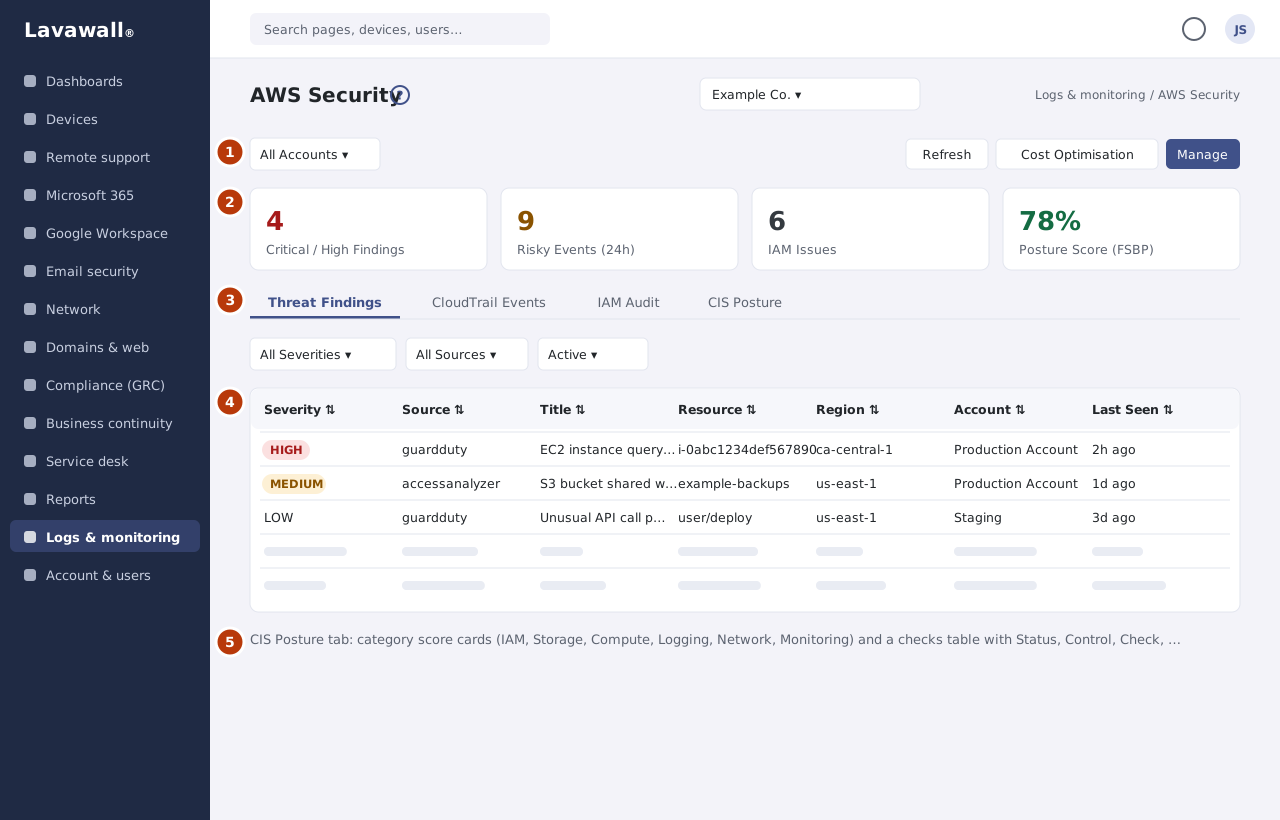
- Toolbar: the All Accounts picker, Refresh, Cost Optimisation (opens AWS Costs) and Manage (opens Connect AWS Account).
- Summary cards: Critical / High Findings, Risky Events (24h), IAM Issues and Posture Score (FSBP).
- Tabs: Threat Findings, CloudTrail Events, IAM Audit and CIS Posture.
- Threat Findings: severity, source and status filters and a table with Severity, Source, Title, Resource, Region, Account, Last Seen and a suppress button, with paging.
- CIS Posture (on its tab): a score card per category and a table of checks with Status, Control, Category, Check, Account, Detail and Remediation.
How to review threat findings
- Open Threat Findings.
- Filter by severity (CRITICAL, HIGH, MEDIUM, LOW), by source (GuardDuty or Access Analyzer) and by status (Active, Suppressed or All).
- Investigate the resource in AWS.
- When dealt with, click the suppress button on the row and confirm.
How to review risky CloudTrail events
- Open CloudTrail Events.
- Filter by risk level: Critical, High, Medium or Low.
- Read Event, Reason, Actor and Source IP for each event.
- Click the mark-reviewed button once you have confirmed it was expected.
How to review IAM problems
- Open IAM Audit.
- Review each finding with its Severity, Finding, Principal and ARN.
- Fix the user or role in AWS, or suppress the finding if it is accepted.
How to work through CIS posture checks
- Open CIS Posture.
- Pick a category (IAM, Storage, Compute, Logging, Network, Monitoring) and a status (Failing, Passing or All).
- Follow the Remediation advice for each failing check.
How to focus on one AWS account
- Choose the account in All Accounts. All cards and tabs update.
Tips
- Severity colours: red critical, orange high, yellow medium, grey low.
- CloudTrail Events shows flagged API calls only, not every event. CloudTrail must be enabled in each region.
- Posture Score (FSBP) is the share of posture checks that pass. Category cards show passing checks out of the total.
- Use Manage to change which data sources are collected for each account.
- Posture results can also be sent to your GRC assessments from the Connect AWS Account page.
Troubleshooting
- "No AWS account is connected yet."
- Click Connect an AWS account and complete the wizard.
- "This company is not subscribed to AWS Cloud Security Monitoring."
- The company does not have the AWS add-on. Contact your provider.
- "No suspicious events in the last 26 hours."
- Nothing risky was flagged recently. Check CloudTrail is enabled in each region if you expected events.
- "No posture data yet: trigger a sync to run compliance checks."
- Click Sync Now on the Connect AWS Account page and check back in a few minutes.
- "Your session has expired. Please sign in again."
- Sign in again and reload the page.
Related articles
Still need help?
Search the support centre, or contact our support team and tell us which page you were on:
- Chat now: use the chat button in the bottom-right corner of this page to reach our team right away. Where cookie consent is needed, the chat starts after you accept (cookie settings).
- Email: send our support team a message through the contact page. It goes straight to a person.
- Phone:
 AB: 1-403-538-5053
 US: 1-406-988-7333
 UK: +44 20 3695 9786
Names, companies, devices and figures in the pictures are examples. Other product and company names are trademarks of their respective owners.