Connect AWS Account
Connect your Amazon Web Services (AWS) accounts to Lavawall with a read-only role, choose what to monitor, and send the results to your compliance assessments.
What the page is for
Connect AWS Account is a page in the Lavawall® console, in the Cloud (AWS) area. Lavawall is the RMM, security, and compliance platform from ThreeShield, built and hosted in Canada. About this feature.
This page connects AWS accounts to Lavawall so they can be checked for threats, risky activity, identity problems, compliance gaps and wasted spend. You create a role in your own AWS account that Lavawall is allowed to use, and a three-step wizard gives you the exact trust policy and permissions to paste.
Each connected account shows its status, when it last synced, the regions being monitored and which data sources are turned on. You can change the data sources, sync on demand or disconnect the account.
The GRC Integration section sends AWS compliance check results to your GRC assessments as automated evidence after each sync, so passing and failing checks update the matching controls.
MSPs can also enter their own AWS account, so that client trust policies point to the MSP rather than to Lavawall directly.
What you see
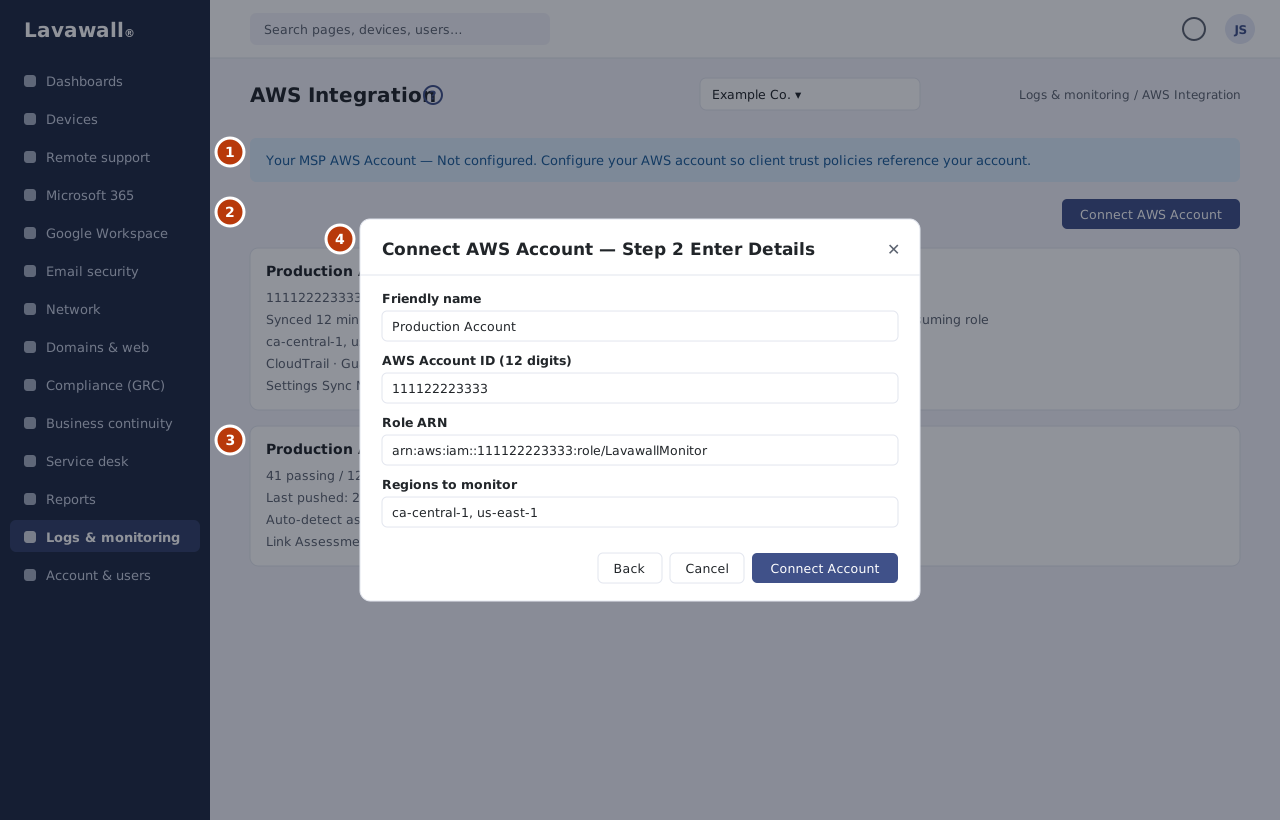
- Your MSP AWS Account (MSPs only): whether your own AWS credentials are set, with Configure your AWS account or Edit.
- Connected AWS Accounts: a card per account with name, account ID, status (Active, Pending or Error), last sync, regions and data sources, and Settings, Sync Now and a disconnect button. Connect AWS Account starts the wizard.
- GRC Integration: for each account, the compliance percentage, passing and failing checks, last push time and the linked assessment, with Link Assessment and Push Now, plus Push All to GRC Now and Refresh.
- Connect AWS Account wizard: three steps: Create IAM Role, Enter Details and Verify & Connect.
How to connect an AWS account
You create one role in the AWS account you want to connect. Lavawall® uses it to read that account. You don't need a second AWS account of your own, and no access keys are shared.
- In Lavawall, click Connect AWS Account. Step 1 shows the Account ID and External ID to use, each with a copy button.
- Sign in to the AWS account you want to connect, open IAM › Roles and click Create role.
- Fill in the Select trusted entity page as shown below.
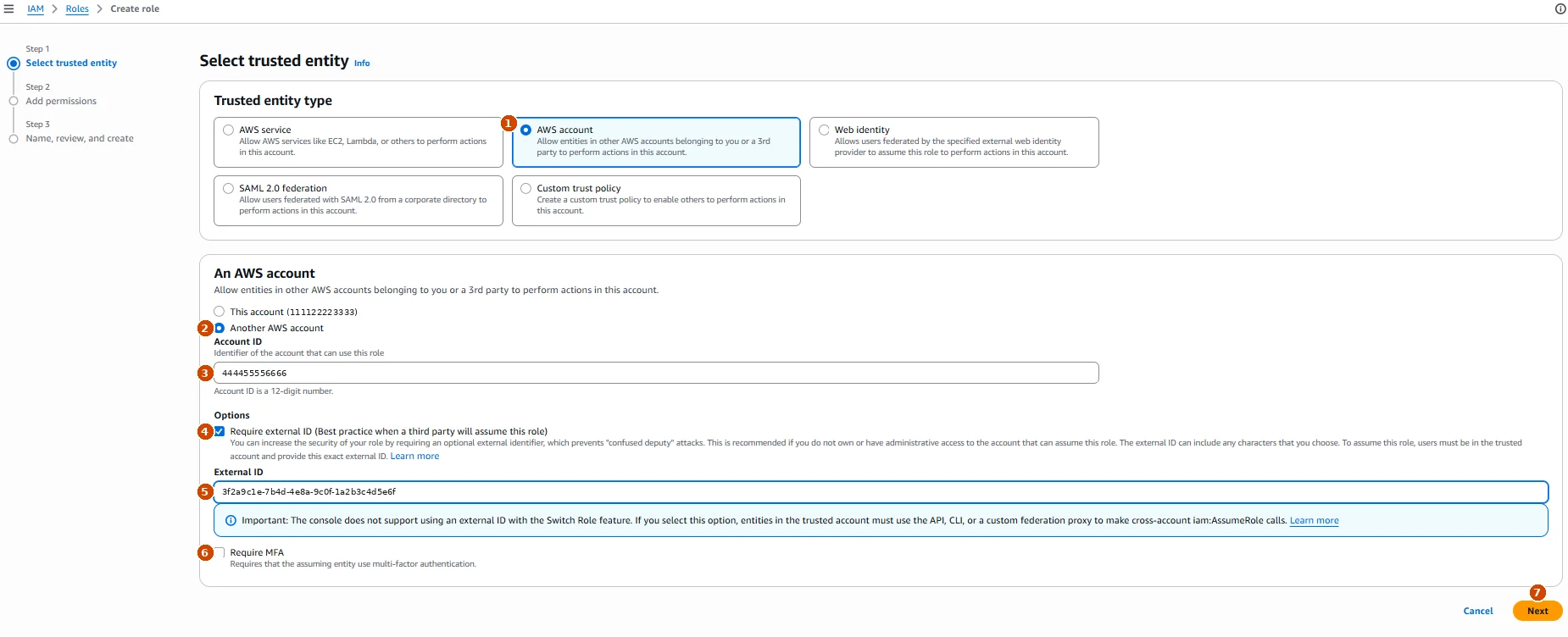
- Under Trusted entity type, choose AWS account.
- Choose Another AWS account, not This account.
- Paste the Account ID from Lavawall. It is Lavawall's AWS account (or your MSP's), not yours.
- Tick Require external ID.
- Paste the External ID from Lavawall exactly. Lavawall creates it for your organization, so don't make up your own.
- Leave Require MFA unticked. Lavawall connects as a service, so a role that requires MFA can't be used.
- Click Next.
- On Add permissions, tick SecurityAudit and ReadOnlyAccess and click Next.
- Name the role, for example
LavawallMonitor, and click Create role. - Open the new role, choose Add permissions › Create inline policy › JSON, and paste the Inline Cost Policy from Lavawall (use Copy).
- Copy the role's ARN from its summary.
- Back in Lavawall, click Next. In Step 2, enter a Friendly name and paste the Role ARN. Your AWS Account ID fills in from the ARN.
- Tick the Regions to monitor and click Connect Account. Lavawall tests the connection, which can take up to 15 seconds.
- When you see Connected!, the first sync is queued. Findings appear within a few minutes.
If you'd rather paste a policy, choose Custom trust policy in AWS instead, and paste the trust policy from Prefer to paste a trust policy? in Step 1. It sets the same Account ID and External ID.
How to change what is monitored
- On the account card, click Settings.
- Change the Friendly Name or turn Data Sources on or off: CloudTrail, GuardDuty, IAM, Access Analyzer, Cost Explorer & Trusted Advisor and CIS Benchmark posture & compliance checks.
- Click Save Changes.
How to sync or disconnect an account
- Click Sync Now on the account card to collect new data straight away.
- To disconnect, click the unlink button and confirm. All findings for that account are permanently removed.
How to send AWS results to a GRC assessment
- In GRC Integration, click Link Assessment for the account.
- Choose an assessment in GRC Assessment, or leave Auto-detect (latest active assessment).
- Click Link & Push Now.
- Use Push Now for one account or Push All to GRC Now for all of them.
How to set up your MSP AWS account (MSPs)
- Click Configure your AWS account.
- Choose Credential Type: IAM Access Key or Cross-account Role ARN.
- Enter the AWS Account ID and the key or role details.
- Click Test & Save. To go back to Lavawall's central account later, click Edit then Remove Credentials.
Tips
- Tick every region where you run workloads. The Settings dialog does not change regions.
- AWS Trusted Advisor needs AWS Business or Enterprise Support. Without it, Cost Explorer recommendations still appear.
- The MSP credentials only need permission to assume roles. They do not need direct access to client accounts.
- Only assessments that are In Progress, Active or Draft can be linked.
- Credentials you enter are encrypted.
Troubleshooting
- "Connection failed."
- Check the Role ARN, make sure the External ID matches Step 1 exactly, that the trust policy references the right AWS account, and that SecurityAudit and ReadOnlyAccess are attached.
- "AWS Account ID must be exactly 12 digits."
- Enter the account number without dashes.
- "Invalid Role ARN format."
- The ARN must look like arn:aws:iam::123456789012:role/RoleName.
- "Select at least one region."
- Tick at least one region in Step 2.
- An account card shows Error.
- Read the message on the card, fix the role in AWS and click Sync Now.
Related articles
Still need help?
Search the support centre, or contact our support team and tell us which page you were on:
- Chat now: use the chat button in the bottom-right corner of this page to reach our team right away. Where cookie consent is needed, the chat starts after you accept (cookie settings).
- Email: send our support team a message through the contact page. It goes straight to a person.
- Phone:
 AB: 1-403-538-5053
 US: 1-406-988-7333
 UK: +44 20 3695 9786
Names, companies, devices and figures in the pictures are examples. Other product and company names are trademarks of their respective owners.