Geo Conditional Access
Block Microsoft 365 sign-ins from countries a client does not work in, open a country for one traveller for their trip only, and keep break-glass accounts out of every block.
What the page is for
The Geo Conditional Access Manager is a section of the Microsoft 365 page in the Lavawall® console. Lavawall is the RMM, security, and compliance platform from ThreeShield, built and hosted in Canada.
Most businesses sign in from a few countries. This section proposes those countries from the client’s successful sign-ins over the last 90 days, then sets up and keeps a Microsoft Entra Conditional Access policy that blocks sign-ins from everywhere else. Failed sign-ins are left out, so an attacker’s attempts never make their country look normal.
When someone travels, you add their trip. The trip countries open for that person only, from their first day to their last, through a policy of their own. Break-glass accounts you choose are never blocked by any of these policies.
Lavawall keeps the policies the way you set them here. If someone changes or deletes them in the Microsoft Entra admin centre, Lavawall puts them back the next time it applies your settings.
What you see
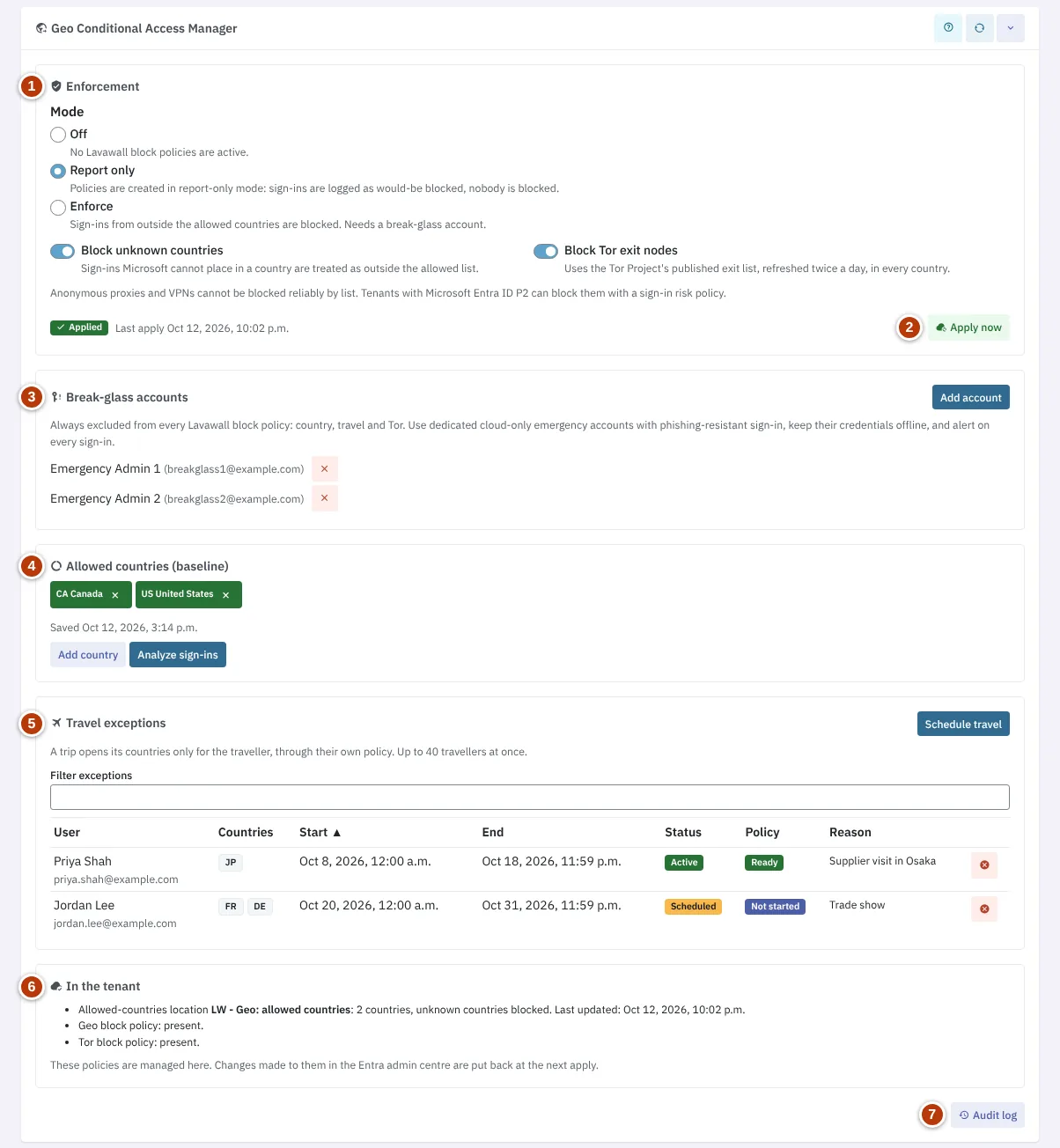
- Enforcement: the Mode (Off, Report only or Enforce) and the Block unknown countries and Block Tor exit nodes switches.
- The apply status (Applied, Applying to the tenant, Partly applied or Not applied, with the reason), when settings were last applied, and Apply now.
- Break-glass accounts: emergency accounts that are never blocked, with Add account and a remove button for each.
- Allowed countries (baseline): the countries sign-ins are allowed from, with Add country and Analyze sign-ins.
- Travel exceptions: active and scheduled trips with their countries, dates, status and whether the traveller’s own policy is ready, a filter, sortable columns and Schedule travel.
- In the tenant: the allowed-countries location and the block policies Lavawall keeps in Microsoft 365.
- Audit log: every change, who made it and when.
How to set up country blocking
- Open the client’s Microsoft 365 page, expand Investigate & manage and find Geo Conditional Access Manager.
- If a Write access required box is shown, click Re-authorize read and write and grant consent as a Microsoft 365 administrator, then click Test permissions.
- Under Allowed countries (baseline), click Analyze sign-ins. Review the proposed countries. People who signed in from other countries are listed underneath: tick anyone who really works from there to give them a standing travel exception, and look into anything you do not recognize. Click Save as baseline.
- Under Break-glass accounts, click Add account, choose an emergency account and click Add. Add a second one if you have it.
- Under Enforcement, choose Report only. Within about a minute the status changes to Applied.
- Check the report-only results in the Microsoft Entra sign-in logs. When you are happy with them, choose Enforce and confirm.
How to add a trip
- Under Travel exceptions, click Schedule travel.
- Choose the travellers in Travellers and the countries in Countries.
- Set the First day and Last day. Days are in your own time zone.
- Add a Reason if you like, then click Schedule.
- When the trip starts, its Policy column changes to Ready. The countries close again after the last day.
How to end a trip early
- Find the trip under Travel exceptions.
- Click its end button and confirm with End now.
How to turn blocking off
- Under Enforcement, choose Off and confirm.
- Lavawall turns the block policies off in the tenant and removes the travellers’ policies. Your baseline, travel and break-glass settings are kept.
Tips
- Use dedicated cloud-only emergency accounts as break-glass accounts, protect them with phishing-resistant sign-in, keep their credentials offline, and alert on every sign-in.
- Enforce is not available until at least one break-glass account is set, and Lavawall keeps the policy in report-only until one exists in the tenant and is enabled.
- Prefer a trip for the people travelling over Everyone in the tenant. Opening a country for everyone also opens it to anyone using a stolen password.
- Up to 40 people can have a trip at the same time, because each one uses a Conditional Access policy of their own.
- Anonymous proxies and VPNs cannot be blocked reliably by list. Tenants with Microsoft Entra ID P2 can block them with a sign-in risk policy.
- Make changes here, not in the Microsoft Entra admin centre. Changes made there to these policies are put back.
Troubleshooting
- “Write access required.”
- Lavawall has not been allowed to change Conditional Access in this tenant. Click Re-authorize read and write and grant consent as a Microsoft 365 administrator.
- “Policy.Read.All is missing.”
- Microsoft needs this permission as well, before policies can be created. Click Re-authorize read and write.
- “Security defaults are on in this tenant.”
- Conditional Access cannot be used while security defaults are on. Turn them off in the Microsoft Entra admin centre once the policies you need are in place.
- “This tenant needs Microsoft Entra ID P1 or higher.”
- Conditional Access is part of Entra ID P1, which is included in Microsoft 365 Business Premium.
- A trip’s Policy shows Error.
- The traveller’s own policy could not be created, so they stay blocked outside the allowed countries. The reason is shown under the badge. Fix it, then click Apply now.
- “Your role cannot change Conditional Access settings.”
- Ask a Super Admin, Admin or MSP Client Admin to make the change.
Related articles
Still need help?
Search the support centre, or contact our support team and tell us which page you were on:
- Chat now: use the chat button in the bottom-right corner of this page to reach our team right away. Where cookie consent is needed, the chat starts after you accept (cookie settings).
- Email: send our support team a message through the contact page. It goes straight to a person.
- Phone: AB: 1-403-538-5053, BC: 1-778-731-1339, ON: 1-289-724-8829, US: 1-406-988-7333, UK: +44 20 3695 9786.
Names, companies, devices and figures in the pictures are examples. Other product and company names are trademarks of their respective owners.