Microsoft 365 Breach Console
Triage suspected Microsoft 365 account compromises, with a plain-language explanation of what happened and what to do next.
What the page is for
Microsoft 365 Breach Console is a page in the Lavawall® console, in the Microsoft 365 area. Lavawall is the RMM, security, and compliance platform from ThreeShield, built and hosted in Canada. About this feature.
Lavawall watches your Microsoft 365 sign-ins and activity for signs that an account has been taken over. Rather than showing every alert, it groups related evidence into incidents and only puts an incident in Needs action when it is backed by several independent kinds of evidence. Weaker patterns go on the Watchlist, and noise is removed automatically.
Open an incident to see What happened, Why we flagged it and What to do next, followed by the evidence in the order it happened. Badges show when Microsoft's own security systems also flagged it, when a hidden network such as a VPN, Tor or proxy was involved, and when an AI analysis is available.
When you decide, mark the incident as a Real threat, Normal activity or Wrongly flagged. Lavawall can remember a pattern you mark as normal so it isn't flagged again. MSPs can view a summary of incidents across all companies.
What you see
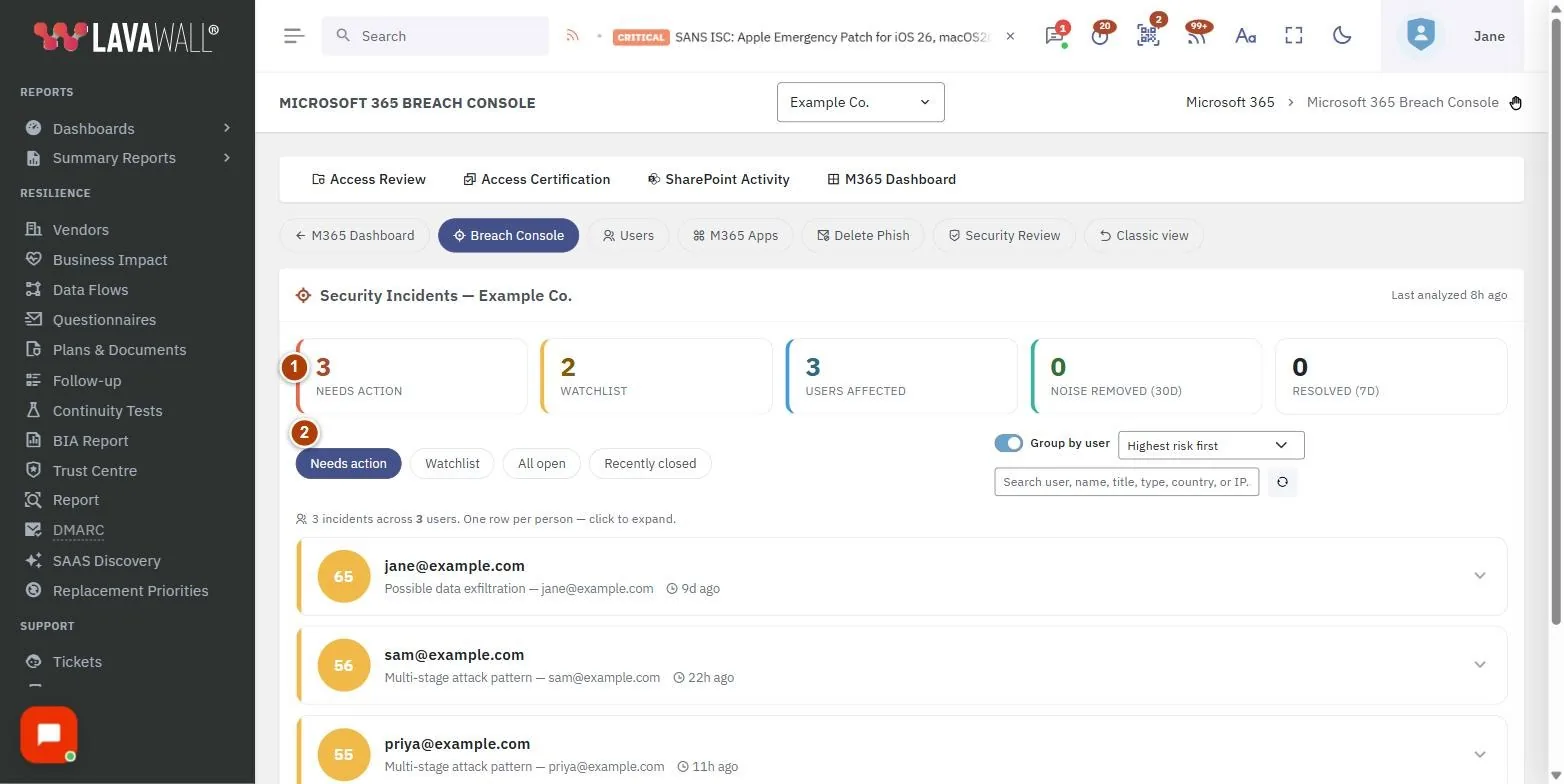
- Summary figures: Needs action, Watchlist, Users affected, Noise removed (30d) and Resolved (7d). Click a figure to show that list.
- Queue filters: Needs action, Watchlist, All open and Recently closed; Group by user; a sort order; search; and refresh.
- Incident list: one row per incident (or per person when grouped) with risk, badges and an investigate button. Load more shows older items.
- Incident details: AI analysis, What happened, Why we flagged it, What to do next, Full user timeline, Search everything for this user, and the evidence list.
- Decision bar: Remember this pattern as normal, Notes (optional), PDF report, Real threat, Normal activity and Wrongly flagged.
- Analysis & response tools: an expandable section with user timelines, sign-in analysis, suspicious IPs and account locks.
How to triage an incident
- Start on Needs action, sorted Highest risk first.
- Click the investigate button on an incident.
- Read What happened and Why we flagged it, then review the evidence in order.
- Follow the steps in What to do next. Use Full user timeline or Search everything for this user for more context.
- Choose a decision:
- Real threat: this is a real security problem; start your response.
- Normal activity: a person did this legitimately, for example while travelling or on a new device.
- Wrongly flagged: the detection itself was wrong.
- Optionally tick Remember this pattern as normal and add Notes before deciding.
How to find a specific incident
- Choose All open or Recently closed.
- Type a user, name, title, type, country or IP address in the search box.
- Change the sort to Newest activity first, Most evidence first, Highest confidence first or User A→Z as needed.
- Turn off Group by user to see each incident on its own row.
How to share an incident report
- Open the incident.
- Click PDF report to open a print-ready report you can save or send.
How to see a user's activity trend
Lavawall keeps a baseline for each user, including the IP addresses they usually sign in from and how much they usually sign in and work with files each day. Activity outside that baseline is one of the breach indicators behind an incident. The User activity trend card shows that baseline for any user, so you can check whether a day really was unusual for that person.
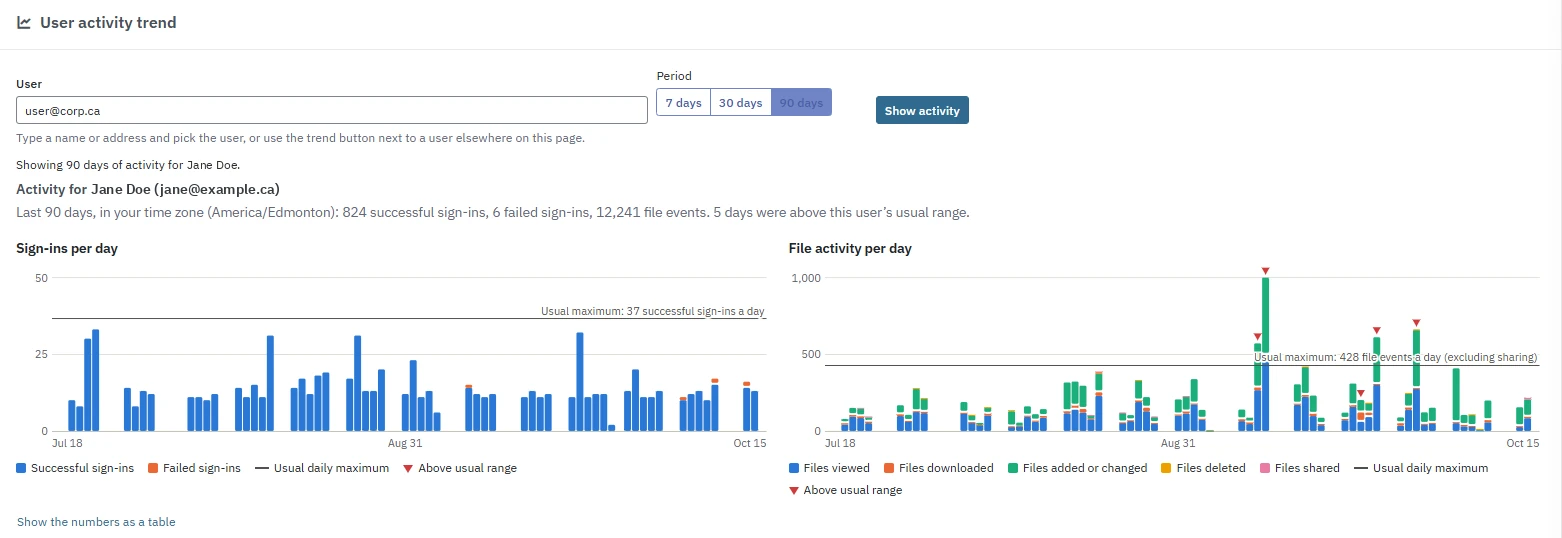
- In User activity trend, type a name or address in User and pick the user, or use the trend button next to a user elsewhere on the page.
- Choose a Period: 7 days, 30 days or 90 days.
- Click Show activity. The summary gives the successful and failed sign-ins, the file events, and how many days were above the user's usual range, in your time zone.
- Read the charts. Sign-ins per day shows successful and failed sign-ins; File activity per day shows files viewed, downloaded, added or changed, deleted, and shared. The line is the user's Usual daily maximum, and a red marker shows a day Above usual range.
- Click Show the numbers as a table to read or copy the daily figures.
Tips
- An empty Needs action list is good news: only incidents with several kinds of evidence appear there.
- An MS badge means Microsoft's security systems agreed. A Hidden network badge means the activity came through a VPN, Tor or proxy.
- Use Remember this pattern as normal for recurring, legitimate activity such as a known travel location so you get fewer false alarms.
- To lock an account or revoke sessions, Lavawall needs Read + Write access. Re-authorize from the Microsoft 365 dashboard if needed.
- Times are shown in your browser's time zone.
Troubleshooting
- "Nothing needs action right now."
- No incident currently has enough independent evidence. Check Watchlist for weaker signals.
- "No incidents match this filter."
- Clear the search box or choose another list.
- "Microsoft 365 Not Connected."
- Connect Microsoft 365 for this company first.
- "Could not load this incident: please try again."
- Refresh the page and open the incident again.
Task guides that use this page
Related articles
Still need help?
Search the support centre, or contact our support team and tell us which page you were on:
- Chat now: use the chat button in the bottom-right corner of this page to reach our team right away. Where cookie consent is needed, the chat starts after you accept (cookie settings).
- Email: send our support team a message through the contact page. It goes straight to a person.
- Phone:
 AB: 1-403-538-5053
 US: 1-406-988-7333
 UK: +44 20 3695 9786
Names, companies, devices and figures in the pictures are examples. Other product and company names are trademarks of their respective owners.