Delete Phish
Find a phishing email in every Microsoft 365 mailbox it reached, then move it to Junk, move it to Deleted Items or delete it permanently, in one approved action.
What the page is for
Delete Phish is a page in the Lavawall® console, in the Email security area. Lavawall is the RMM, security, and compliance platform from ThreeShield, built and hosted in Canada. About this feature.
When a phishing email gets through, it usually lands in many mailboxes. This page searches the Microsoft 365 mailboxes of one company, or of every company you manage, for messages that match what you know about the attack: sender, sender domain, sender IP or subject. You can fill these in by hand or drop in a copy of the email as a .eml file.
Searching never removes anything. You first see a preview of every matching message, tick the ones to act on, choose an action and confirm by typing a word. Lavawall then removes the selected messages in the background and shows the result for each.
Past searches are kept under Recent searches so you can reopen them and check what was done.
What you see
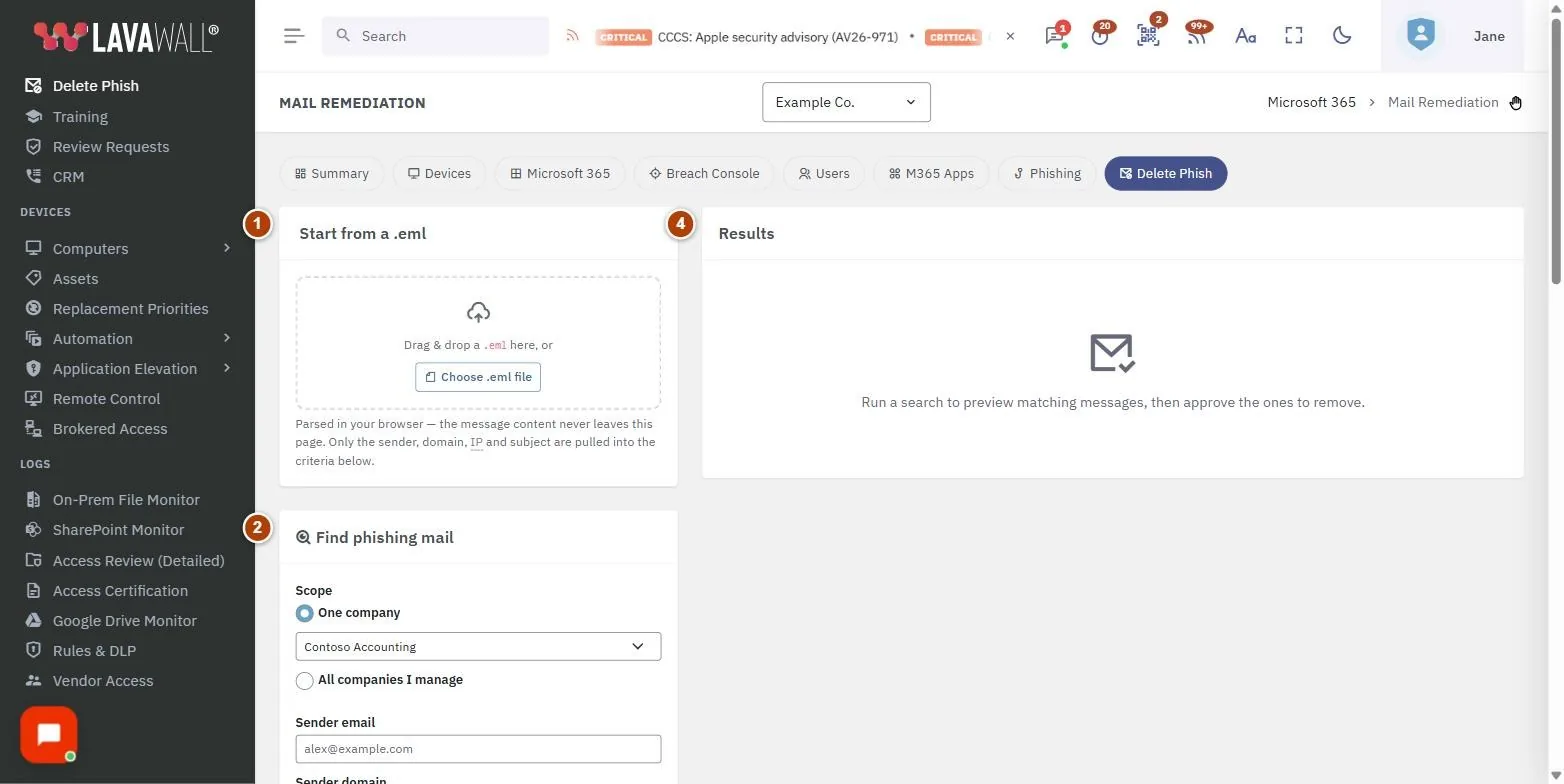
- Start from a .eml: drag and drop a saved email, or click Choose .eml file, to fill in the search for you.
- Find phishing mail: Scope (One company or All companies I manage), Sender email, Sender domain, Sender IP, Subject (contains or equals), Look back and Search mailboxes, plus Re-authorize Microsoft access.
- Recent searches: earlier searches with their status (for example searching, ready to review, queued, done) and number of matches. Click one to reopen it.
- Results: matching messages with Company, Mailbox, Sender, Subject, Received, IP, Folder and Result, and Select all, Clear, Action for selected and Approve & queue.
How to find a phishing email in every mailbox
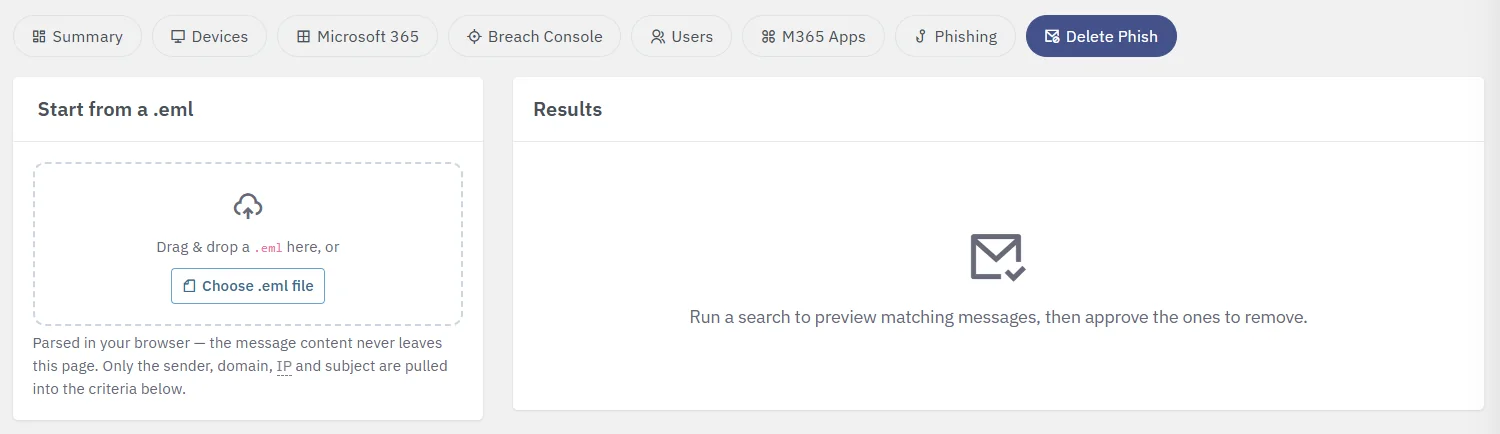
- Optional: drop the reported email into Start from a .eml. The sender, domain, IP and subject are filled in.
- Choose One company and pick it, or choose All companies I manage.
- Fill in one or more of Sender email, Sender domain, Sender IP and Subject. Every field you fill in must match.
- Choose how far back to search in Look back (7 days to 1 year).
- Click Search mailboxes. Results appear as the search runs.
How to remove the messages
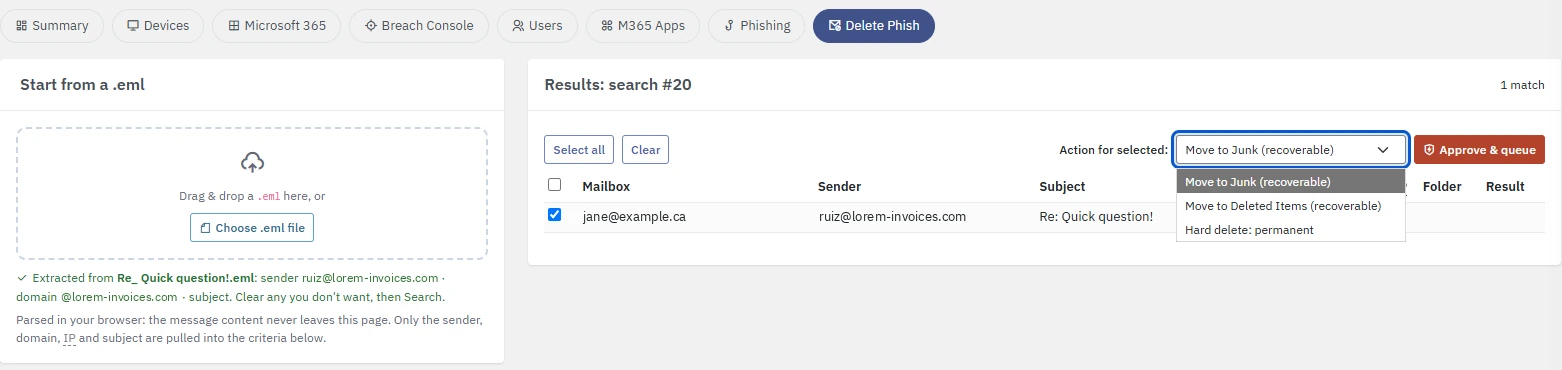
- Review the results. Tick the messages to act on, or click Select all.
- Choose Action for selected: Move to Junk (recoverable), Move to Deleted Items (recoverable) or Hard delete: permanent.
- Click Approve & queue.
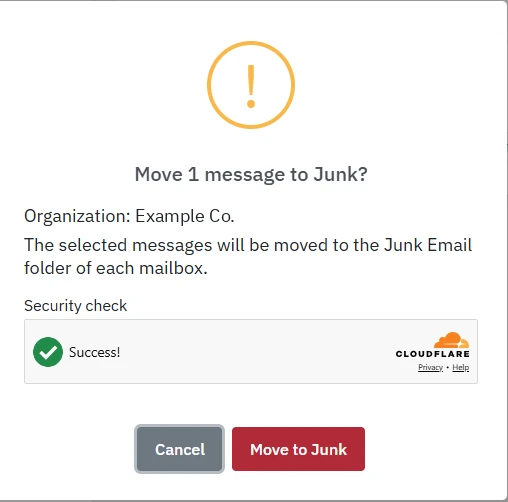
- In the confirmation, check the organization and what will happen to the messages. Wait for the Security check to show Success!; for Hard delete, also type the phrase the dialog asks for. Then click the action button, for example Move to Junk.
- Watch the Result column change to Junk ✓, Deleted ✓ or Purged ✓.
How to reopen an earlier search
- Click the search in Recent searches.
- Its results load in Results, including what was already removed.
How to grant Microsoft access for removals
- If a banner says Microsoft re-authorization is needed, click the button in it, or click Re-authorize Microsoft access under the search.
- Sign in as a Microsoft 365 global administrator and grant consent.
- You return to this page. Run the search again.
Tips
- Start with a recoverable action. Use Hard delete: permanent only when you are sure; it also removes the message from Recoverable Items and cannot be undone.
- A .eml file is read in your browser. Only the sender, domain, IP and subject are used; the message content does not leave the page.
- Searching by Sender IP reads message headers and is slower than the other fields.
- Use Subject with equals to avoid catching legitimate mail with similar subjects.
- Messages that have already been actioned cannot be ticked again.
Troubleshooting
- "Enter at least one match criterion."
- Fill in at least one of sender, domain, IP or subject.
- "Choose a company."
- Pick a company, or switch to All companies I manage.
- "No Microsoft-connected companies."
- None of your companies has Microsoft 365 connected. Connect it first.
- "Microsoft re-authorization needed."
- The Mail permission needed to search and remove messages has not been granted. Use the re-authorize button.
- A message shows "failed".
- Hover over it to see the reason. The message may have been moved or deleted by the user already.
- "Read-only connection: authorize read and write access to use this."
- The company connected Microsoft 365 with read access only, so Lavawall does not change anything in its tenant and the button is disabled. A Microsoft 365 administrator can click Authorize read and write access and grant consent; the button works after that.
Task guides that use this page
Related articles
Still need help?
Search the support centre, or contact our support team and tell us which page you were on:
- Chat now: use the chat button in the bottom-right corner of this page to reach our team right away. Where cookie consent is needed, the chat starts after you accept (cookie settings).
- Email: send our support team a message through the contact page. It goes straight to a person.
- Phone:
 AB: 1-403-538-5053
 US: 1-406-988-7333
 UK: +44 20 3695 9786
Names, companies, devices and figures in the pictures are examples. Other product and company names are trademarks of their respective owners.