Elevation Rules
Decide in advance which programs may run with administrator rights, which are refused, and which need someone to approve them.
What the page is for
Elevation Rules is a page in the Lavawall® console, in the Application elevation area. Lavawall is the RMM, security, and compliance platform from ThreeShield, built and hosted in Canada. About this feature.
Rules tell the elevation agent what to do when a program asks for administrator rights. An allow rule can auto-approve the request or send it to the user or a technician; a deny rule refuses it; a ringfence rule limits what an elevated program may do afterwards.
Rules can match a program by its exact file hash, its publisher's certificate, its signer name, its path, or for installers by MSI hash, product code, signer or path. Each rule applies to the whole company, one device, one user, or one session type, and can expire after a set number of minutes.
Changes reach computers in the next rule bundle. Rules you create here, from Audit Review, from Pending Requests, and from Vendor Templates all appear in this list.
What you see
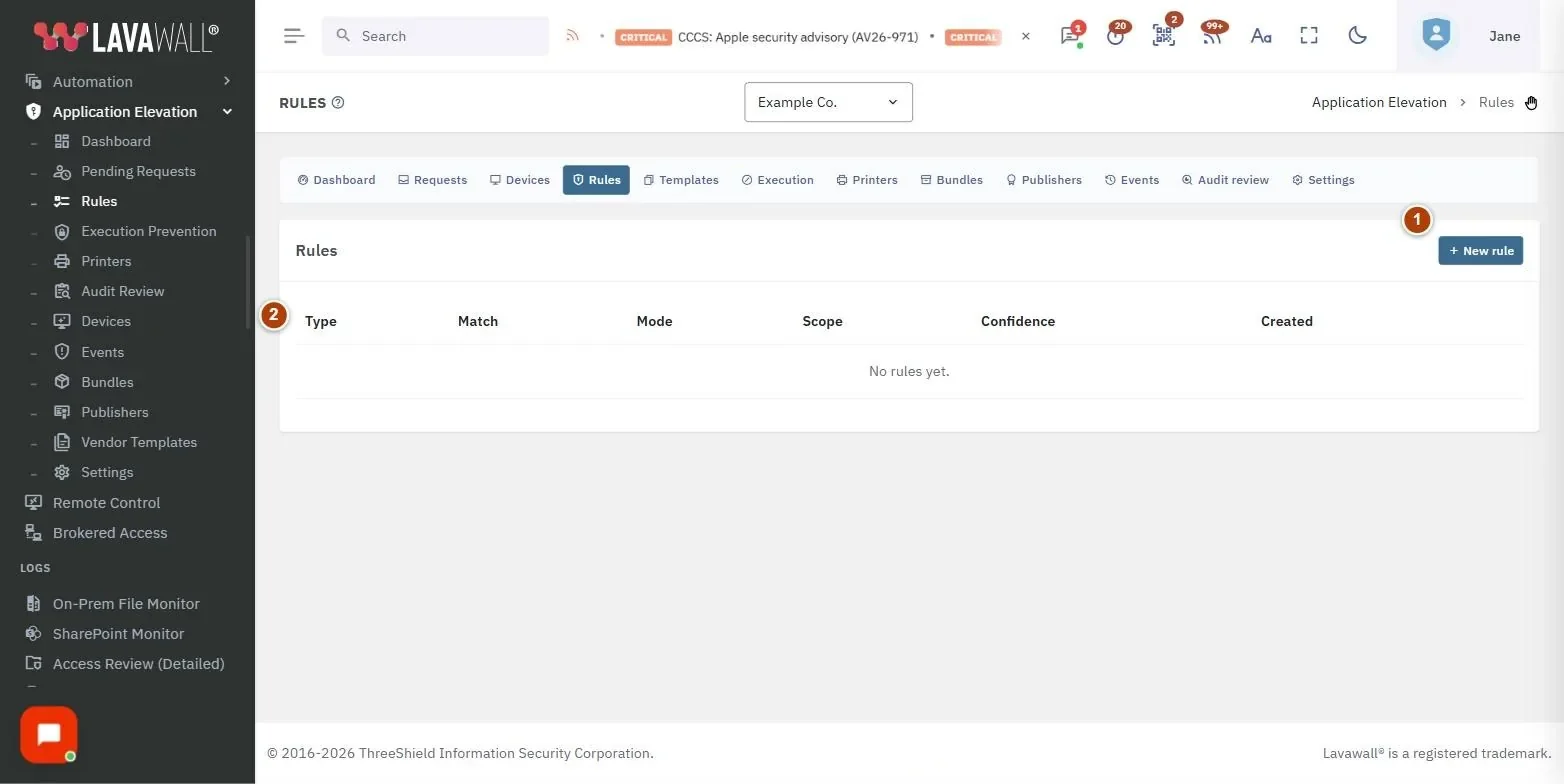
- New rule: opens the rule form. The list can also be searched.
- Rules list: Type (green for allow, red for deny, blue for ringfence), Match, Mode, Scope, Confidence and Created, with a revoke button on each row.
- New rule dialog: Rule type, Mode, Match value, Scope, Scope target (optional), Risk threshold, Confidence, TTL (minutes, 0=permanent), Suppress auto-approve if parent process is suspicious, Audit only (log decision but don't enforce) and Comment.
How to use Elevation Rules
How to add a rule
- Select New rule.
- Choose the Rule type, for example Allow publisher (cert thumbprint) or Deny executable hash.
- Choose the Mode: Auto-approve, Prompt user, Prompt technician (QR) or Deny.
- Enter the Match value: a 64-character SHA-256 hash, a signer such as
CN=Example Software Inc., or a path glob such as%ProgramFiles%/ExampleApp/*.exe. - Pick the Scope (Whole company, Specific device, Specific user or Session type) and, if needed, the Scope target.
- Adjust Risk threshold (default 60), Confidence (default 90) and TTL (0 means permanent).
- Add a Comment saying what the rule is for, then select Save.
How to test a rule without enforcing it
- In the rule form, turn on Audit only (log decision but don't enforce).
- Save the rule. Its decisions are recorded in Events but not acted on.
How to stop a program's child processes after elevation
- Select New rule and choose No child process under Ringfence (post-elevation).
- Enter the program in Match value. Leave it empty to fence every elevation in the scope.
- Select Save.
How to revoke a rule
- Find the rule in the list and select the bin icon.
- Confirm Revoke rule?. Computers stop honouring it on the next bundle push.
Tips
- Prefer publisher rules: one rule covers every file that publisher signs and survives updates. Hash rules are the tightest but break on the next version.
- In paths,
*matches within one folder and**matches across folders. - Signer matching looks for your text anywhere in the certificate's full name.
- The risk threshold is a safety net: when a request's risk score is above it, the automatic decision is suppressed and a person decides.
- Turn on Suppress auto-approve if parent process is suspicious for rules that could be abused from a browser or email attachment.
- Rules are sorted newest first; the list is searchable and pages at 25.
Troubleshooting
- "No rules yet."
- : Nothing has been created. Start with Audit Review or Vendor Templates rather than typing rules by hand.
- "No file access" and "No network access" are greyed out.
- : These ringfence types are not available yet.
- "Save failed."
- with a message: The server refused the rule, for example a pattern that is too broad. Read the message and narrow the match.
- "You don't have permission to manage rules."
- : Ask an administrator for the elevation Rules permission.
- "Application Elevation is not authorized for this company."
- : Switch the module on from the Dashboard or Settings first.
Task guides that use this page
Related articles
Still need help?
Search the support centre, or contact our support team and tell us which page you were on:
- Chat now: use the chat button in the bottom-right corner of this page to reach our team right away. Where cookie consent is needed, the chat starts after you accept (cookie settings).
- Email: send our support team a message through the contact page. It goes straight to a person.
- Phone:
 AB: 1-403-538-5053
 US: 1-406-988-7333
 UK: +44 20 3695 9786
Names, companies, devices and figures in the pictures are examples. Other product and company names are trademarks of their respective owners.