Elevation Audit Review
Before you switch to Enforce, see everything that needed administrator rights in the last 30 days and allow the common, trusted items in a click.
What the page is for
Elevation Audit Review is a page in the Lavawall® console, in the Application elevation area. Lavawall is the RMM, security, and compliance platform from ThreeShield, built and hosted in Canada. About this feature.
While Application Elevation runs in Audit mode, the agent records every elevation without blocking anything. This page groups the last 30 days of that history so you can decide what to approve before enforcing. Pre-approving the everyday items here avoids a flood of pending requests on the first day of enforcement.
You can group the history by publisher, by exact file, by program name, by folder, or by full path. Each row shows how often the item ran, on how many devices, when it was first and last seen, whether it is signed, and the exact rule that allowing it would create.
What you see
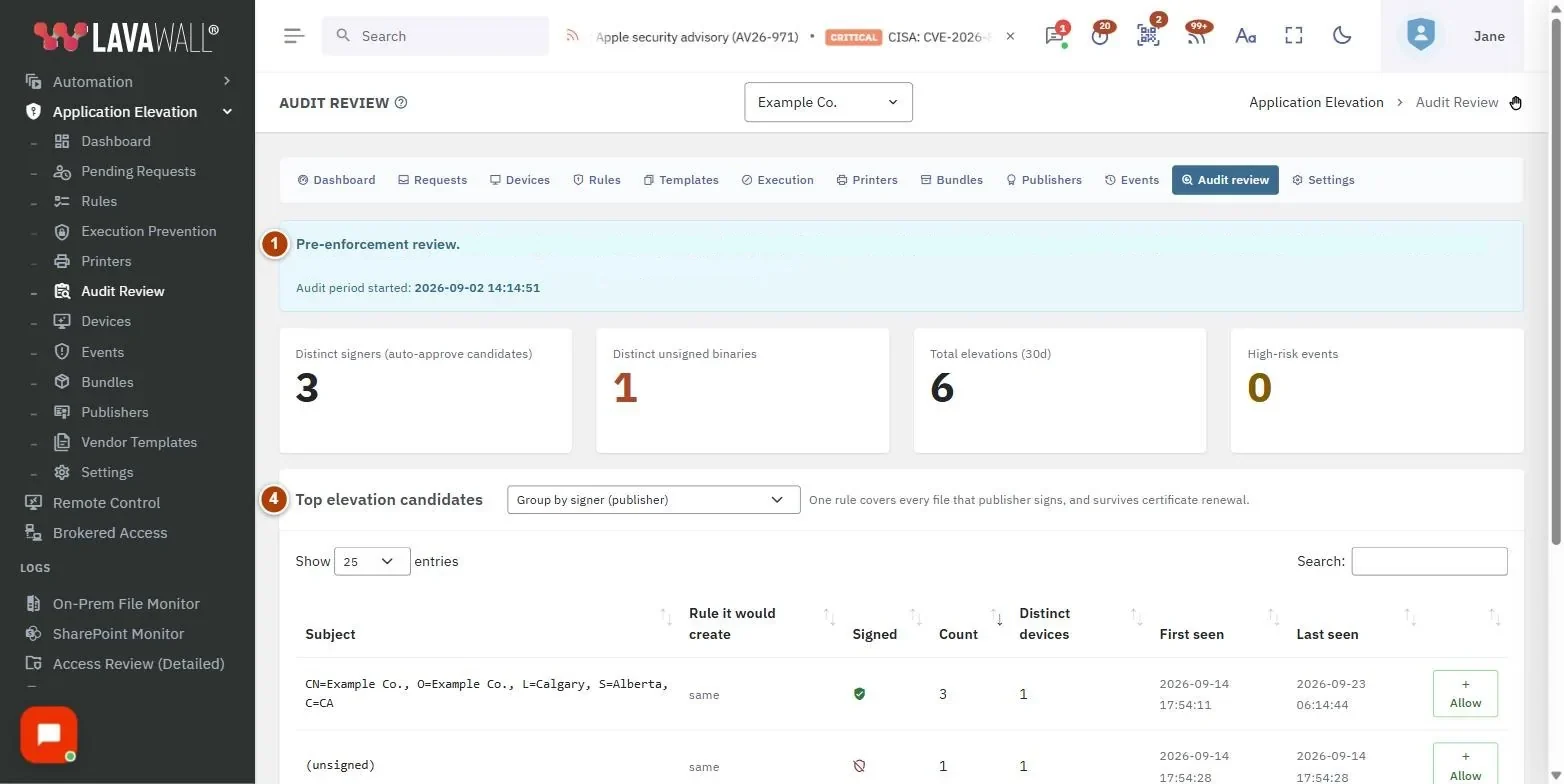
- Pre-enforcement review notice: explains the page and shows when the audit period started.
- Summary tiles: Distinct signers (auto-approve candidates), Distinct unsigned binaries, Total elevations (30d) and High-risk events.
- Group by: Group by signer (publisher), binary hash (exact file), executable name, directory, or full path, with a hint explaining how broad that choice is.
- Top elevation candidates: Subject, Rule it would create, Signed, Count, Distinct devices, First seen, Last seen, and an Allow button.
- Create allow rule dialog: the item, the exact rule pattern, any breadth warning, Risk threshold, Confidence and Comment.
How to use Elevation Audit Review
How to allow a trusted publisher
- Leave the grouping on Group by signer (publisher).
- Find the publisher in Top elevation candidates. The list is sorted by count, most frequent first.
- Select Allow.
- Check the Rule shown in the dialog, adjust Risk threshold (default 60) or Confidence (default 80) if needed.
- Select Create allow rule. The rule auto-approves future elevations that match, across the whole company.
How to allow one exact file
- Choose Group by binary hash (exact file).
- Select Allow on the row, then Create allow rule.
How to allow a vendor that installs into a versioned folder
- Choose Group by directory.
- Select Allow and read the warning: it allows every program in that folder and below.
- Only continue if ordinary users cannot write to that folder, then select Create allow rule.
Tips
- Signer rules cover every file the publisher signs and survive certificate renewal; they are the best default.
- Exact-file (hash) rules are the tightest but stop matching when the program updates.
- Group by executable name allows that file name in any folder, including Downloads and temp folders. The dialog warns you; prefer the publisher or the exact file.
- A red shield in Signed means the file is unsigned. Treat those individually.
- The comment is pre-filled with "Approved during audit review on" and today's date, which is useful later when someone asks why a rule exists.
- When you are done, switch the operating mode on the Settings page.
Troubleshooting
- "No audit data yet."
- : No elevations have been recorded for this company in the last 30 days. Check that the company is in Audit mode and that devices are enrolled.
- There is no Allow button.
- : You need the elevation Rules permission to create rules.
- "Save failed."
- : The server refused the rule, for example because the pattern is too broad. Choose a narrower grouping.
- "Application Elevation is not authorized for this company."
- : Switch the module on first.
Task guides that use this page
Related articles
Still need help?
Search the support centre, or contact our support team and tell us which page you were on:
- Chat now: use the chat button in the bottom-right corner of this page to reach our team right away. Where cookie consent is needed, the chat starts after you accept (cookie settings).
- Email: send our support team a message through the contact page. It goes straight to a person.
- Phone:
 AB: 1-403-538-5053
 US: 1-406-988-7333
 UK: +44 20 3695 9786
Names, companies, devices and figures in the pictures are examples. Other product and company names are trademarks of their respective owners.