Elevation Publishers
Review the software publishers whose signed programs have asked for administrator rights, and mark each one as trusted, watched or blocked.
What the page is for
Elevation Publishers is a page in the Lavawall® console, in the Application elevation area. Lavawall is the RMM, security, and compliance platform from ThreeShield, built and hosted in Canada. About this feature.
Most business software is digitally signed by its publisher. Lavawall keeps a catalogue of the code-signing certificates it has seen on your computers. This page lists them with the publisher name, certificate fingerprint, issuer, expiry date, and how many of your devices have seen it.
For each publisher you can record your company's verdict. That verdict feeds the reputation shown on elevation requests, so a request from a trusted vendor reads differently from one signed by a publisher you have never reviewed. A block from Lavawall always wins over a company verdict.
What you see
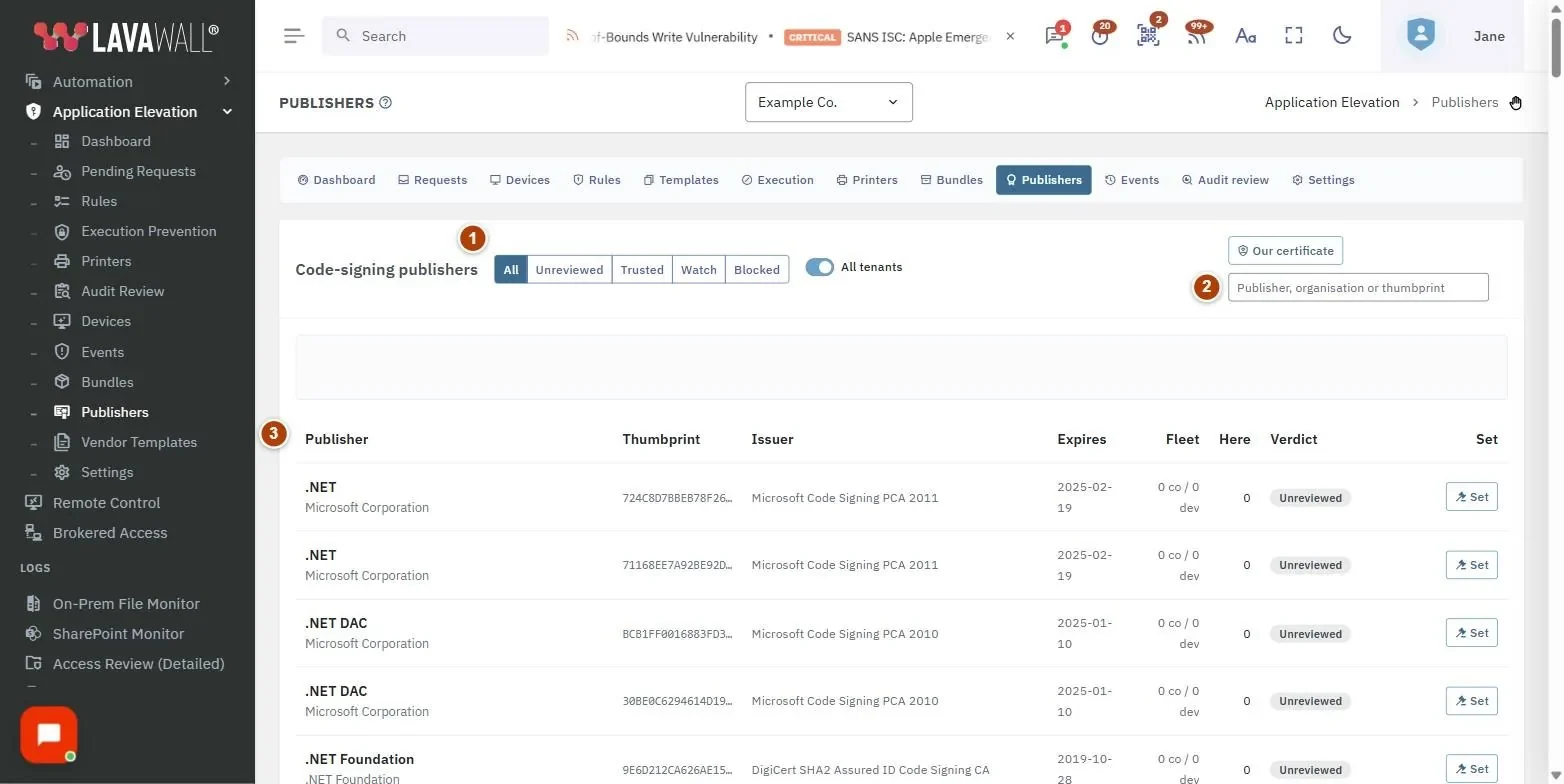
- Verdict filter: All, Unreviewed, Trusted, Watch and Blocked.
- Search: by publisher, organization or thumbprint.
- Code-signing publishers table: Publisher (with organization and an EV badge where applicable), Thumbprint, Issuer, Expires, Here (devices in this company), Verdict and Set.
- Set publisher verdict dialog: Verdict and Note (kept with the decision).
How to use Elevation Publishers
How to trust a publisher
- Search for the publisher.
- Check the thumbprint against the vendor's own published value.
- Select Set, choose Trusted: we know this vendor, and add a Note such as "verified against the vendor's published thumbprint".
- Select Save.
How to block a publisher
- Select Set on the publisher's row.
- Choose Blocked: never elevate anything it signs and add a note.
- Select Save.
How to flag a publisher for attention
- Select Set and choose Watch: show it, but flag it.
- Select Save.
How to find publishers nobody has reviewed
- Select Unreviewed in the verdict filter.
- Sort or search, and work through the list.
Tips
- A name is not an identity. Two certificates can carry the same company name; the thumbprint is what identifies the certificate.
- An EV badge means an extended-validation certificate, which requires stronger identity checks by the issuer.
- When your verdict differs from Lavawall's, the Verdict column shows both, for example "Trusted (platform: watch)".
- A verdict here does not create an allow rule. To auto-approve a publisher's programs, create a publisher rule on the Rules page or from Audit Review.
Troubleshooting
- "This publisher is blocked platform-wide. A company verdict will not override that."
- : Lavawall has blocked this certificate for everyone. Your verdict is recorded but cannot unblock it.
- "No publishers match."
- : Clear the filter and search.
- "The publisher catalogue could not be read."
- or "Could not load the catalogue.": Try again later.
- "That verdict could not be saved."
- : You may not have permission to set verdicts, or the request was refused.
Related articles
Still need help?
Search the support centre, or contact our support team and tell us which page you were on:
- Chat now: use the chat button in the bottom-right corner of this page to reach our team right away. Where cookie consent is needed, the chat starts after you accept (cookie settings).
- Email: send our support team a message through the contact page. It goes straight to a person.
- Phone:
 AB: 1-403-538-5053
 US: 1-406-988-7333
 UK: +44 20 3695 9786
Names, companies, devices and figures in the pictures are examples. Other product and company names are trademarks of their respective owners.