Remote support · Consent & access controls
Ask first. Then prove who could even ask.
Before a technician can work on a computer, two different questions get answered: can they reach it at all, and does the person sitting at it agree. Lavawall® answers the first with IP, country, and authentication rules, and the second with an on-screen consent request that stays visible for the whole session.
Start free, no credit card See how consent works
Consent requests · IP & country allowlists · MFA for remote support · per-user scope
See it in the Lavawall® console
Real screens, shown with example data.
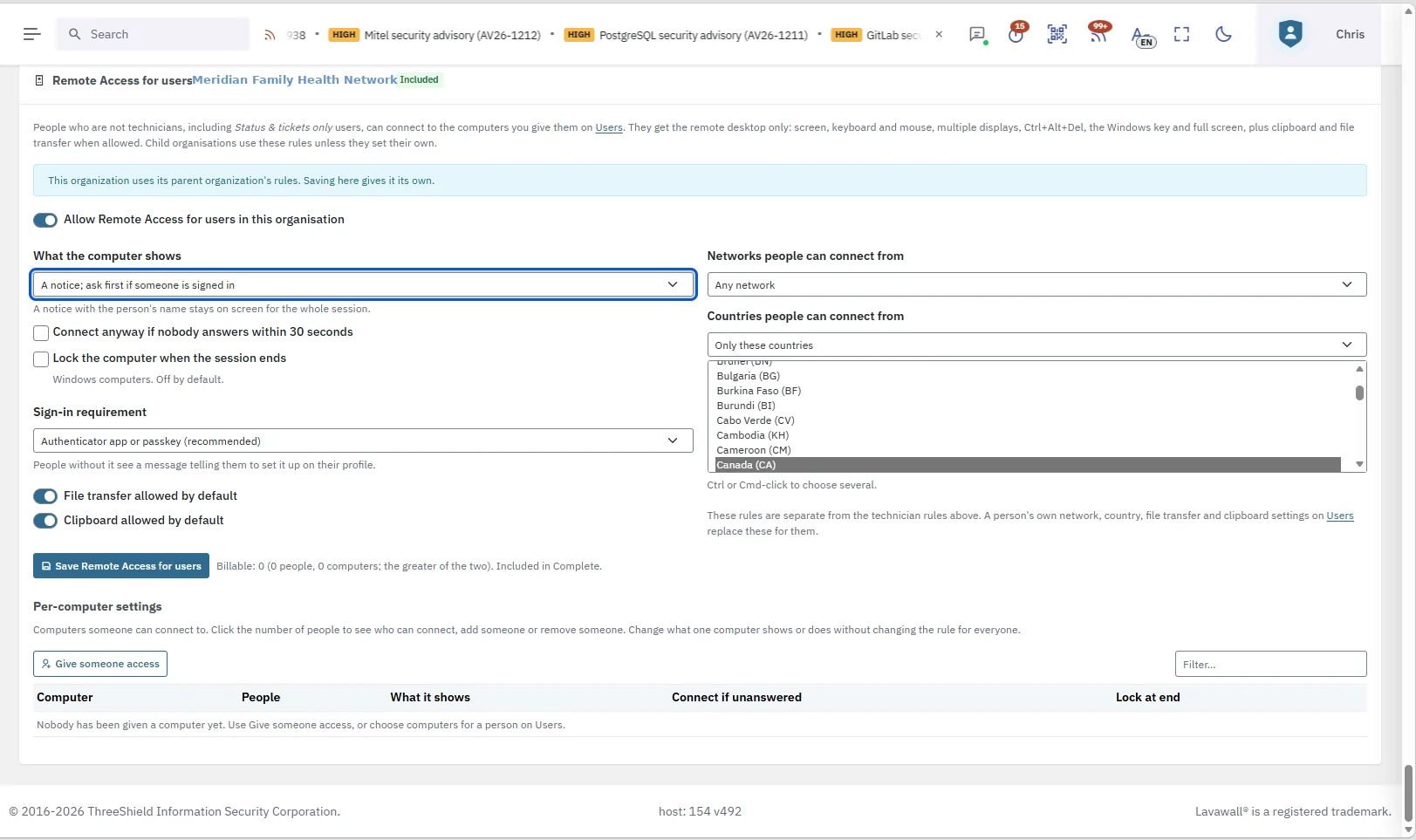
Consent comes first, every interactive session
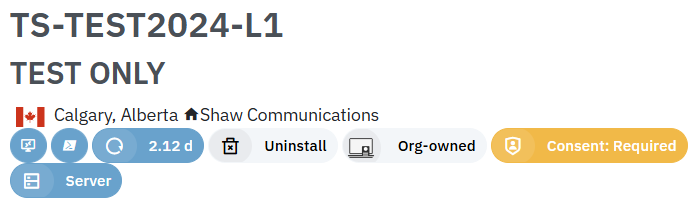
Before a technician's interactive session begins, Lavawall® asks the person at the computer to approve it. Once approved, a translucent, repositionable notice naming the technician stays on their screen for the whole session, so they always know someone is connected and can end it or start a chat in one click.
You decide what fits each computer. Consent can be required for every organization by default, set differently for one client, or overridden on a single machine from its own device page, for example a lab computer that should always ask, or a server that rarely has anyone at the keyboard.
When nobody answers
A strict consent requirement is not always the right fit for every machine. Two settings handle the edge cases without weakening consent everywhere else:
- Connect anyway if nobody answers within a time limit, for a server room or an unattended workstation where waiting for approval would just block the fix
- Lock the computer when the session ends, so an unattended machine is not left signed in and unlocked once the technician disconnects
Closing the shell loophole
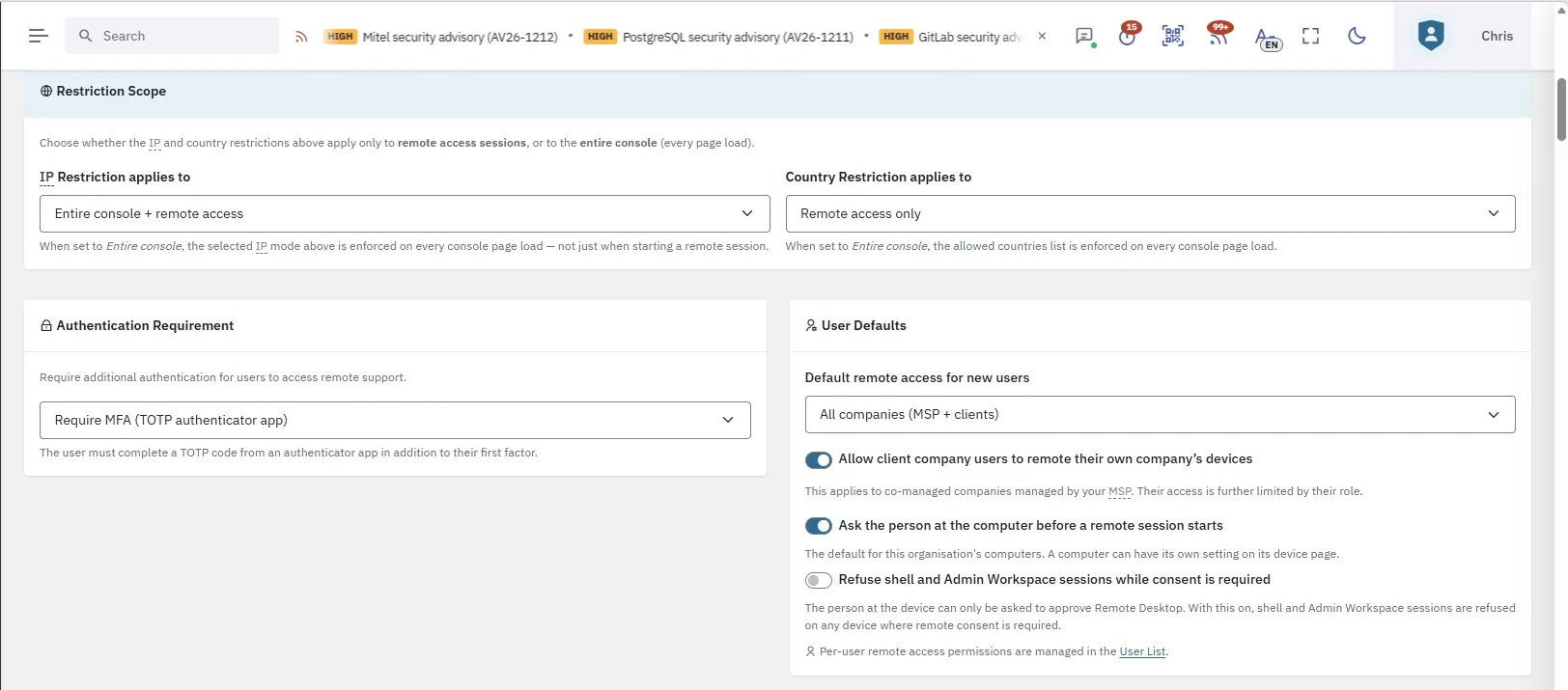
A consent prompt means little if a technician can simply open a remote shell instead. Refuse shell and Admin Workspace sessions while consent is required closes that gap: on any computer where consent is required, shell access and the Admin Workspace are refused outright, and only the consent-gated session type is available.
See Backstage admin tools for what the Admin Workspace normally offers when consent isn’t required.
Reaching the console at all is its own gate
Consent governs a session once someone is trying to connect. A separate layer decides who can even open the remote-support console in the first place.
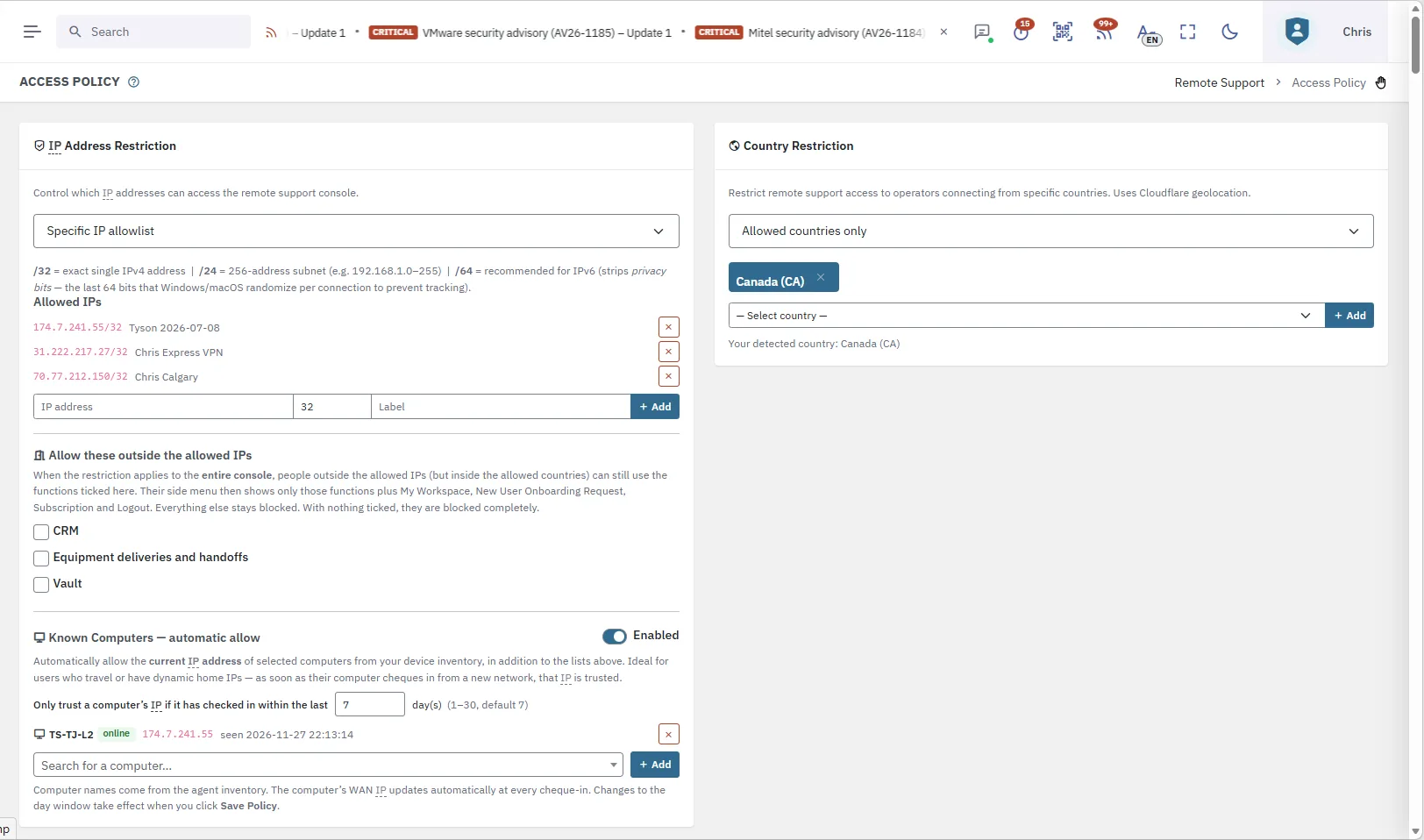
- IP address restriction: allow specific addresses or ranges, with options for people outside the list who are still inside an allowed country
- Country restriction: limit access to the countries you choose, detected automatically
- Known Computers, automatic allow: a computer in your device inventory has its current IP trusted automatically once it has checked in recently, which is useful for a technician travelling or working from a home connection with an address that changes often, without anyone having to update an allowlist by hand
- Restriction scope: choose whether the IP and country rules apply only when starting a remote session, or to the entire console on every page load
An extra sign-in step, just for this
Authentication Requirement can demand an additional factor, such as a code from an authenticator app, specifically for remote support access, on top of whatever a person's regular sign-in already requires. It lets you hold remote access to a higher bar than the rest of the console if that fits your risk tolerance.
Permissions that follow the person, not just the org
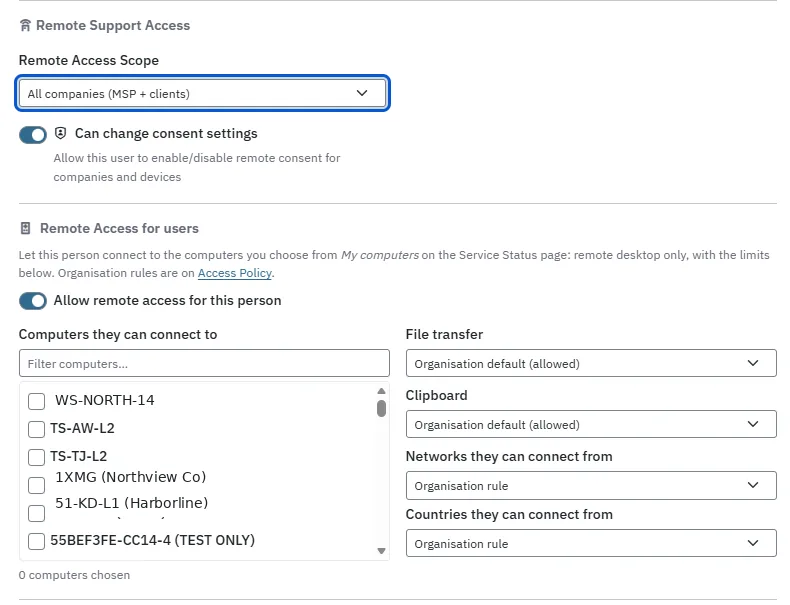
Every setting above has an organization-wide default, but a single person's access can be scoped tighter. Each person's own remote-access settings control which companies they can reach, whether they are trusted to change consent settings at all, and, for Remote Access for users, exactly which computers they can connect to, with their own file-transfer, clipboard, network, and country limits layered on top of the organization's rules.
The session itself is still encrypted
Everything above decides who may try to connect and whether the person at the computer agrees. Separately, a remote desktop session's traffic is protected in transit by a FIPS 140-3 validated cryptographic module, NIST CMVP Certificate #5247, which matters for CJIS control SC-13 and other rules that require validated cryptography rather than merely strong algorithms. See FIPS 140-3 support for the detail; it is covered in depth there and not repeated here.
A separate, simpler case: Remote Access for users
Everything above is about technicians running interactive support sessions. A different, more limited feature, Remote Access for users, lets people who are not technicians reach only the computers you have specifically assigned them, from their own browser. It has its own notice-and-consent model (a plain notice, or ask first if someone is signed in), its own fallback and lock-at-end settings, and its own network, country, file-transfer, and clipboard rules, set on the same Access Policy page described above. See Remote support: Remote Access for users for the full picture; it is not repeated here.
Need remote access rules that match a real compliance obligation?
ThreeShield, the CISSP/CISA team that builds Lavawall®, will help you set consent, IP, country, and per-user rules that hold up under audit, not just under a demo.
Common questions
- Does the person at the computer have to approve a remote session?
- By default, yes. Before an interactive session starts, the person at the computer is asked for consent, and a notice naming the technician stays on screen for the whole session. You can turn this on or off for a whole organization, or set it differently on one computer, from its device page.
- What happens if nobody answers the consent request?
- That is your choice. You can require someone to approve every time, or allow the session to connect anyway if nobody answers within a set time, for machines such as servers where no one is usually sitting at the keyboard. You can also have the computer lock itself automatically once the session ends.
- Can a technician work around a declined consent request by opening a shell instead?
- Not if you turn on the setting for it. Refuse shell and Admin Workspace sessions while consent is required, so a technician cannot route around a declined or unanswered consent request through the remote shell or the Admin Workspace; only the consent-gated session type is available on that computer.
- Can we limit who can even reach the remote-support console, not just who can connect to a computer?
- Yes. Access Policy lets you allow specific IP addresses or ranges, restrict access to chosen countries, and automatically trust a computer's current IP for a time after it last checked in, which is useful for staff who travel or work from a home connection with an address that changes. You choose whether these restrictions apply only when starting a remote session, or to the entire console on every page load.
- Can we require MFA just for remote support, even if it isn't required everywhere else?
- Yes. Authentication Requirement on Access Policy can require an additional factor, such as a TOTP authenticator app code, specifically for remote support access, on top of whatever a person's regular sign-in already requires.
- Can one person's remote access be more limited than everyone else's?
- Yes. Each person's own remote-access scope sets which companies they can reach, whether they are allowed to change consent settings, and, for Remote Access for users, exactly which computers they can connect to, with their own file-transfer, clipboard, network and country limits layered on top of the organization's rules.
- Is the session itself encrypted, and does that satisfy FIPS 140-3 or CJIS requirements?
- Yes. A remote desktop session's traffic is protected in transit by a FIPS 140-3 validated cryptographic module, NIST CMVP Certificate #5247. Consent and access controls govern who can start or reach a session; see FIPS 140-3 support for the cryptography itself.
- How is this different from Remote Access for users?
- Remote Access for users is the simpler, separate feature for people who are not technicians, reaching only the computers you have assigned them. Its own notice and consent model, and its own network, country, file-transfer and clipboard rules, are set on this same Access Policy page and on each person's own access settings; see Remote support for the full comparison.
Start free, no credit card →See the full remote-support page