Vault
Store your team's passwords, notes, cards and one-time codes encrypted in your browser, share them safely, and fill them in with the Lavawall browser extension.
What the page is for
Vault is a page in the Lavawall® console, in the Account & users area. Lavawall is the RMM, security, and compliance platform from ThreeShield, built and hosted in Canada. About this feature.
The Vault is a password manager built into Lavawall. Everything in it is encrypted and decrypted in your own browser with a key made from your vault passphrase, so Lavawall's servers only ever store encrypted data.
Items live in collections. You get a Personal collection when you set up your vault, and you can create shared collections for your team or for a client, then choose who else can open each one. Items can be logins (with username, password, website addresses and a live one-time code), secure notes, payment cards or identities.
You can import from Bitwarden, LastPass or 1Password, generate strong passwords, see earlier versions of an item, and send a single item to someone outside Lavawall with a time-limited link. Administrators get usage reports and can manage organization recovery keys.
The vault also keeps the secret values your scripts and backups need, such as an installer token or a bucket's access keys. See Script secrets.
What you see
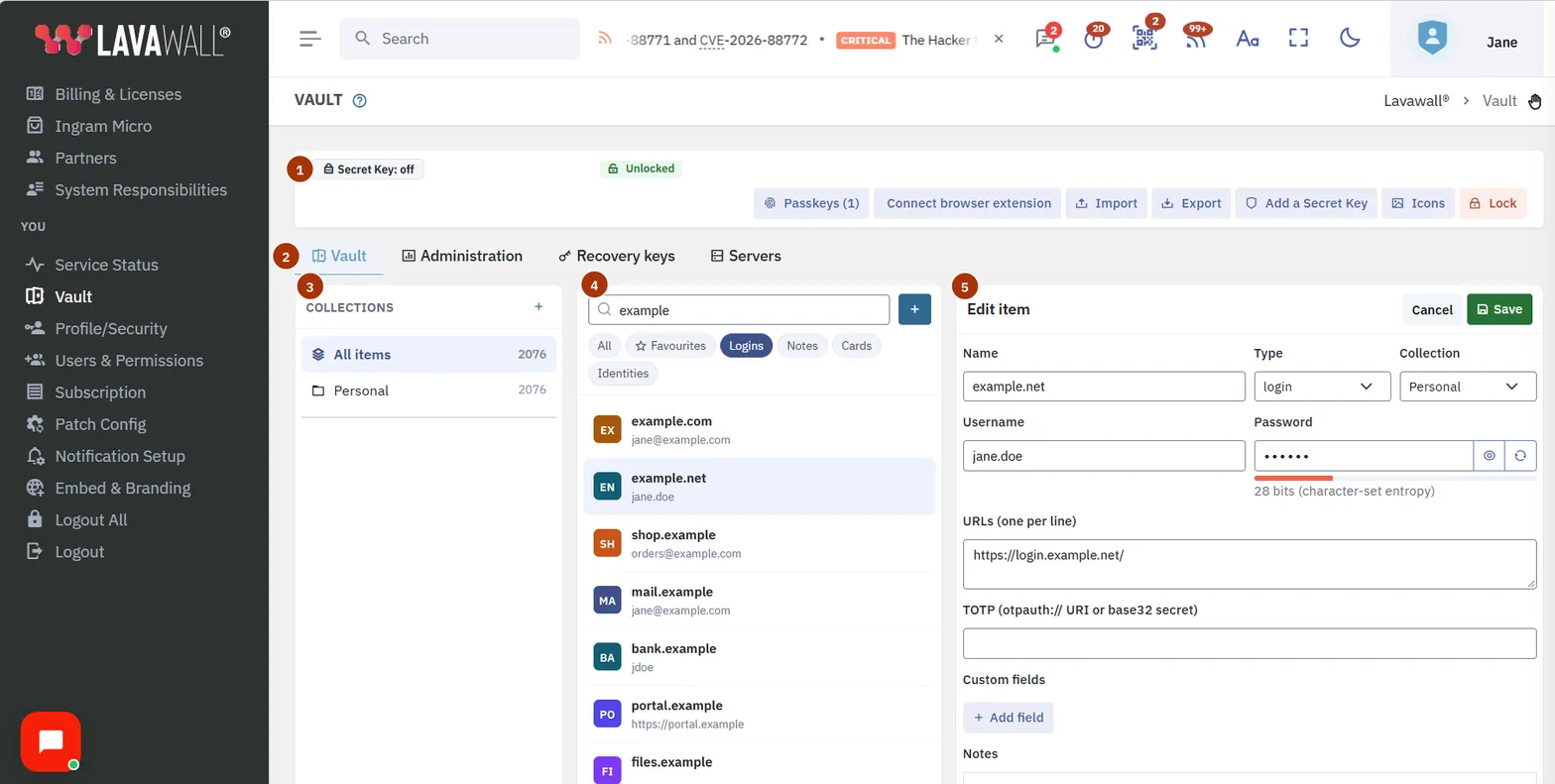
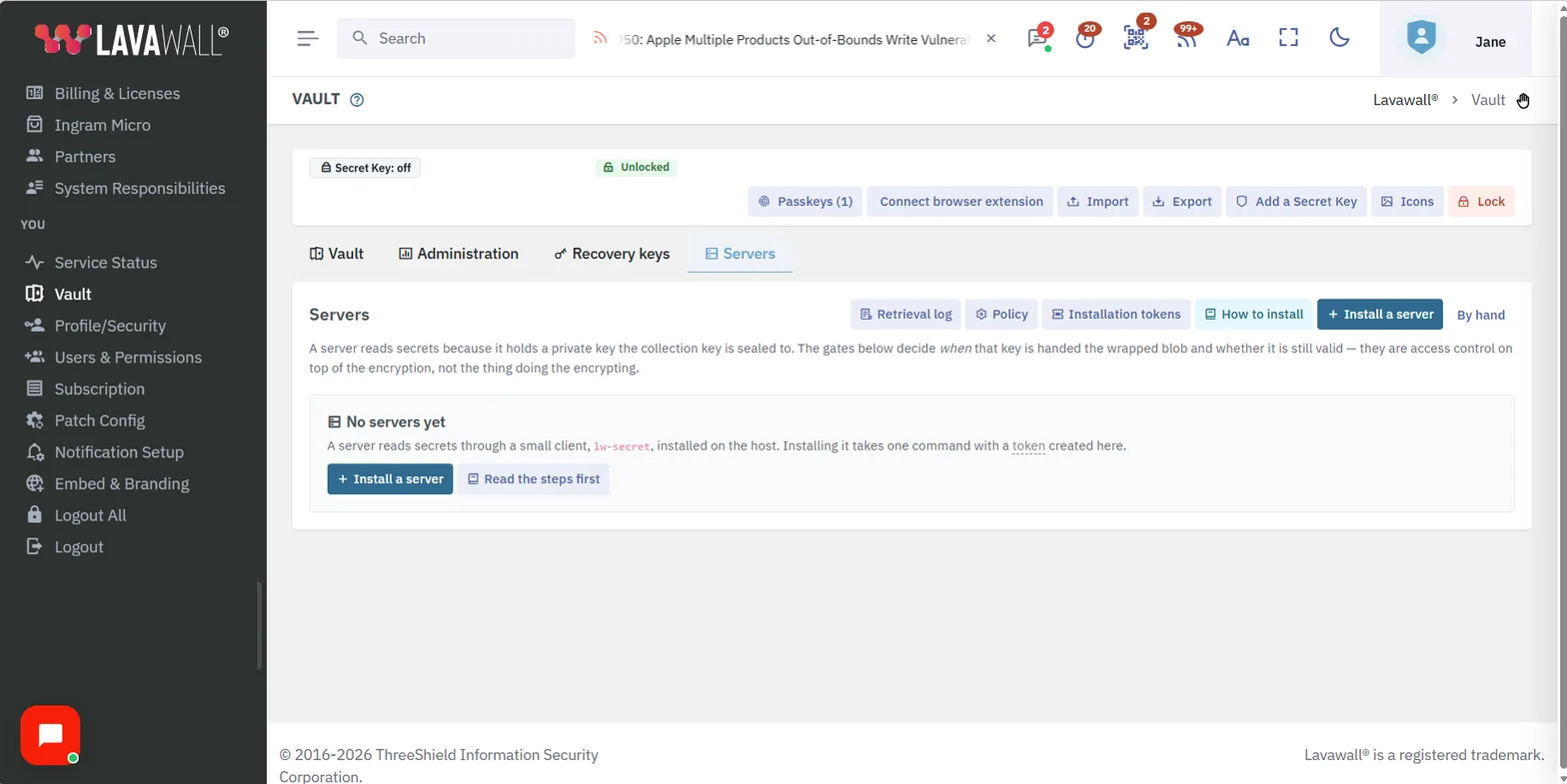
- Top bar: a badge showing how your vault is protected, whether a Secret Key is on, the lock status, and buttons for Unlock, Passkey, Connect browser extension, Import, Export, Add a Secret Key, Create recovery key, Icons and Lock.
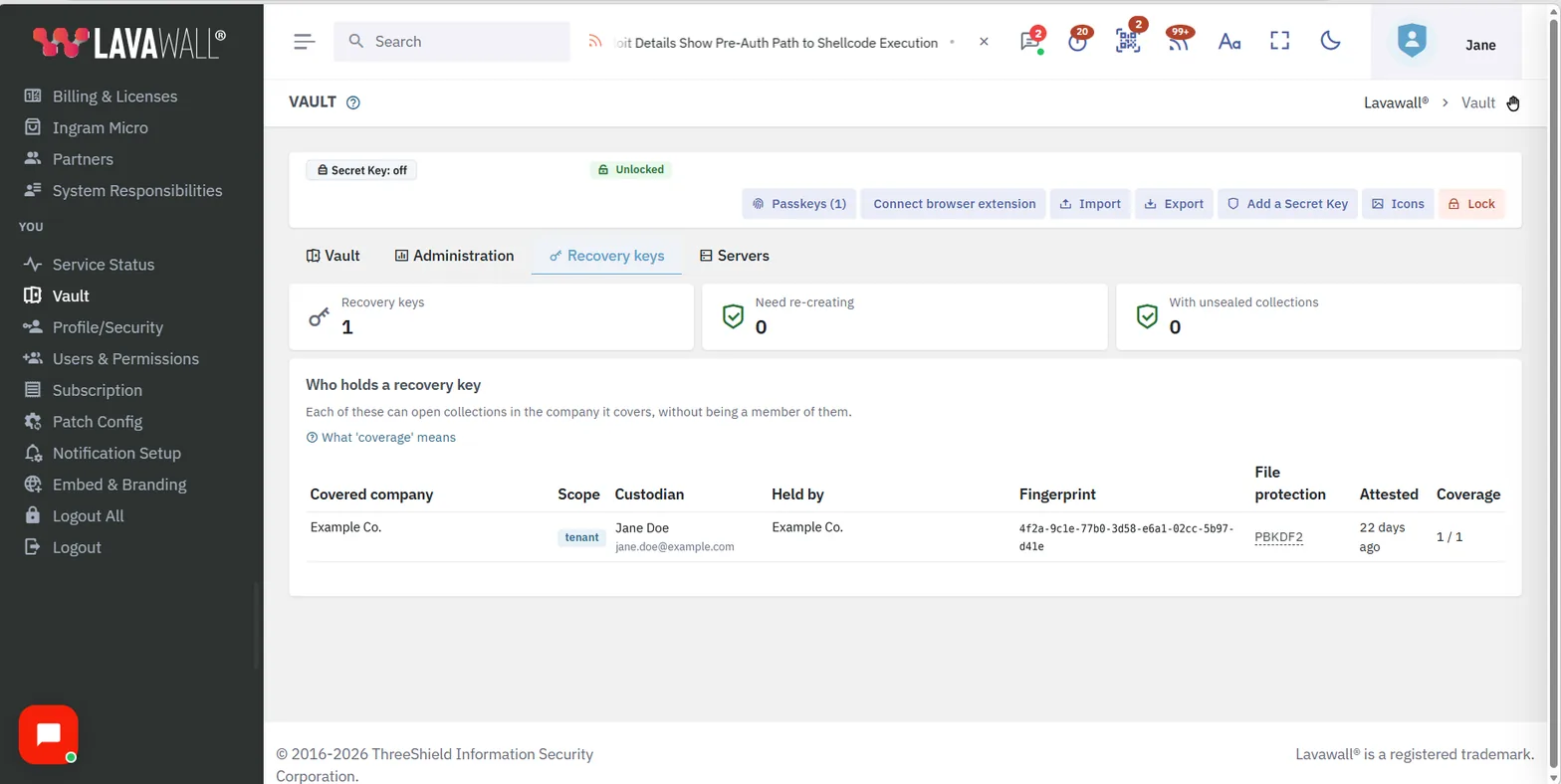
- Tabs: Vault, plus Administration, Recovery keys and Servers for people with those rights, and Script secrets once your vault is unlocked.
- Collections: your collections with item counts, a New collection button, and Members & sharing, Rename collection and Delete collection for the selected one.
- Item list: a search box (name, user, URL, notes), filters for All, Favourites, Logins, Notes, Cards and Identities, and a New item button.
- Item detail: the selected item's fields with copy buttons, the one-time code with a countdown, and Favourite, Share, history, Edit and delete buttons.
How to set up your vault
- Open Vault. The first time, you see Set up your vault.
- Choose a vault passphrase of at least 12 characters and confirm it. It never leaves your browser, and Lavawall cannot recover it for you.
- Click Create my vault. Your keys are created and a Personal collection is made for you.
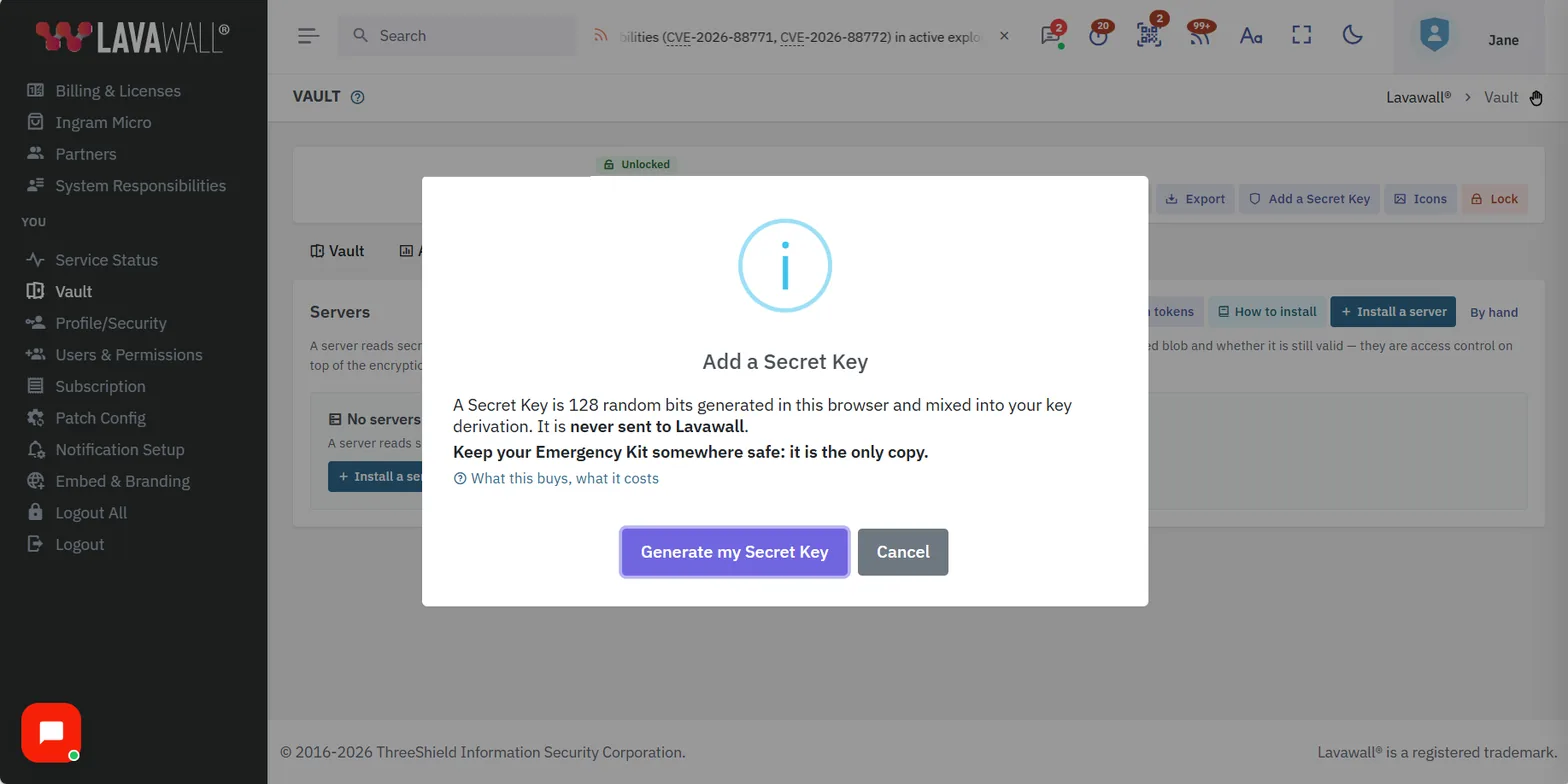
- Optional: click Add a Secret Key for a second secret that is needed with your passphrase, and Passkeys to unlock with a passkey or security key.
How to connect the browser extension
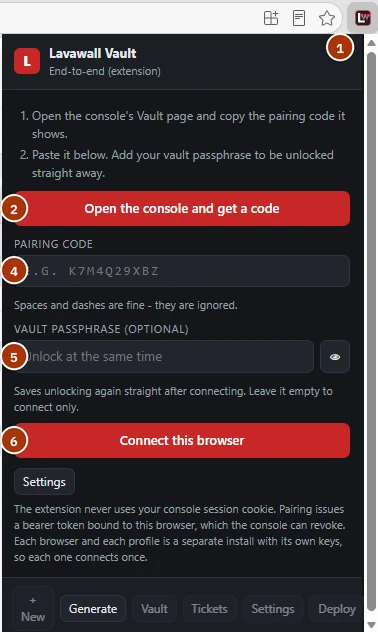
- Click the Lavawall extension in your browser's toolbar.
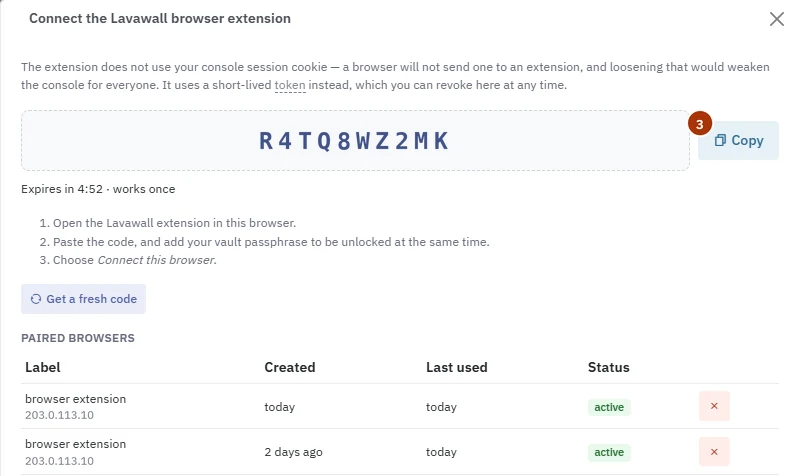
- Click Open the console and get a code. The console's Vault page shows the Connect the Lavawall browser extension window with a pairing code. You can also open it yourself with Connect browser extension at the top of the Vault page.
- Click Copy. The code works once and expires after a few minutes; click Get a fresh code if it runs out.
- Go back to the extension and paste the code into Pairing code. Spaces and dashes are ignored.
- Optional: enter your vault passphrase in Vault passphrase to unlock the vault in the extension at the same time.
- Click Connect this browser. The browser now appears under Paired browsers in the console, where you can revoke it with its remove button.
How to fill a login from the browser extension
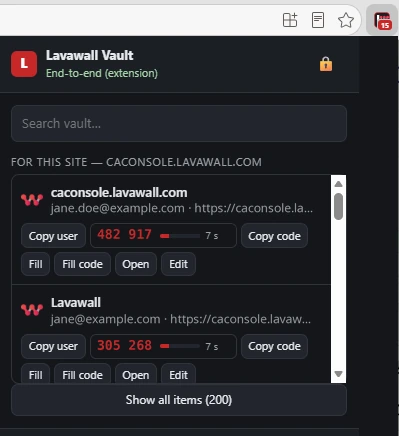
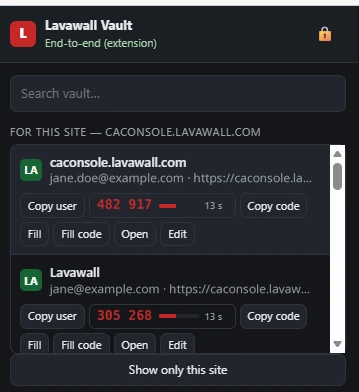
- On the site's sign-in page, click the Lavawall extension. Logins saved for that site are listed under For this site, each with the site's icon.
- Click Fill to fill the username and password, or Copy user to copy the username.
- For a login with a one-time code, the current code is shown beside it with the seconds it has left. Click Copy code, or Fill code when the site asks for the code. The password and the code are never filled by the same click.
- To find something else, type in Search vault..., or click Show all items.
How to generate a password in the extension
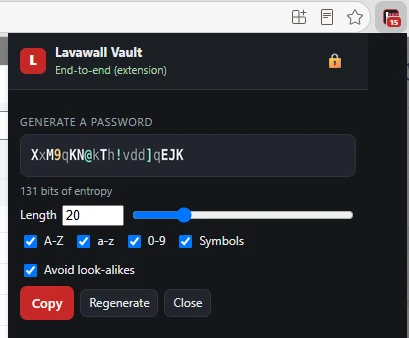
- Click the Lavawall extension, then Generate at the bottom.
- Set the Length and choose A-Z, a-z, 0-9 and Symbols. Leave Avoid look-alikes on to skip characters that are easy to confuse.
- Click Copy, or Regenerate for a different password. The strength is shown in bits of entropy under the password.
How to add an item
- Select a collection, then click New item.
- Choose the type and fill in the fields, for example name, username, password, website addresses and notes. For a one-time code, paste the otpauth:// link from the QR code or the base32 secret.
- Use the generator to create a password: set the length, choose character types, and click Use this password.
- Save the item. Copied passwords are cleared from the clipboard after 30 seconds.
How to share a collection with colleagues
- Select the collection and click Members & sharing.
- Under Add a member, pick a user and their role, then click Add.
- The first time you share with someone, confirm their key fingerprint with them by another channel. If a person's key changes later, the vault warns you before sharing again.
Key checks when you rotate a key or use recovery keys
- Rotate collection key checks every member's key before the new key is shared. If a member's key is not one you have verified in this browser, and is not the key they were given access with, the Verify window shows their fingerprint. Confirm it with them by phone or in person. If you do not confirm, nothing is rotated.
- When collections are sealed to your organization's or your provider's recovery key, for example when you create or rotate a collection, your browser checks the key against its fingerprint and remembers it. If a different recovery key appears later, The organisation recovery key has changed or The provider recovery key has changed shows the previous and the new fingerprint. Click Trust the new recovery key only if someone re-created it; otherwise click Stop, and nothing is sealed.
- A key that does not match its fingerprint is never used. You see This key does not match its fingerprint or Not rotated, and nothing is shared or changed.
How to send an item to someone outside Lavawall
- Open the item and click Share.
- Enter the Recipient email and choose how they get the key: You give them a passphrase separately (strongest), Link by email, code by text message, or Both by email (lowest assurance).
- Set Expires (1, 8 or 24 hours) and Maximum views (1 to 3), then click Create share link.
How to import from another password manager
- Click Import and follow the instructions for Bitwarden, LastPass or 1Password.
- Choose the export file and the collection to import into, then start the import.
- When it finishes, delete the export file from your computer; it is not encrypted.
Script secrets: values your scripts need
Some scripts need a value nobody should be able to read, such as an installer token or a service password. On the Script secrets tab you keep these as secret variables. Each value is encrypted in your browser, and Lavawall stores only the encrypted copy. Only the computers you allow can open it, and they open it just before the script runs. Scripts refer to it by name, as {{secret:NAME}}, so the value itself is not in the script, its parameters, or the console.
The tab has four parts: Automation key, Secret variables, Computer access (vault administrators) and Backup storage keys (super-admins).
- A vault administrator creates the automation key and gives computers access.
- Vault members with write access to the script secrets collection can create, change and delete secret variables. Sharing one with child organizations also needs permission to share with other organizations.
- A super-admin can keep a bucket's access keys in the vault.
Secret variables work on Windows computers with an up-to-date Lavawall agent. They are not available on macOS or Linux computers yet: a script that uses one is refused there.
How to create the automation key (once)
Company-wide secrets are locked to one automation key. Each computer you give access receives that key, so it can open every company-wide secret. A secret for one computer only does not need it.
- Open Vault, unlock it, and click the Script secrets tab.
- Under Automation key, click Create the automation key, then Create the key. The key is made in your browser and kept in your script secrets collection, encrypted like every other vault item.
- If you have no script secrets collection yet, you are asked Create a collection for script secrets? Click Create it. You can share the new Script secrets collection with other vault members later.
How to give computers access
- On the Script secrets tab, find Computer access. It lists each computer that has registered a secrets key.
- Check that Registration says Signature verified. Your browser checks each computer against the identity it enrolled with before giving it anything.
- Click Give access on a computer's row, or tick several computers and click Give access to selected.
- Confirm with Give access. The computer's Access changes to Has access.
If Access shows Key changed: needs access again, the computer now has a new secrets key. Click Give access again. A computer that is not in the list has not registered a secrets key yet; update its Lavawall agent.
How to create a secret variable
- On the Script secrets tab, under Secret variables, click New secret variable.
- Enter a Name that starts with a letter and uses only letters, digits and underscores, up to 64 characters. The form shows how to use it, for example
{{secret:InstallerToken}}. - Enter the Value. It is encrypted in your browser and never shown again after you save; you can only replace it.
- Under Who can read it, choose Every computer this organization has given access, or One computer only and then the Computer.
- For a company-wide secret, tick Share with child organizations if your client organizations' computers should use it too. Each child organization needs its own automation key first.
- Under Where this secret may be used, choose where it can go (see below). Nothing is allowed until you choose.
- Add a Description if you like, and click Save.
Where this secret may be used has three kinds of use:
- Library script parameters (text parameters only): tick each library script and parameter that may receive the secret, up to 50. Use the filter box to find a script.
- Custom scripts: off by default. Custom script text is signed for the computer by the Lavawall relay, so allowing this trusts the relay with this value. Use a library script where one fits.
- Scripts that run as the signed-in user: off by default, because that user can read the value while the script runs.
The computer checks this list after it opens the secret and refuses any other use. Lavawall's servers cannot read or change the list. The Where it may be used column shows each secret's choices; Nowhere yet: scripts using it are refused means you still need to choose.
The Status column shows Up to date when every computer that should read a secret can. If it shows Needs re-sealing or that readers are waiting, for example after a child organization creates its automation key, click Re-seal.
How to use a secret in a script
- Library scripts: on Run Script or a computer's page, type
{{secret:NAME}}as the whole value of a text parameter, on its own. It cannot be part of a longer value such as a web address. - Custom scripts: put
{{secret:NAME}}in the script text, in PowerShell or cmd scripts only. A custom script's parameters cannot hold a secret. - PowerShell: use the placeholder on its own or inside double quotes, never inside single quotes, where it is not filled in.
- cmd: scripts that use secrets run with delayed expansion, so write a literal
!as^!. Use the value directly; do not re-parse it withcallorfor /f. - Running or scheduling a script that uses a secret needs permission to use the Vault.
- If a script prints the value, the computer removes it from the output before the output is sent back.
Removing a computer, or a secret, from use
Taking a computer or organization off a secret's readers, or deleting the secret, stops new deliveries. A computer that already received the value has still seen it. To cut a removed computer off completely, change the value at its source (for example, issue a new installer token) and save the new value here.
To take access away from every computer at once, click Rotate the automation key. Computers lose access to company-wide secrets until you give them access again, which you are offered straight afterwards with Give access again.
How to keep backup storage keys in the vault (super-admin)
A bucket's access keys can be kept in the vault instead of being entered on the Backup Storage page. They are locked to each approved backup relay that is allowed to use the bucket, so only vault members who can open the collection, and those relays, can read them.
- On the Script secrets tab, find Backup storage keys. You can also get there from Manage keys in the vault on the Backup Storage page.
- Click Keep keys in the vault on the bucket's row, or Replace keys if its keys are already in the vault.
- Enter the Access key ID and Secret access key. The relays the keys will be locked to are listed below them.
- Click Save keys. The first time, confirm Keep this bucket's keys in the vault? with Continue.
If a relay is allowed to use the bucket later, it is listed under Relays waiting for keys. Click Seal to new relays on the bucket's row to give it the keys without typing them again.
Tips
- Lock the vault with Lock when you step away. It also locks itself after your organization's idle time and maximum unlocked time.
- Use the history button on an item to see and restore earlier versions.
- Export creates a plain-text file of everything you can read. Only use it when you must, and store it encrypted. Script secrets and backup storage keys are left out unless you tick Also include script secrets and backup storage keys (plaintext); anyone holding the file could use them on your computers and buckets.
- Collections marked Use for script secrets carry a scripts badge. Their items are never filled into web pages, and secret variables in them are changed only from the Script secrets tab, never shown.
- Site icons come from your browser, or a coloured tile with the site's initials, so the list of sites in your vault is never sent to Lavawall to look up icons.
- Connect the Lavawall browser extension to fill in logins on websites. Each browser, and each profile within a browser, is connected separately. Items in collections marked Use for servers are never filled into web pages.
- Ask an administrator to create an organization recovery key so shared collections can be recovered if someone forgets their passphrase.
Troubleshooting
- "You do not have access to the Vault."
- Your organization has the Vault, but your account has not been given access. An administrator can grant it under Users & Permissions.
- "The Vault is not part of your subscription."
- Click Add the Vault to add it on the Subscription page.
- "Unlocking paused" / "For your protection, unlocking is paused for …"
- Too many wrong passphrases. Wait, or ask an administrator to clear the lockout on the Access Policy page.
- "That user has not set up their vault yet."
- They need to open the Vault and create their keys before you can share with them.
- "The key stored for you does not match this collection."
- The collection is read-only for you until an administrator investigates.
- "That TOTP secret will not work."
- Paste the full otpauth:// link or a base32 key (letters A to Z and digits 2 to 7).
- "This key does not match its fingerprint"
- The vault key listed for that person is not the key its fingerprint describes. Nothing was shared. Tell your administrator.
- "Not rotated"
- A member's vault key does not match its fingerprint, or the key listed for you is not the one this browser unlocked. Nothing was changed. Tell your administrator.
- "The organisation recovery key has changed" or "The provider recovery key has changed"
- See Key checks. If nobody re-created the recovery key, click Stop and tell your administrator.
- "Stopped: the new recovery key was not confirmed. Nothing was sealed."
- You chose Stop. Confirm with your administrator that the recovery key was re-created, then try again.
- "A recovery key listed for this organisation does not match its fingerprint. Nothing was sealed. Tell your administrator."
- The recovery key cannot be trusted, so nothing was sealed to it. Ask your administrator to check the Recovery keys tab.
- "Items can only be moved between collections of the same organisation."
- Move the item to a collection of the organization it belongs to, or copy its details into a new item instead.
- "secret NAME is not available to this computer yet (…)"
- Shown in Script Execution Status when a script asks for a secret the computer cannot receive. Nothing was sent to the computer. The words in brackets say why:
- no secret variable with this name for this computer or its company: check the spelling, and that the secret belongs to the computer's organization, or to its parent with Share with child organizations ticked.
- this computer has not registered a secrets key: update the computer's Lavawall agent. Only Windows computers can use secret variables for now.
- it is not sealed to this computer and the computer has not been given the company automation key: click Give access for the computer under Computer access.
- its current version is not sealed to this computer or to the company automation key: the secret's Status shows it is waiting. Click Re-seal.
- its vault item was removed: the secret shows Value deleted. Edit it and enter the value again.
- "secret NAME could not be opened on this computer: it is not allowed in …"
- The secret's Where this secret may be used list does not include this library script parameter, custom scripts, or scripts that run as the signed-in user. The script did not run. Edit the secret, tick the use, and save.
- "… its allow list is missing or not valid, so it may not be used in any script"
- No use has been chosen for the secret yet; its Where it may be used column shows Nowhere yet: scripts using it are refused. Edit it, choose where it may be used, and save.
- "… the company automation key was given to a previous secrets key of this computer; grant it again"
- The computer shows Key changed: needs access again. Click Give access.
- "… it must be the whole value of parameter …"
- A library script parameter that holds a secret must contain only
{{secret:NAME}}, with nothing before or after it. - "secret variables can be used in a custom script's text, not in its parameters"
- Move the placeholder into the script text, or use a library script.
- "secret variables are not supported on the … agent yet"
- Secret variables work on Windows computers only for now. Leave macOS and Linux computers out of scripts that use them.
- "Create the automation key first: company-wide secrets are sealed to it."
- Ask a vault administrator to click Create the automation key, or choose One computer only for this secret.
- "You need access to the collection that holds the automation key to give computers access."
- Ask the collection's owner to add you under Members & sharing.
Task guides that use this page
Related articles
Still need help?
Search the support centre, or contact our support team and tell us which page you were on:
- Chat now: use the chat button in the bottom-right corner of this page to reach our team right away. Where cookie consent is needed, the chat starts after you accept (cookie settings).
- Email: send our support team a message through the contact page. It goes straight to a person.
- Phone: AB: 1-403-538-5053, BC: 1-778-731-1339, ON: 1-289-724-8829, US: 1-406-988-7333, UK: +44 20 3695 9786.
Names, companies, devices and figures in the pictures are examples. Other product and company names are trademarks of their respective owners.