WireGuard
Roll out WireGuard VPN connections to your computers from the console, with each computer generating its own key.
What the page is for
WireGuard is a page in the Lavawall® console, in the Network area. Lavawall is the RMM, security, and compliance platform from ThreeShield, built and hosted in Canada. About this feature.
The WireGuard page deploys VPN tunnel configurations to computers running the Lavawall agent. You start from the client configuration your firewall or VPN server produced and save it as a profile. Any private key or pre-shared key in it is removed before saving; each computer generates its own private key locally and only its public key comes back to Lavawall.
Each profile has a VPN subnet (taken from its Address line), and every computer it is deployed to is given its own unique tunnel address from that range. You then assign profiles to a whole company, a device group or a single computer, and see each computer's install state, tunnel address and last handshake. The page also produces the list of peers to add on the server side, and includes setup guides for the other end of the tunnel.
What you see
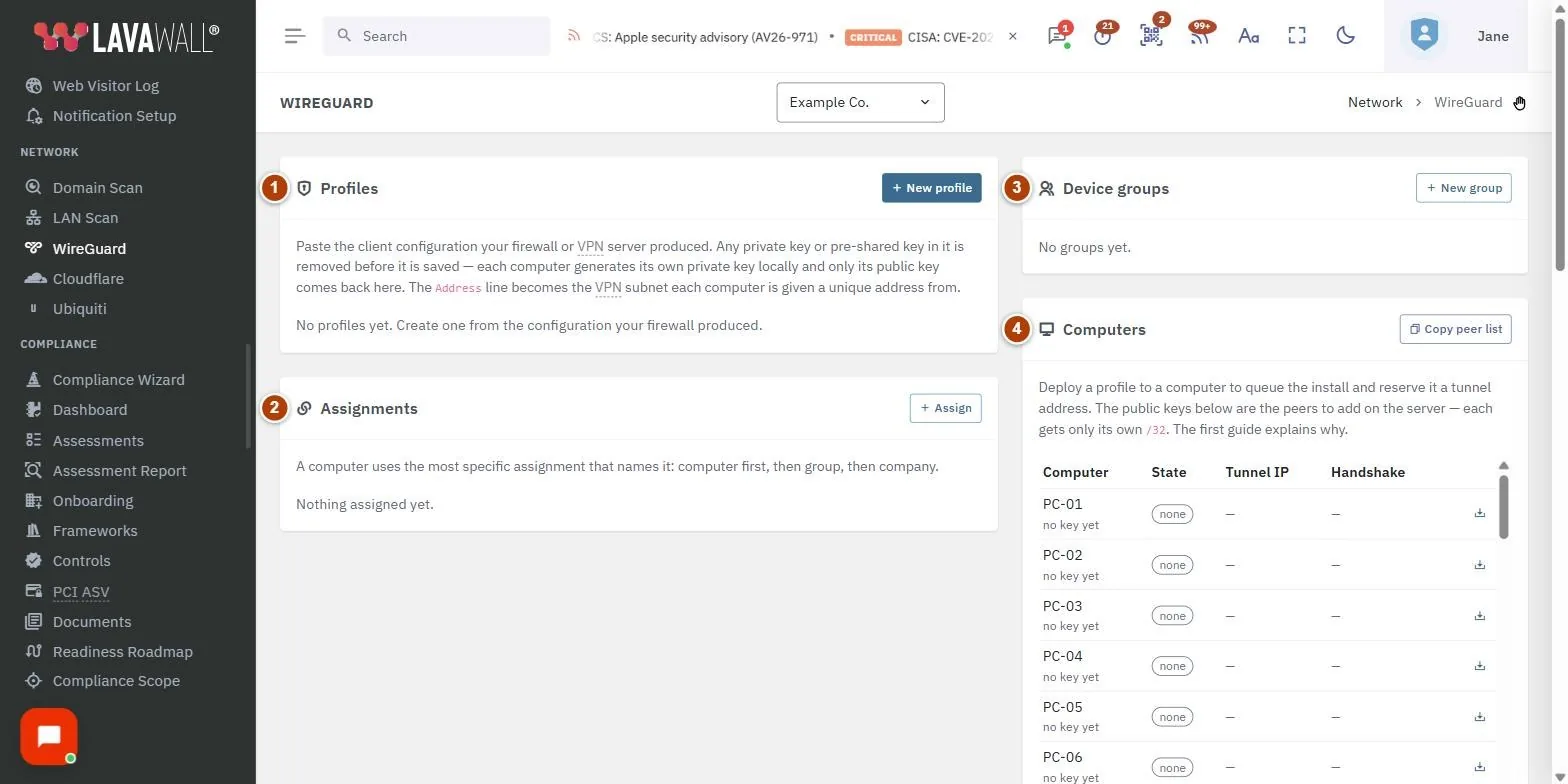
- Profiles: each profile's name, VPN subnet and DNS, with server peer list, edit and delete buttons, and New profile.
- Assignments: which profile applies to the company, a group or a computer, with Assign.
- Device groups: named groups with their computer counts, with New group.
- Computers: each computer's public key, state, tunnel IP and handshake, with deploy and remove buttons and Copy peer list.
- Setup guides: guides for setting up the server end of the tunnel.
- New profile: the dialog for pasting a client configuration and setting the address pool.
How to use WireGuard
How to create a profile
- Click New profile.
- Enter a Name (for example "Office tunnel") and optional Description.
- Paste the Client configuration from your firewall or VPN server.
- Check the Address pool: VPN subnet (CIDR), optional First and Last addresses, and any Reserved (never handed out) addresses.
- Click Save. If the configuration contained a private or pre-shared key, a message confirms it was removed and not stored.
How to deploy to one computer
- In Computers, click the deploy button on the computer's row.
- In Deploy WireGuard, choose the profile and click Deploy.
- The install is queued and a tunnel address is reserved for that computer. The state changes as the install progresses.
How to assign a profile to many computers
- Optionally click New group, enter a Name (for example "Laptops") and Save.
- Click Assign, choose the Profile, and choose Applies to: Every computer in the company, A device group or One computer.
- Click Assign. A computer uses the most specific assignment that names it: computer first, then group, then company.
How to add the computers on the server side
- Click the server peer list button on a profile to see the peers for that profile, then click Copy.
- Or click Copy peer list in Computers for every deployed public key.
- Add these peers on the firewall. Each computer gets only its own single address (/32); never widen it.
How to remove WireGuard from a computer
- Click the remove button on the computer's row and confirm Remove WireGuard?.
- Removal is queued and its tunnel address is freed. Remove its peer on the server too.
Tips
- State colours: green is installed, blue is requested or installing, red is failed, grey is removed or none.
- "no key yet" means the computer has not reported its public key; it appears after the install runs.
- A pre-shared key is removed from the profile. To use one, seal it to the computers from the vault.
- Deleting a profile, group or assignment cannot be undone.
Troubleshooting
- "No profiles yet".
- Create a profile from the configuration your firewall produced before assigning or deploying.
- "No keys yet" / "No peers yet".
- No computer has reported a public key. Deploy the profile to a computer first.
- "You do not have permission to view WireGuard settings for this company."
- An administrator can grant it.
- "You do not have permission to change WireGuard settings."
- Ask an administrator.
- A computer shows failed.
- Check the computer is online and try deploying again.
Related articles
Still need help?
Search the support centre, or contact our support team and tell us which page you were on:
- Chat now: use the chat button in the bottom-right corner of this page to reach our team right away. Where cookie consent is needed, the chat starts after you accept (cookie settings).
- Email: send our support team a message through the contact page. It goes straight to a person.
- Phone:
 AB: 1-403-538-5053
 US: 1-406-988-7333
 UK: +44 20 3695 9786
Names, companies, devices and figures in the pictures are examples. Other product and company names are trademarks of their respective owners.