Notification Templates
Browse ready-made messages for desktop notifications, then duplicate one to make it your own, in English and in French.
What the page is for
Notification Templates is a page in the Lavawall® console, in the Support area. Lavawall is the RMM, security, and compliance platform from ThreeShield, built and hosted in Canada. About this feature.
It holds the ready-made messages you can pick on the Notify Computers page, so you are not writing an outage or phishing warning from a blank screen while people are waiting.
Each template can have an English and a French version. Lavawall's own templates are read only. Duplicate one to make a copy that belongs to your organization, then change the wording to suit you. Templates of the client organizations below yours are listed too.
What you see
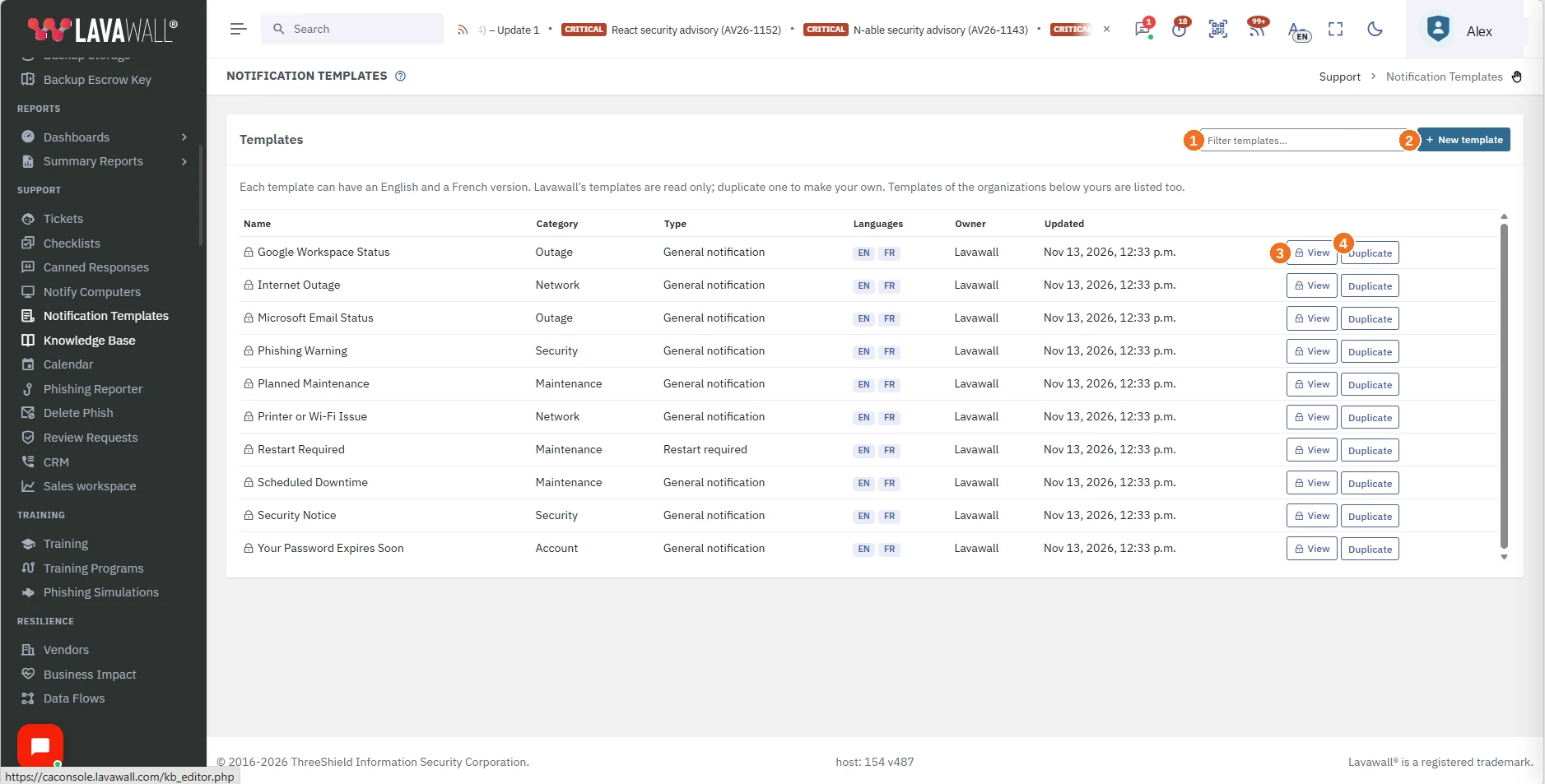
- Filter templates…: type part of a name, category, type or owner to narrow the list.
- New template: write a template from scratch.
- View: open a Lavawall template to read it. Lavawall's templates are read only, which the padlock beside the name shows.
- Duplicate: add a copy to your organization that you can change.
The table shows each template's Name, Category, Type, Languages (EN, FR or both), Owner and when it was Updated.
The ready-made templates
- Microsoft Email Status and Google Workspace Status, for outages at a provider
- Planned Maintenance and Scheduled Downtime
- Phishing Warning and Security Notice
- Restart Required
- Printer or Wi-Fi Issue and Internet Outage
- Your Password Expires Soon
How to use Notification Templates
How to make your own from a Lavawall template
- Type in Filter templates… to find the template that is closest to what you need.
- Click View to read it, then close it.
- Click Duplicate. A copy was added to your organization.
- Click Edit on your copy and change the name, category, wording and link. Each language has its own Title and Message.
- Click Preview to check how it will read, then click Save. Template saved.
- On Notify Computers, your template now appears in Template.
How to write a new template
- Click New template.
- Enter a Template name, then choose a Category and a Type.
- Tick the box to include each language you want, English and Français, and choose the Default language. Include at least one language.
- Write the Title and Message for each language. For an application notice add the Application name, and for a restart notice add the Reason.
- Optionally add a Link text and a Link address (https only).
- Click Save.
How to delete one of your templates
- Find your template in the list and click Delete.
- Click Yes, delete. The template is no longer offered when you send notifications. Notifications already sent are not affected.
Tips
- Write the French version too. Each computer receives the version in its own language, or the default version when there is none.
- Wording that is ready before an incident saves time during one. Duplicate and adjust the outage and phishing templates in advance.
- Nothing is sent from this page. A notification goes out only when someone chooses a template on Notify Computers and clicks Send Notification.
- Links in templates must start with https.
Troubleshooting
- "Only a Super Admin or Admin can manage notification templates".
- Your account cannot change templates. Ask a Super Admin or Admin of your organization to make the change.
- "Computer management is not part of this subscription".
- Desktop notifications are sent to computers that run the Lavawall agent, and that needs the Computer management part of your subscription.
- I cannot edit or delete a Lavawall template.
- Lavawall's templates are read only. Click Duplicate to add a copy to your organization, then change the copy.
- "Include at least one language." or "Enter a name for each language."
- Tick at least one language, and give the template a name in each language you include.
- "The templates could not be loaded."
- Refresh the page and try again.
Related articles
Still need help?
Search the support centre, or contact our support team and tell us which page you were on:
- Chat now: use the chat button in the bottom-right corner of this page to reach our team right away. Where cookie consent is needed, the chat starts after you accept (cookie settings).
- Email: send our support team a message through the contact page. It goes straight to a person.
- Phone:
 AB: 1-403-538-5053
 US: 1-406-988-7333
 UK: +44 20 3695 9786
Names, companies, devices and figures in the pictures are examples. Other product and company names are trademarks of their respective owners.