Start your compliance program
Go from nothing to a working compliance program: frameworks, first policies, control designs, tasks, and a readiness roadmap.
A Lavawall® task guide: 8 steps across 5 console pages.
Before you start
- Who can do this: Anyone with a GRC role that can view compliance data can run the questions and the gap analysis; adopting frameworks, generating documents and creating tasks need a role that can edit
- Plan: GRC Compliance Platform (included in Complete). See pricing.
- Where to start: open Compliance Wizard in your console.
Steps
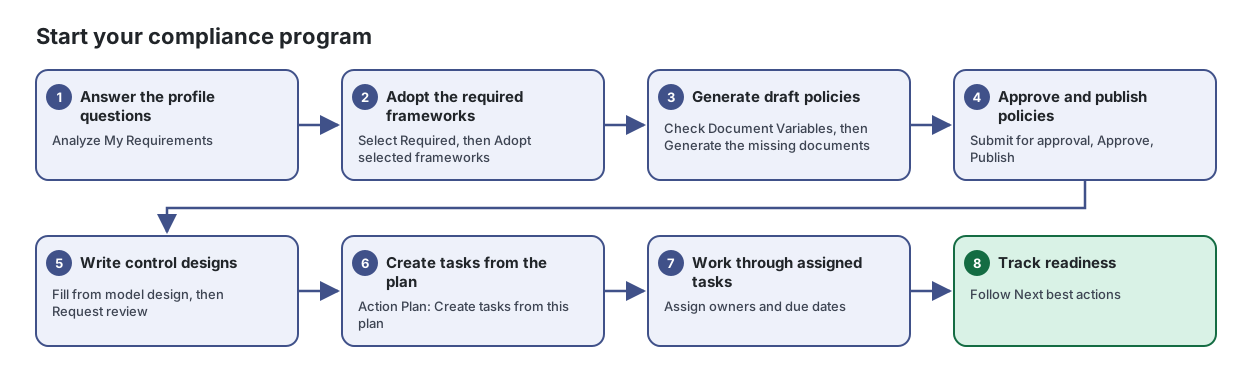
- Answer the profile questions. Analyze My Requirements
Answer a few questions about your organization to find out which frameworks and regulations apply, see your gaps, generate your first policies and get a prioritized action plan.
From the article: How to find the frameworks that apply to you
- On Profile, answer each question. Select every country or region and every type of sensitive data that applies.
- Select Analyze My Requirements.
- Review Your Applicable Frameworks. Use Select Required to pick the ones you must meet, or select others by hand.
- Select Adopt selected frameworks to add them to your compliance program. Frameworks you already have are left alone.
- Adopt the required frameworks. Select Required, then Adopt selected frameworks
From the article: How to run the gap analysis
- With frameworks selected, select Run Gap Analysis.
- Review the results for each framework.
- If you have not adopted the frameworks yet, select Adopt these frameworks.
- Generate draft policies. Check Document Variables, then Generate the missing documents
From the article: How to generate your first policies
- Select Generate Policies.
- Check the Document Variables: Company Name, Policy Owner / CISO, Effective Date, Review Date, EDR Solution, Patch Management Tool, Password Vault, MDM Solution and IR Contact Email. Some are filled in from your company settings.
- Under Documents to Generate, tick the documents you need.
- Select Generate the missing documents and confirm Generate. A draft is created for each selected template you don't already have, and the list links to each one in the Document Library.
- Approve and publish policies. Submit for approval, Approve, Publish
Write, approve, publish and review your policies and procedures, with a full version history and templates to start from.
From the article: How to get a document approved and published
- Open the document and select Submit for approval.
- The approver opens it from Waiting for approval, selects Decide, and chooses Approve or Reject. A note is required to reject, so the author knows what to change.
- Once approved, select Publish and confirm. People can then be asked to accept it, and it can be offered in the trust centre.
- To pull back a pending request, select Withdraw.
- Write control designs. Fill from model design, then Request review
Write, review and evidence one control, starting from what good looks like and what your configuration already shows, rather than from a blank box.
From the article: How to write a control design
- Read the Ideal design panel for what the control should cover.
- In What this organization states, select Fill from model design to start from the model text, then edit it to match what you actually do.
- Enter Performed by (role) (for example IT Manager) and choose a Frequency.
- Select Evidence location from configuration to fill in Where the evidence lives from the automatic checks. Your design text is not touched.
- Select Save design.
- Create tasks from the plan. Action Plan: Create tasks from this plan
From the article: How to turn the plan into tasks
- Go to Action Plan to see the Prioritized Remediation Plan, ranked by risk and compliance impact.
- Select Create tasks from this plan. A task is created for each control, skipping controls that already have an open wizard task.
- Select Go to Full Assessments when you are ready for a full assessment.
- Work through assigned tasks. Assign owners and due dates
Track the work behind your controls, risks, issues and audits: who owns it, when it is due, and what is done.
From the article: How to update or complete a task
- In the list, tick the box next to the task to mark it complete, or change the Status list on its row.
- On the board, drag a card to another column to change its status.
- If the task repeats, a message tells you when the next one is due.
- To change other details, select the edit (pencil) button and then Save task.
- Track readiness. Follow Next best actions
See how close you are to a certification, which of the seven phases you are on, and the next few actions that will move you forward the most.
From the article: How to work through the roadmap
- Check the phase marked you are here on the rail.
- Go to Next best actions and select the button on the first action. It opens the page where the work is done.
- Complete the work, then come back to the roadmap. The numbers are recounted each time the page loads.
When you are done
You know which frameworks apply, your first policies are published, and the roadmap shows your next best actions.
Articles for the pages in this guide
- Compliance Wizard: Answer a few questions about your organization to find out which frameworks and regulations apply, see your gaps, generate your first policies and get a…
- Document Library: Write, approve, publish and review your policies and procedures, with a full version history and templates to start from.
- Control Detail: Write, review and evidence one control, starting from what good looks like and what your configuration already shows, rather than from a blank box.
- Compliance Tasks: Track the work behind your controls, risks, issues and audits: who owns it, when it is due, and what is done.
- Readiness Roadmap: See how close you are to a certification, which of the seven phases you are on, and the next few actions that will move you forward the most.
Still need help?
Search the support centre, or contact our support team and tell us which step you are on:
- Chat now: use the chat button in the bottom-right corner of this page to reach our team right away. Where cookie consent is needed, the chat starts after you accept (cookie settings).
- Email: send our support team a message through the contact page. It goes straight to a person.
- Phone: AB: 1-403-538-5053, BC: 1-778-731-1339, ON: 1-289-724-8829, US: 1-406-988-7333, UK: +44 20 3695 9786.