Control Detail
Write, review and evidence one control, starting from what good looks like and what your configuration already shows, rather than from a blank box.
What the page is for
Control Detail is a page in the Lavawall® console, in the Compliance (GRC) area. Lavawall is the RMM, security, and compliance platform from ThreeShield, built and hosted in Canada. About this feature.
Control Detail shows everything about one control. Four panels sit side by side:
- Ideal design: what good looks like for this control, the evidence to collect and how an auditor tests it. It leads with the evidence your engagement type (Type I or Type II) needs.
- From the configuration: what Lavawall's automatic checks say the control actually is in your environment, with a button to run those checks now.
- Actual configuration: the raw values that conclusion was drawn from.
- What this organization states: your own written design, which is what goes into your system description and reports.
Below the panels you set the implementation status, owner and review cadence, send the design for approval, link supporting documents, upload evidence, and record attestations for controls that no configuration can show.
What you see
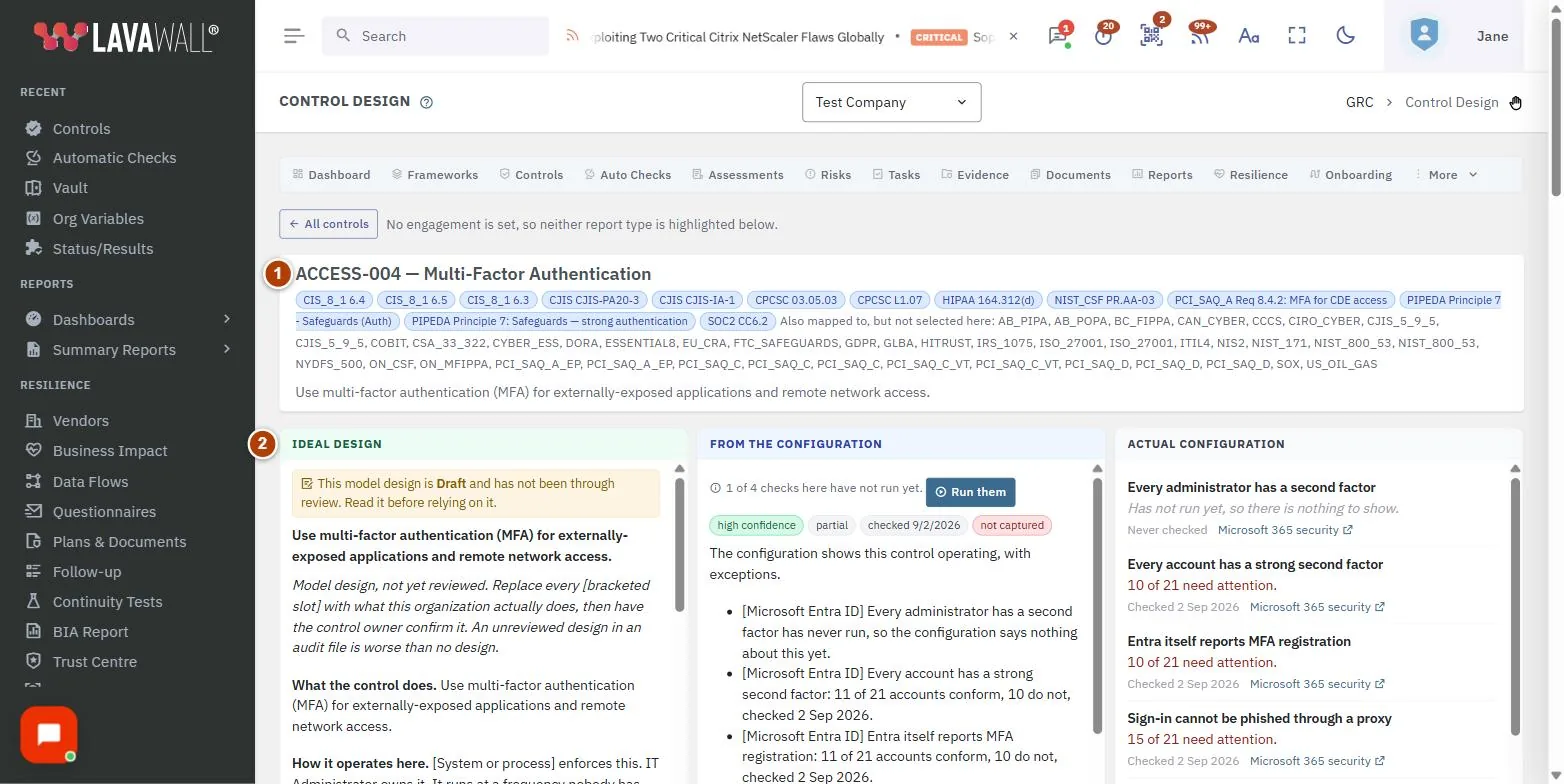
- Control header: the control code and name.
- Ideal design, From the configuration and Actual configuration panels, with Run these checks now where automatic checks map to the control.
- What this organization states: Control design, Performed by (role), Frequency, Status and Where the evidence lives, with Evidence location from configuration, Fill from model design, Capture as evidence and Save design.
- Owner and review: Owner, Review every (days), last and next review, Mark reviewed, and Request review, Approve or Return.
- Implementation status and General notes: shared with the Controls page, saved with Save status and notes.
- What already supports this control: tabs for Lavawall insights, Documents and Evidence, with linking, template and upload tools.
- Attestations: signed statements for controls configuration cannot see, with Record attestation.
Which frameworks ask for the control
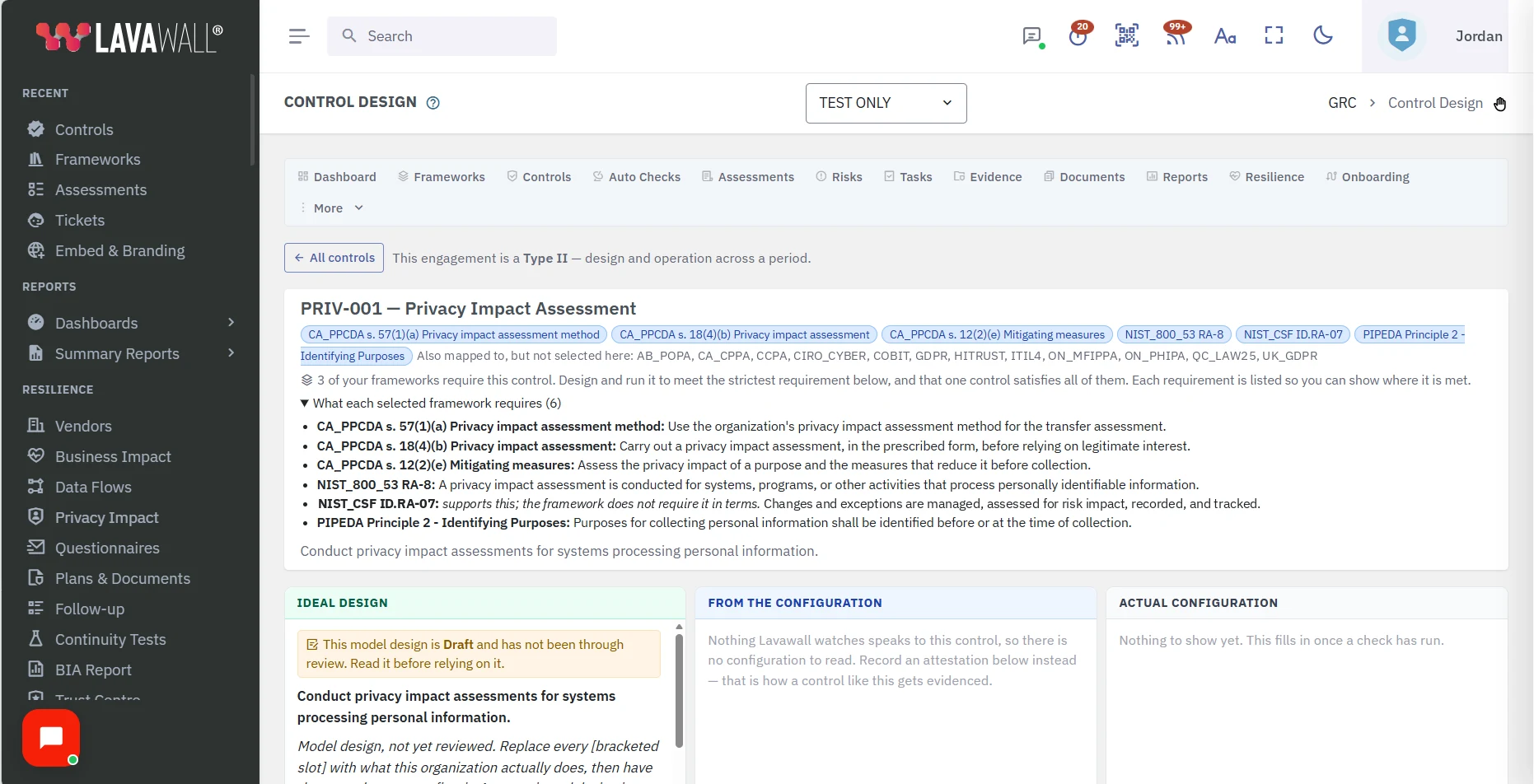
Under the control name, a tag shows each framework you have selected and the requirement the control meets in it. Open What each selected framework requires to read the wording of each requirement, so you can show an auditor where the control is met. Frameworks you have not selected are listed once each after Also mapped to, but not selected here.
A requirement marked supports this; the framework does not require it in terms is one the control helps you meet, although the framework does not ask for that control by name. It still appears in the list, but it is not counted in the number of frameworks that require the control.
How to write a control design
- Read the Ideal design panel for what the control should cover.
- In What this organization states, select Fill from model design to start from the model text, then edit it to match what you actually do.
- Enter Performed by (role) (for example IT Manager) and choose a Frequency.
- Select Evidence location from configuration to fill in Where the evidence lives from the automatic checks. Your design text is not touched.
- Select Save design.
How to get a design approved
- Save the design first. An approver reviews the saved version.
- Select Request review and confirm Send. The design moves to In Review.
- The approver opens the control and selects Approve or Return. Returning it sends it back to draft with a note to the person who sent it.
- If your company allows self-approval, approving your own design needs a written reason that auditors can see.
How to set the owner and review cadence
- Choose an Owner and set Review every (days), then select Save owner. The owner is reminded by email before the review is due.
- After reviewing the control, an approver selects Mark reviewed. This records today's review and sets the next review date.
How to link documents and upload evidence
- Under What already supports this control, open Documents.
- In Link an existing document, pick a document, choose how it relates in As (Implements, Supports, Evidences or References) and select Link. Or use Create from a template.
- Open Evidence, choose a File, enter a Name, choose the Kind (Document, Screenshot, Photo, Log, Report, Configuration or Attestation) and select Upload. Use Photo for physical controls, such as a locked server rack or a badge reader. On a phone, choosing Photo lets you take the picture with the camera. Location and camera details are removed from photos and images before they are saved.
- To save what the configuration shows right now as dated evidence, select Capture as evidence in the design panel.
How to record an attestation
- Scroll to Attestations.
- Enter the Period start and Period end, choose Your role when signing (or type a new role and select Add).
- Write the Statement and any Exceptions.
- Select Record attestation.
Tips
- Controls that a privacy impact assessment evidences, such as PRIV-001 and PPCDA-001, show a Privacy impact assessments panel listing your assessments, with Start an assessment. See Privacy Impact Assessments.
- Start from the configuration and the model design. The fast part is not typing faster; it is starting from something true.
- Capture as evidence is only available when automatic checks map to the control.
- The Documents and Evidence tabs show counts, so you can see at a glance whether the control is supported.
- Set the engagement on the Controls page first, so the ideal design leads with the right evidence for Type I or Type II.
Troubleshooting
- "No automatic check maps to this control."
- The configuration buttons are unavailable. Write the design by hand and use attestations or uploaded evidence.
- "No model design written yet."
- There is no model text for this control, so Fill from model design is unavailable.
- "No attestation recorded for this control."
- Nobody has signed an attestation yet. Record one if the control can't be shown by configuration.
- "Give a reason of at least … characters."
- Approving your own design needs a reason when self-approval is allowed.
Task guides that use this page
Related articles
Still need help?
Search the support centre, or contact our support team and tell us which page you were on:
- Chat now: use the chat button in the bottom-right corner of this page to reach our team right away. Where cookie consent is needed, the chat starts after you accept (cookie settings).
- Email: send our support team a message through the contact page. It goes straight to a person.
- Phone:
 AB: 1-403-538-5053
 US: 1-406-988-7333
 UK: +44 20 3695 9786
Names, companies, devices and figures in the pictures are examples. Other product and company names are trademarks of their respective owners.