Add your first computer and check its health
Get the Lavawall agent onto your first computer and see what it reports, from the first check-in to the Needs Attention list.
A Lavawall® task guide: 6 steps across 4 console pages.
Before you start
- Who can do this: Anyone who can see the device's company
- Plan: RMM Agent (Windows / Mac / Linux; included in Grow, Professional, and Complete). RMM Agent (Windows / Mac / Linux; included in Grow, Professional, and Complete) or System Monitoring (included in Grow, Professional, and Complete). See pricing.
- Where to start: open Device Detail in your console.
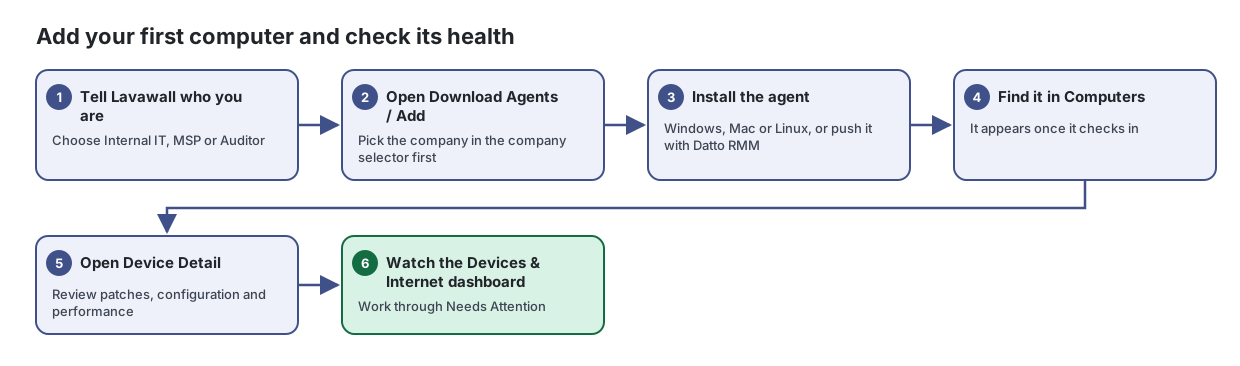
Steps
- Tell Lavawall who you are. Choose Internal IT, MSP or Auditor
- Open Download Agents / Add. Pick the company in the company selector first
Download the Lavawall agent for Windows, Mac or Linux, or deploy it through Datto RMM, so your computers start reporting.
From the article: How to choose the company
- In the company selector at the top of the console, choose the company the computers belong to.
- Check that the company name appears next to each Download Link.
- Install the agent. Windows, Mac or Linux, or push it with Datto RMM
From the article: How to install on Windows
- Click the Windows Download Link.
- Unzip the file.
- Run LavawallWin.exe with administrator permissions.
- Find it in Computers. It appears once it checks in
Every computer and server running the Lavawall agent, in one list you can filter, search, export and act on.
From the article: How to find a computer
- Type part of the name, user or operating system in Search name, user, OS….
- Narrow the list with the filters. For example, turn off Win to hide Windows computers, or pick Servers only.
- Click the row to open its details.
- Open Device Detail. Review patches, configuration and performance
Everything Lavawall knows about one computer, with the tools to fix it, on a single page.
From the article: How to review patches, configuration and performance
- Click the tab you need in the detail area.
- Patches lists the updates the device is missing. Configuration lists failed security checks. Performance shows CPU, memory, storage and network use.
- Watch the Devices & Internet dashboard. Work through Needs Attention
Find the computers, servers and printers that need attention today, and see how exposed your domain is on the internet.
From the article: How to work through the Needs Attention list
- Scroll to Needs Attention.
- Click a tab, for example Servers down or 90+ days.
- Review the devices listed and open each one to fix it, or remove computers that are no longer in use.
When you are done
Your computer reports its patches, configuration, and performance, and anything that needs work shows on the Devices & Internet dashboard.
Articles for the pages in this guide
- Device Detail: Everything Lavawall knows about one computer, with the tools to fix it, on a single page.
- Computers: Every computer and server running the Lavawall agent, in one list you can filter, search, export and act on.
- Devices & Internet Dashboard: Find the computers, servers and printers that need attention today, and see how exposed your domain is on the internet.
- Download Agents / Add Computers: Download the Lavawall agent for Windows, Mac or Linux, or deploy it through Datto RMM, so your computers start reporting.
Still need help?
Search the support centre, or contact our support team and tell us which step you are on:
- Chat now: use the chat button in the bottom-right corner of this page to reach our team right away. Where cookie consent is needed, the chat starts after you accept (cookie settings).
- Email: send our support team a message through the contact page. It goes straight to a person.
- Phone: AB: 1-403-538-5053, BC: 1-778-731-1339, ON: 1-289-724-8829, US: 1-406-988-7333, UK: +44 20 3695 9786.