Connect Google Workspace and check sharing and apps
Connect a Google Workspace organization and review the first findings: sharing, connected apps, and suspicious sign-ins.
A Lavawall® task guide: 6 steps across 5 console pages.
Before you start
- Who can do this: Users with the "authorize Google Workspace only" permission (connect without seeing monitoring data); you also need a Google Workspace administrator account to sign in
- Plan: Connecting is included; monitoring needs M365 / Google Workspace Monitoring (included in Grow, Professional, and Complete). Google Drive / Shared Drive File Monitoring (included in Professional and Complete). M365 / Google Workspace Monitoring (included in Grow, Professional, and Complete). See pricing.
- Where to start: open Connect Google Workspace in your console.
Steps
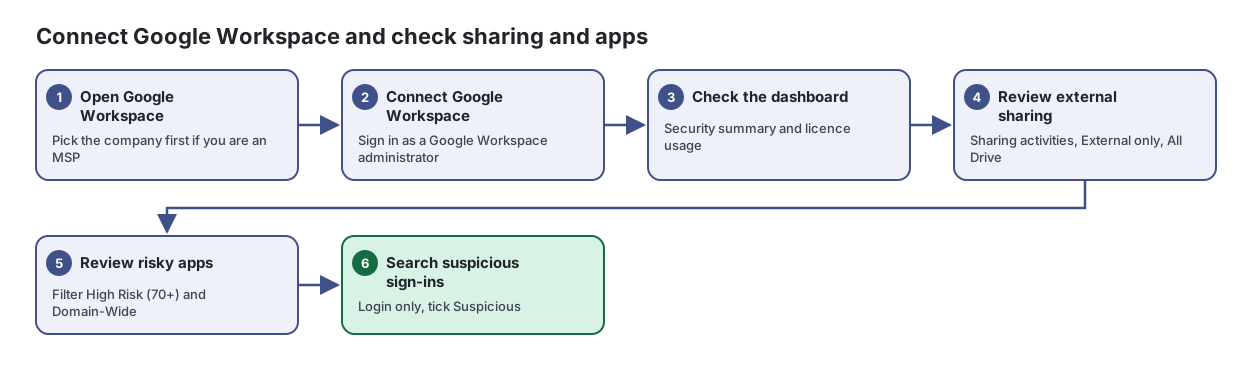
- Open Google Workspace. Pick the company first if you are an MSP
See the security of your Google Workspace at a glance, check your licences and manage the connection.
- Connect Google Workspace. Sign in as a Google Workspace administrator
Connect or re-authorize your Google Workspace so Lavawall can monitor it, without seeing any monitoring data yourself.
From the article: How to connect Google Workspace
- Click Connect Google Workspace.
- Sign in with a Google Workspace administrator account.
- Review the permissions Google shows and allow them.
- You are returned to Lavawall and the page shows Connected with the admin account and domain.
- Check the dashboard. Security summary and licence usage
From the article: How to check licence usage
- Review Google Workspace Licenses for each licence's assigned and total seats.
- Usage bars turn amber or red as licences fill up.
- Click View All for a licence summary across your companies.
- Review external sharing. Sharing activities, External only, All Drive
See who viewed, changed, deleted or shared files in your Google Shared Drives and My Drive, and when and from where.
From the article: How to review sharing outside your organization
- Click Sharing activities.
- Tick External only.
- Review the Target column to see who each file was shared with. External people are marked with a badge.
- Review risky apps. Filter High Risk (70+) and Domain-Wide
See every app your users have connected to Google Workspace, what it can access and how risky it is.
From the article: How to find risky apps
- In Filter, choose Suspicious or High Risk (70+).
- Check the Risk Score badge: red is 70 or more, amber is 40 to 69, green is below 40. Hover over it for details.
- Check Flags for Suspicious, Domain-wide, Service acct, Admin-granted, New, verified and 3rd Party.
- Review the Scopes column to see exactly what the app can access.
- Search suspicious sign-ins. Login only, tick Suspicious
Search sign-ins, admin changes and Drive activity across your Google Workspace in one place.
From the article: How to find suspicious sign-ins
- Tick only Login under Activity.
- Tick Suspicious.
- Optionally enter a two-letter Country code, for example US, to see sign-ins from one country.
- Run the search.
When you are done
Google Workspace is monitored, and you know what is shared outside the organization and which apps have access.
Articles for the pages in this guide
- Connect Google Workspace: Connect or re-authorize your Google Workspace so Lavawall can monitor it, without seeing any monitoring data yourself.
- Google Drive Monitor: See who viewed, changed, deleted or shared files in your Google Shared Drives and My Drive, and when and from where.
- Google Workspace Activity Search: Search sign-ins, admin changes and Drive activity across your Google Workspace in one place.
- Google Workspace OAuth Applications: See every app your users have connected to Google Workspace, what it can access and how risky it is.
- Google Workspace: See the security of your Google Workspace at a glance, check your licences and manage the connection.
Still need help?
Search the support centre, or contact our support team and tell us which step you are on:
- Chat now: use the chat button in the bottom-right corner of this page to reach our team right away. Where cookie consent is needed, the chat starts after you accept (cookie settings).
- Email: send our support team a message through the contact page. It goes straight to a person.
- Phone: AB: 1-403-538-5053, BC: 1-778-731-1339, ON: 1-289-724-8829, US: 1-406-988-7333, UK: +44 20 3695 9786.