Update Windows computers for the 2026 Canadian time zone changes
British Columbia, Alberta, Manitoba and the Northwest Territories stopped changing their clocks on November 1, 2026. One built-in Lavawall script installs the Windows update that knows about the change and puts each computer on the right time zone for where it is.
A Lavawall® task guide: 4 steps across 3 console pages.
Only have computers in Alberta? The Alberta time zone guide has the same steps with the Alberta time zone update (Alberta computers only) script. If any of your computers are in British Columbia, Manitoba or the Northwest Territories, use this guide and choose Canada time zone update (AB,BC,MB,NWT) 2026. It covers Alberta too. The two scripts never conflict: each one skips places it does not cover.
Why computers need this
On November 1, 2026, these places did not turn their clocks back. They now keep the time they used all summer, all year. Windows computers still set to the old time zones followed the old rule, fell back an hour, and now show the wrong time.
Microsoft added new time zones in its Windows updates, but installing an update does not move a computer to the new zone unless Windows chooses its time zone automatically. On most business computers, someone has to switch it.
Which places changed
| Place | Clock from November 1, 2026 | New Windows time zone | Stand-in zone, same time |
|---|---|---|---|
| British Columbia (most of it) | UTC-7 all year | (UTC-07:00) Pacific Time (British Columbia) | (UTC-07:00) Yukon |
| Alberta | UTC-6 all year | (UTC-06:00) Mountain Time (Alberta) | (UTC-06:00) Saskatchewan |
| Northwest Territories | UTC-6 all year | (UTC-06:00) Mountain Time (Alberta) | (UTC-06:00) Saskatchewan |
| Manitoba | UTC-5 all year | (UTC-05:00) Manitoba | (UTC-05:00) Bogota, Lima, Quito |
Saskatchewan and Yukon did not change: they already keep one time all year. Northwestern Ontario follows Manitoba, and the East Kootenay area of British Columbia keeps Alberta's time. The script does not change computers in those areas; see If you do not use the script.
What the script does on each computer
The Canada time zone update (AB,BC,MB,NWT) 2026 script in the Lavawall library does the whole job. It is safe to run on all of your computers. It never restarts a computer, and each computer usually finishes within a minute or so.
- Checks where the computer is. Only computers that Lavawall places in British Columbia, Alberta, Manitoba or the Northwest Territories are changed. Anything else, or a computer whose location is unknown, is skipped. Servers are skipped too: the script changes workstations only.
- Installs the Windows update with the new time zones from Windows Update, or from your WSUS server, if the computer does not have it yet.
- Switches the time zone, but only if the computer is on the place's old zone: Pacific Time in British Columbia, Mountain Time in Alberta and the Northwest Territories, and Central Time in Manitoba. A computer set to any other zone is left alone.
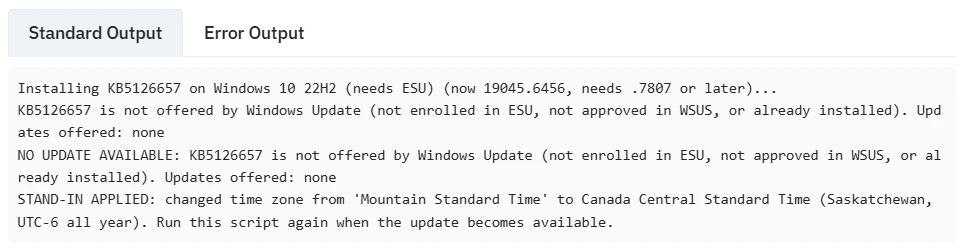
- Uses a stand-in if it cannot get the update. A computer that cannot get the update is moved to the stand-in zone in the table above, which shows the same time. Run the script again later: once the update is available, it installs it and moves the computer to the new zone.
- Changes nothing if the update fails. A failed download, a failed install or too little disk space is reported, and the time zone is left as it was, because the computer can still get the update.
Which Windows versions get the update
| Windows version | Update with the new time zones | Result |
|---|---|---|
| Windows 11 24H2, 25H2 and 26H2 | The October 13, 2026 security update (24H2 and 25H2 also had it in the September 22, 2026 preview) | New time zone |
| Windows 11 23H2 | KB5126653 | New time zone |
| Windows 10 22H2 with Extended Security Updates (ESU) | KB5126657 | New time zone |
| Windows 10 Enterprise LTSC 2021 | KB5126657 | New time zone |
| Windows 10 without ESU, and Windows 11 versions that no longer get updates | None | Stand-in zone |
| Windows Server | The October 13, 2026 security update | Skipped by the script; change by hand |
The update needs free disk space: about 8 GB on Windows 10 and about 12 GB on Windows 11. A computer whose Windows Update or WSUS server does not offer the update also gets the stand-in zone until it does.
Before you start
- Who can do this: Anyone who can run scripts in your console.
- Plan: any Lavawall plan that includes remote support. See pricing.
- Computers: Windows 11 and Windows 10 workstations. The script reads each computer's location from Lavawall, so you do not type a province or a time zone anywhere.
- Where to start: open Run Script in your console.
Steps
- Open Run Script. From the side menu or the search bar
Go to Devices › Automation › Run Script, or type Run Script in the search bar at the top of the console.
- Choose the Canada script. Nothing to fill in
- Under Select Script, type time zone update. Both time zone scripts are listed under Lavawall Library.
- Choose Canada time zone update (AB,BC,MB,NWT) 2026.
- There is nothing to fill in. The console supplies each computer's location when the script runs.
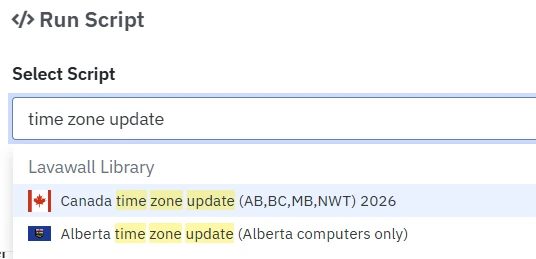
Both time zone scripts in the library. Choose the Canada one. - Add your computers and run it. Whole companies are fine
- Under Target Companies, pick a company and click + Add. Repeat for every company you look after. You do not need to sort computers by province.
- Leave When to run on Run immediately (or when device comes online). Computers that are off now run the script the next time they connect.
- Leave Max Runtime at the default, check the Summary, click Execute Script, and confirm.
- Check the results. Status/Results
Go to Automation › Status/Results. Each computer says what it did; Check your results explains every line.

A British Columbia computer that already had the update and the new zone.
For a single computer
Open the computer's device details, click the Run Script box, start typing the script's name, and choose Canada time zone update (AB,BC,MB,NWT) 2026 under Library. Check the result the same way, in Status/Results.
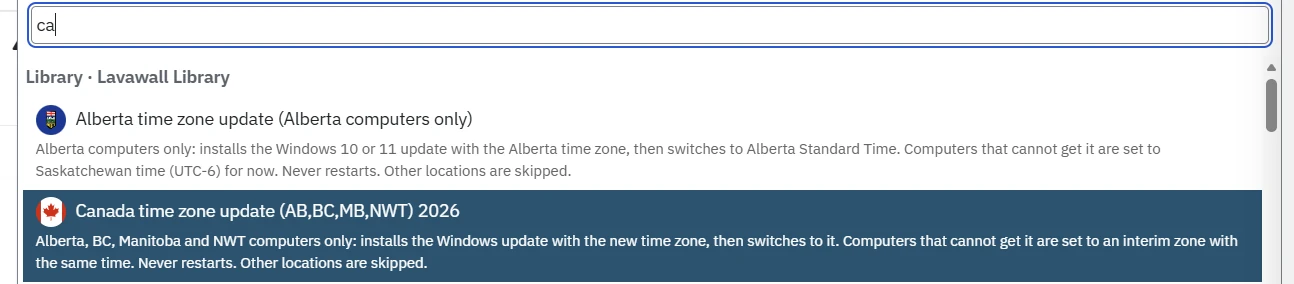
Check your results
Each computer prints one or more of these lines. To find computers that are on a stand-in zone, search the results for STAND-IN APPLIED, and run the script on them again once they can get the update.
| Line | What it means | What to do |
|---|---|---|
SKIPPED | The computer is not in a place the script covers, its location is unknown, or it is a server. The line shows the location Lavawall has for it. | Nothing, unless the location is wrong. See the questions below. |
Update already in place | The computer already has the Windows update with the new time zones. | Nothing. |
Installing ... | The script is installing the update for that version of Windows. | Read the next line. |
Changed time zone from ... to ... | The computer moved from the old zone to the new one. | Nothing. |
Time zone already ... | The computer was already on the new zone. | Nothing. |
Left time zone on ... | The computer is set to a zone other than the place's old one, so the script did not touch it. | Check that the zone is the one you want. |
NO UPDATE AVAILABLE | Windows Update or your WSUS server did not offer the update, for example to Windows 10 without ESU. | Read the next line; a stand-in is applied. |
STAND-IN APPLIED | The computer moved to the stand-in zone, which shows the same time. | Run the script again once the update is available. |
STAND-IN ALREADY APPLIED | A later run found the computer already on the stand-in zone, and the update is still not available. | Enrol the computer in ESU or approve the update in WSUS, then run again. |
PENDING or RESTART REQUIRED | Windows needs a restart to finish installing the update. The script never restarts a computer. | Restart when convenient, then run the script again. |
FAILED | The download or install failed, or there was not enough disk space. Nothing was changed. | Fix the cause, such as freeing disk space, and run the script again. |
If you do not use the script
For a computer the script does not cover, set the time zone by hand:
- Install the latest Windows updates.
- Open Settings › Time & language › Date & time.
- Turn off Set time zone automatically if it is on and the zone is wrong, then choose the new zone from the table in Which places changed. If it is not in the list, choose the stand-in zone.
- Northwestern Ontario: communities that follow Manitoba should use (UTC-05:00) Manitoba. Lavawall cannot tell them from the rest of Ontario by location, so the script leaves all Ontario computers alone.
- East Kootenay, British Columbia: communities that keep Alberta's time should use (UTC-06:00) Mountain Time (Alberta). The script leaves British Columbia computers set to Mountain Time alone.
- British Columbia stand-in: use (UTC-07:00) Yukon, never (UTC-08:00) Pacific Time (US & Canada), which still falls back each November.
- Servers: install the October 13, 2026 security update and choose the new zone.
Outlook and Microsoft 365
- Changing a computer's time zone does not move meetings that are already booked. Check recurring meetings that run past November 1, 2026.
- Classic Outlook follows the Windows time zone. Outlook on the web and the new Outlook have their own calendar time zone setting, so choose the new zone there too.
- Only a meeting's organizer can change it for everyone. Changing the time zone of a whole recurring series can undo occurrences that were moved by hand, so re-create those afterwards.
- Teams and phones show their own time zone. Keep them updated.
- Microsoft's article Outlook time zone changes for British Columbia, Alberta, and Manitoba has the steps for each version of Outlook.
Questions
- A computer in Alberta was skipped as being somewhere else. Why?
- Lavawall uses the computer's last known location, based on its internet address. A VPN or a remote network can make that location wrong. The location is shown beside the computer's name on its device details page. Set that computer's time zone by hand.
- What happens to Windows 10 computers without Extended Security Updates?
- Microsoft does not send them the update, so the script moves them to the stand-in zone, which shows the right time. If you enrol them in ESU later, run the script again and they move to the new zone.
- Why Saskatchewan, Yukon and Bogota?
- Each one is already at the right offset from UTC all year, with no daylight saving time, so it shows the same time as the new zone. Microsoft suggests the same stand-ins for its own services.
- Will the script restart computers?
- No. If Windows needs a restart to finish the update, the output says
PENDINGorRESTART REQUIRED. - Does it change servers?
- No. Servers are skipped. Change their time zones by hand when it suits you.
- What about Saskatchewan and Yukon?
- Nothing changed there, and the script skips computers in both.
- What about computers that are turned off?
- They run the script the next time they connect to Lavawall.
When you are done
Every Windows workstation that Lavawall places in British Columbia, Alberta, Manitoba or the Northwest Territories shows the right time, on the new zone or on a stand-in until it can get the update. If all of your computers are in Alberta, the Alberta time zone guide does the same job with the Alberta-only script.
Articles for the pages in this guide
- Run Script: Run a script on every device in chosen companies, or on hand-picked devices, now, later or on a schedule. You can also send a desktop notification to users.
- Script Execution Status: Follow every script you have sent to devices, read what it printed, and cancel or re-run jobs.
- Device Detail: Everything Lavawall knows about one computer, with the tools to fix it, on a single page.
- Update Windows computers for Alberta Time: the same steps with the Alberta-only script.
Sources
- Microsoft: Canada 2026 time zone changes, guidance for Microsoft products
- Microsoft: British Columbia 2026 time zone update available now
- Microsoft: Alberta 2026 time zone update available now
- Microsoft 365 message centre MC1510951 and MC1526468
- Government of Manitoba: Manitoba Standard Time
- UBC IT: BC time zone change, calendars and devices
- Regroove: BC and Alberta time zone change
Still need help?
Search the support centre, or contact our support team and tell us which step you are on:
- Chat now: use the chat button in the bottom-right corner of this page to reach our team right away. Where cookie consent is needed, the chat starts after you accept (cookie settings).
- Email: send our support team a message through the contact page. It goes straight to a person.
- Phone:
 AB: 1-403-538-5053
 US: 1-406-988-7333
 UK: +44 20 3695 9786