Sophos Summary and Setup
Connect Sophos Central to Lavawall once and see every Sophos organization, its protected computers, firewalls, alerts and cases in one table.
What the page is for
Sophos Summary and Setup is a page in the Lavawall® console, in the Integrations area. Lavawall is the RMM, security, and compliance platform from ThreeShield, built and hosted in Canada. About this feature.
This page is where you connect Lavawall to Sophos Central with a read-only API credential, run a sync, and review the results. It works for Sophos Partners (MSPs) who manage many customer tenants through Sophos Central Partner, and for direct Sophos Central customers with a single tenant.
After a sync, the Current Organizations Summary lists each Sophos organization with its region and counts of Windows workstations, Windows servers, macOS, Linux and other computers (licensed out of total, with a coverage percentage), plus firewalls, alerts and incidents. Every number is a link to the matching filtered list on the other Sophos pages.
You link each Sophos organization to the Lavawall company it belongs to, so the other Sophos pages can filter to that company automatically. You can also hide organizations you do not want to see. A sync also stores the Sophos installer details that let you install Sophos from a device's page in Lavawall.
What you see
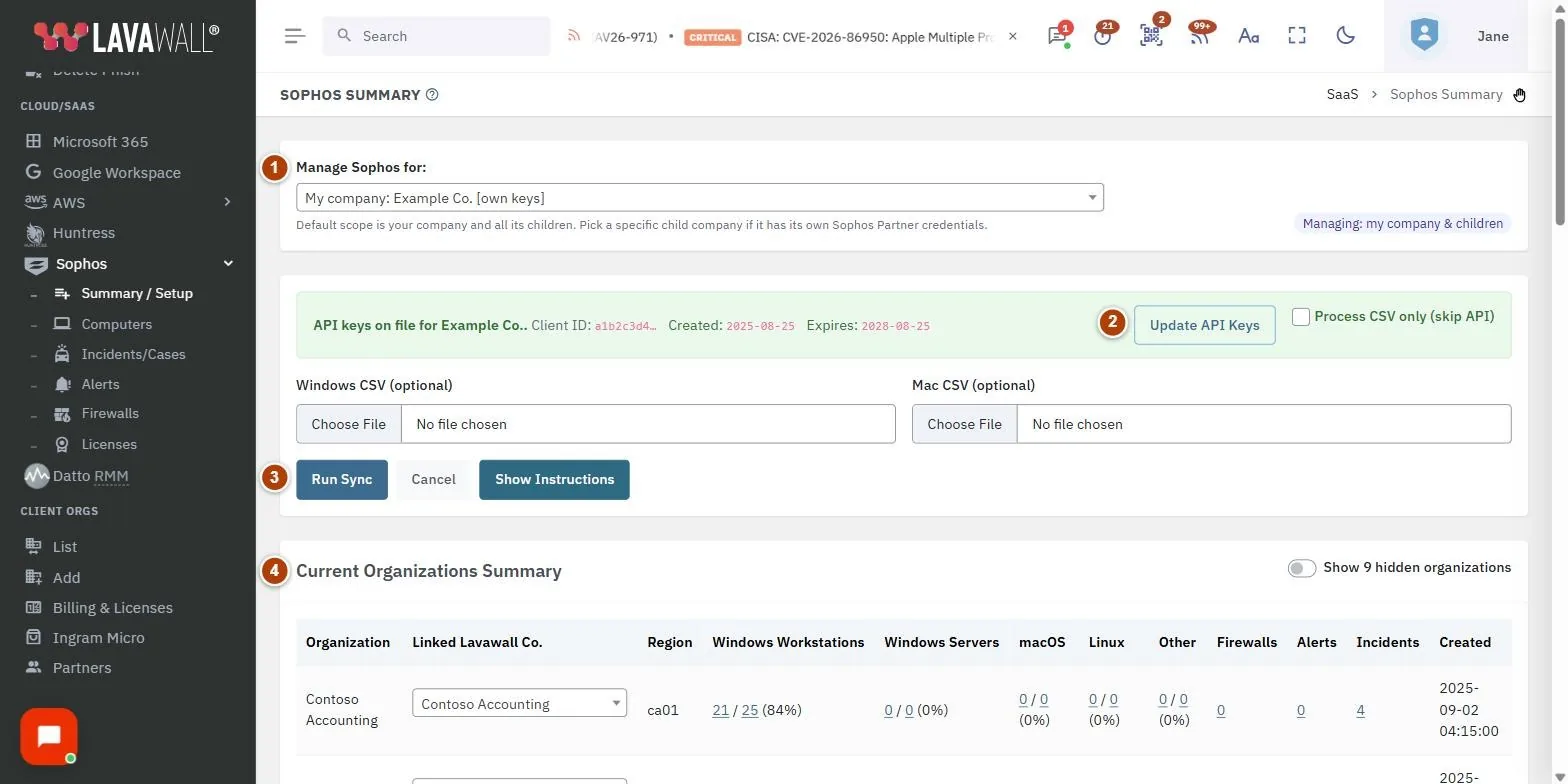
- Manage Sophos for: choose your own company or a client company that has its own Sophos credentials. Shown only if you manage more than one company.
- API keys status: a green bar when keys are on file, showing the start of the Client ID and the created and expiry dates, with Update API Keys and Process CSV only (skip API).
- Connection form: Client ID, Client Secret, Key Created, the optional Windows CSV and Mac CSV uploads, and the Run Sync, Cancel and Show Instructions buttons.
- Progress bars: Overall Progress, then Account, Organization, Device and Incident information while a sync runs.
- Instructions: two tabs, Sophos Partner / MSP and Direct Sophos Central customer, with step-by-step screenshots.
- Current Organizations Summary: one row per Sophos organization, with the Linked Lavawall Co. drop-down and linked counts.
How to connect Sophos Central for the first time
- Click Show Instructions and pick the tab that matches your account: Sophos Partner / MSP if you sign in to Sophos Central Partner and see a list of customer tenants, or Direct Sophos Central customer if you sign in to Sophos Central for your own tenant.
- In Sophos Central, create an API credential named Lavawall with the Service Principal ReadOnly role.
- Copy the Client ID into the Client ID field, and the Client Secret into the Client Secret field. Sophos shows the secret only once.
- Set Key Created to the date you created the credential. Lavawall records the expiry as 36 months later.
- Partners only, optional: upload the Windows and macOS deployment CSV files from Sophos Central Partner (My Environment › Installers). Lavawall can now find installer details through the API, so this is not required. Direct customers skip this step.
- Click Run Sync and watch the progress bars. The page reloads when the sync finishes.
How to run a sync again
- If your keys are already on file, click Run Sync. The stored keys are used.
- To upload new installer CSV files without contacting Sophos, tick Process CSV only (skip API) first.
- To stop a sync that is running, click Cancel.
How to replace expired or rejected API keys
- Click Update API Keys. The Client ID, Client Secret and Key Created fields appear.
- Paste the new credential from Sophos Central and set the date.
- Click Run Sync. To go back to the stored keys without changing them, click Use Stored API Keys.
How to link or hide a Sophos organization
- In Current Organizations Summary, open the Linked Lavawall Co. drop-down on the organization's row.
- Choose the Lavawall company it belongs to, or not linked. The change saves at once and shows a saved tick.
- To hide the organization, choose Hide this organization in the same drop-down. To see hidden organizations again, turn on Show N hidden organizations in the card header, then choose Show this organization on the row.
How to set up separate keys for a client company (MSPs)
- Choose the client in Manage Sophos for. Entries are tagged [own keys] or [inherits from parent].
- If your own Sophos sync already covers that client, the page says Data is already provided by your company and rows are tagged from parent. Click Set up own keys for this child only if the client has its own Sophos account.
- Enter that client's Client ID and Client Secret and click Run Sync.
Tips
- Click any count in the summary table to open the related Sophos page for that organization: device counts open Sophos Computers, Firewalls opens Sophos Firewalls, Alerts opens Sophos Alerts and Incidents opens Sophos Cases.
- The percentage beside each device count is the share of those computers that are licensed. Anything under 100% is worth a look on the Sophos Computers page.
- Link every organization to a Lavawall company. The other Sophos pages then open already filtered to the company you have selected at the top of the console.
- Hide test or retired Sophos tenants rather than leaving them unlinked. Hidden rows stay available behind the Show hidden organizations switch.
- Use a read-only Sophos role. Lavawall only needs to read endpoints, alerts, cases and licences.
Troubleshooting
- "Sophos did not accept the API keys."
- The Client ID or secret was rejected. The key fields reopen automatically; paste a fresh credential from Sophos Central and click Run Sync.
- "The Sophos API server is experiencing difficulties outside of our control."
- Sophos returned a server error. Try again later.
- "There was an unexpected Sophos sync error."
- Contact Lavawall support and include the detail shown under the message.
- "No organizations found yet. Run a sync to populate."
- No sync has completed for this scope yet. Enter keys and click Run Sync.
- A client shows no organizations when selected.
- If the client has no keys of its own, its data comes from your own sync. Link the Sophos organization to that client in the Linked Lavawall Co. column.
Task guides that use this page
Related articles
Still need help?
Search the support centre, or contact our support team and tell us which page you were on:
- Chat now: use the chat button in the bottom-right corner of this page to reach our team right away. Where cookie consent is needed, the chat starts after you accept (cookie settings).
- Email: send our support team a message through the contact page. It goes straight to a person.
- Phone:
 AB: 1-403-538-5053
 US: 1-406-988-7333
 UK: +44 20 3695 9786
Names, companies, devices and figures in the pictures are examples. Other product and company names are trademarks of their respective owners.