Sophos Cases by Device
Review Sophos investigation cases for each computer and firewall, with severity, status and the analyst's verdict side by side.
What the page is for
Sophos Cases by Device is a page in the Lavawall® console, in the Integrations area. Lavawall is the RMM, security, and compliance platform from ThreeShield, built and hosted in Canada. About this feature.
Sophos Central opens a case when it investigates suspicious activity. This page lists those cases for your linked Sophos organizations, as of the last Sophos sync, and ties each one to the computer or firewall involved.
Each row shows the case ID, organization, device, device type (endpoint or firewall), severity, status, verdict, title, and when the case was created and last updated. Where the device matches a computer in Lavawall, its name links to the Lavawall device page.
It is the page behind the Sophos Incidents/Cases menu item, and it opens already filtered when you click a Cases count on Sophos Computers or Sophos Firewalls.
What you see
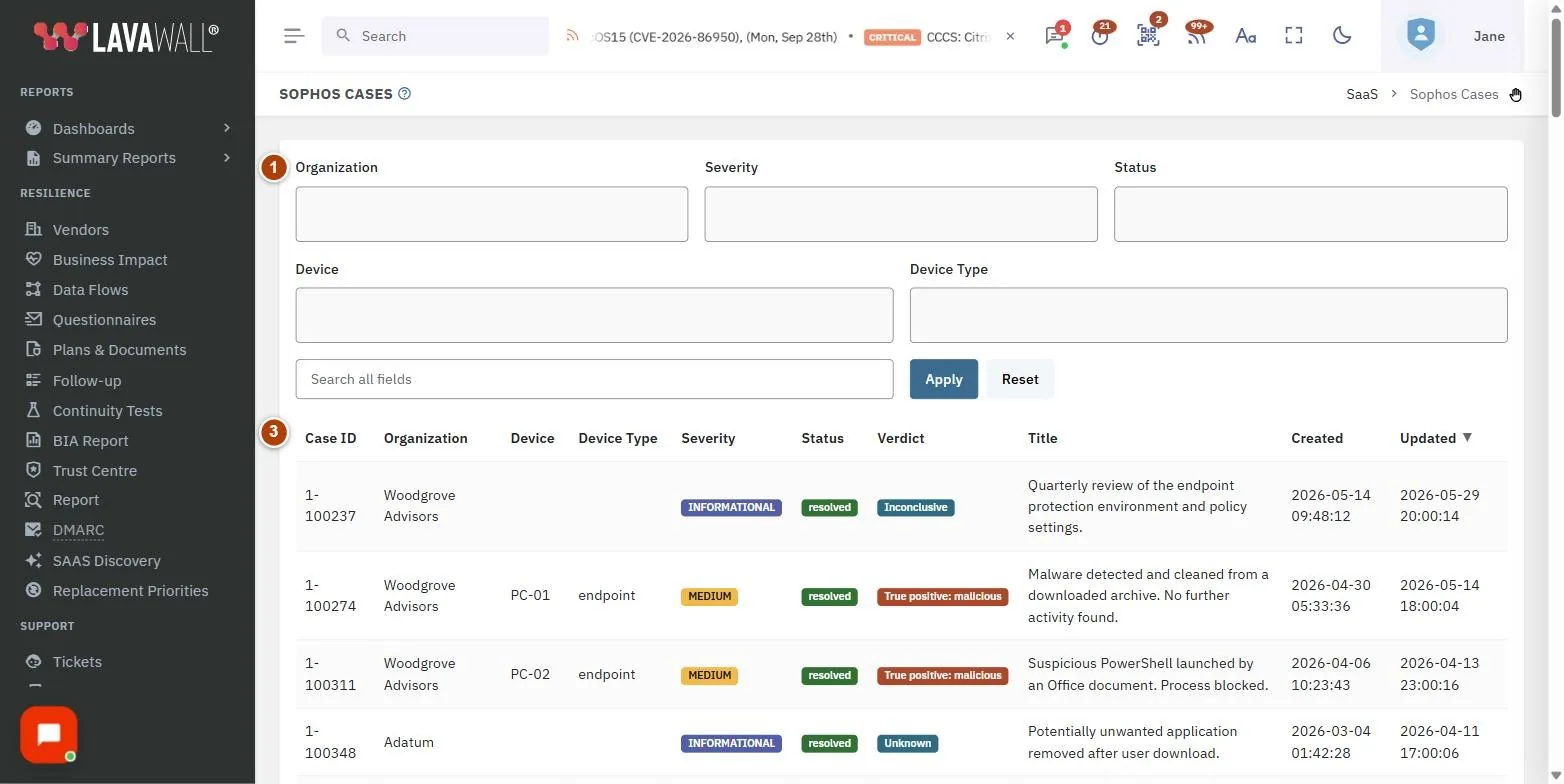
- Filters: Organization, Severity, Status, Device and Device Type multi-select boxes.
- Search and buttons: Search all fields, Apply and Reset.
- Cases table: Case ID, Organization, Device, Device Type, Severity, Status, Verdict, Title, Created and Updated, each sortable.
How to review open cases
- In Status, choose action required (and investigating if present).
- Optionally choose critical and high in Severity.
- Click Apply. Sort by Updated to see the most recent activity first.
How to see every case for one computer or firewall
- Choose the device in Device, or type its name in Search all fields.
- To see only firewalls or only computers, choose firewall or endpoint in Device Type.
- Click Apply.
How to sort and reset
- Click any column heading to sort; click again to reverse it. Updated newest-first is the default.
- Click Reset to clear every filter.
Tips
- Severity badges: critical and high are red, medium is amber, low is blue, informational is grey.
- Status badges: action required is amber, investigating is blue, on hold is grey, resolved is green.
- Verdict badges: False positive and True positive: benign are green, Inconclusive is blue, True positive is amber, True positive: malicious is red.
- The Organization filter starts on the Sophos organizations linked to the company selected at the top of the console.
- Click a device name to open its Lavawall device page and check patches, software and recent activity.
Troubleshooting
- No cases are listed.
- Check that a Sophos sync has run and that the Sophos organization is linked to the selected company on Sophos Summary and Setup. Clear the filters with Reset.
- A device shows an ID instead of a name.
- Sophos did not report a matching computer or firewall for that case in the last sync.
- Only some cases appear.
- The table shows up to 1,000 cases, and cases without a title are left out. Narrow the filters.
Task guides that use this page
Related articles
Still need help?
Search the support centre, or contact our support team and tell us which page you were on:
- Chat now: use the chat button in the bottom-right corner of this page to reach our team right away. Where cookie consent is needed, the chat starts after you accept (cookie settings).
- Email: send our support team a message through the contact page. It goes straight to a person.
- Phone:
 AB: 1-403-538-5053
 US: 1-406-988-7333
 UK: +44 20 3695 9786
Names, companies, devices and figures in the pictures are examples. Other product and company names are trademarks of their respective owners.