Public Content Library
Start your blog quickly with ready-made articles you can import, adapt and publish as your own.
What the page is for
Public Content Library is a page in the Lavawall® console, in the Marketing (MSP) area. Lavawall is the RMM, security, and compliance platform from ThreeShield, built and hosted in Canada. About this feature.
The Public Content Library holds shared blog articles written to help managed service providers show their expertise and improve their search ranking. Topics include cybersecurity, compliance, MSP tips, cloud, and AI and automation.
When you import an article, it is copied into your own blog as a draft. You can then edit it to suit your voice and clients, and publish it when you are ready. Nothing is published automatically.
What you see
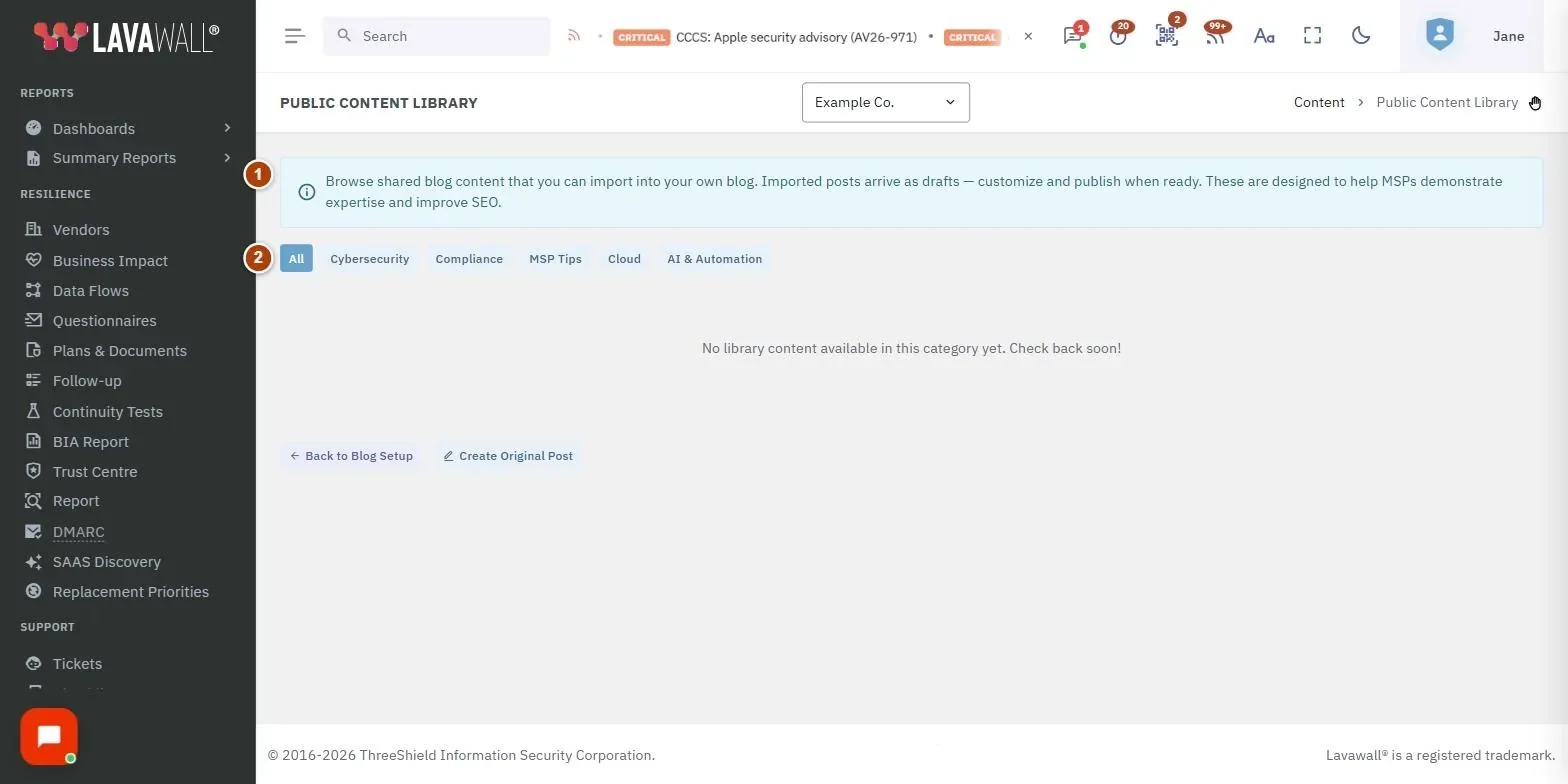
- Information banner: explains that imported posts arrive as drafts.
- Category filters: All, Cybersecurity, Compliance, MSP Tips, Cloud and AI & Automation.
- Article cards: image, category, title, date, author, a short excerpt and Import to My Blog.
- Page links: Back to Blog Setup and Create Original Post.
How to use this page
How to import an article
- Select a category to narrow the list, or leave All selected.
- Read the card's title and excerpt.
- Select Import to My Blog and confirm.
- The article opens in the Blog Editor as a draft. Edit it, then select Publish when it is ready.
How to write your own post instead
- Select Create Original Post to open a blank post in the Blog Editor.
Tips
- Personalize imported posts with your own examples, services and a call to action before you publish.
- Check the URL Slug and Meta Description of an imported post in the Blog Editor so it suits your site.
- Space out publishing imported posts so your blog shows regular activity.
Troubleshooting
- "No library content available in this category yet."
- Try another category or All; new content is added over time.
- An import fails.
- The message shows the reason; try again, or open the Blog Editor to check whether the draft was created.
Task guides that use this page
Related articles
Still need help?
Search the support centre, or contact our support team and tell us which page you were on:
- Chat now: use the chat button in the bottom-right corner of this page to reach our team right away. Where cookie consent is needed, the chat starts after you accept (cookie settings).
- Email: send our support team a message through the contact page. It goes straight to a person.
- Phone:
 AB: 1-403-538-5053
 US: 1-406-988-7333
 UK: +44 20 3695 9786
Names, companies, devices and figures in the pictures are examples. Other product and company names are trademarks of their respective owners.