Connect Sophos Central and review your first results
Connect Sophos Central and review computers, cases, alerts, and firewalls across your organizations.
A Lavawall® task guide: 8 steps across 5 console pages.
Before you start
- Who can do this: Anyone who can see the page
- Plan: Sophos Central Integration (included in Professional and Complete). See pricing.
- Where to start: open Sophos Alerts in your console.
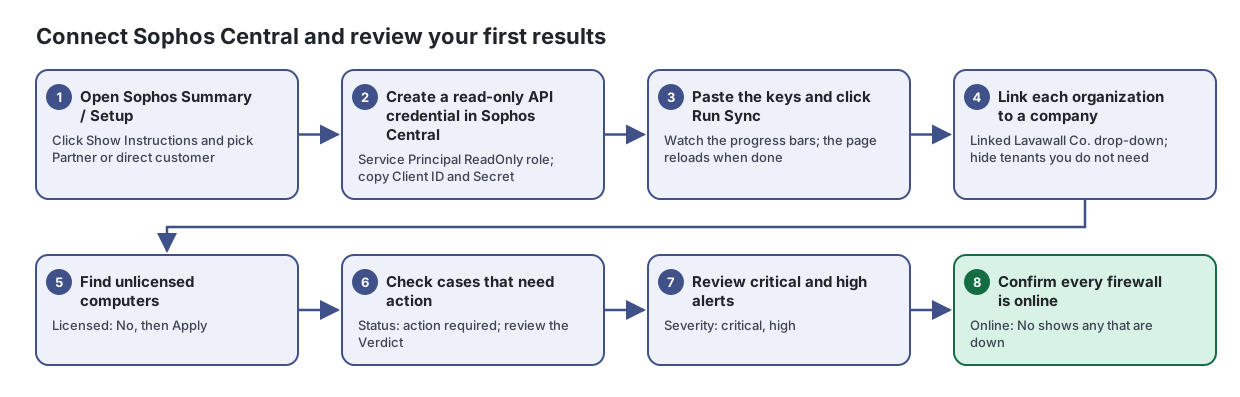
Steps
- Open Sophos Summary / Setup. Click Show Instructions and pick Partner or direct customer
Connect Sophos Central to Lavawall once and see every Sophos organization, its protected computers, firewalls, alerts and cases in one table.
- Create a read-only API credential in Sophos Central. Service Principal ReadOnly role; copy Client ID and Secret
From the article: How to connect Sophos Central for the first time
- Click Show Instructions and pick the tab that matches your account: Sophos Partner / MSP if you sign in to Sophos Central Partner and see a list of customer tenants, or Direct Sophos Central customer if you sign in to Sophos Central for your own tenant.
- In Sophos Central, create an API credential named Lavawall with the Service Principal ReadOnly role.
- Copy the Client ID into the Client ID field, and the Client Secret into the Client Secret field. Sophos shows the secret only once.
- Set Key Created to the date you created the credential. Lavawall records the expiry as 36 months later.
- Partners only, optional: upload the Windows and macOS deployment CSV files from Sophos Central Partner (My Environment › Installers). Lavawall can now find installer details through the API, so this is not required. Direct customers skip this step.
- Click Run Sync and watch the progress bars. The page reloads when the sync finishes.
- Paste the keys and click Run Sync. Watch the progress bars; the page reloads when done
From the article: How to run a sync again
- If your keys are already on file, click Run Sync. The stored keys are used.
- To upload new installer CSV files without contacting Sophos, tick Process CSV only (skip API) first.
- To stop a sync that is running, click Cancel.
- Link each organization to a company. Linked Lavawall Co. drop-down; hide tenants you do not need
From the article: How to link or hide a Sophos organization
- In Current Organizations Summary, open the Linked Lavawall Co. drop-down on the organization's row.
- Choose the Lavawall company it belongs to, or not linked. The change saves at once and shows a saved tick.
- To hide the organization, choose Hide this organization in the same drop-down. To see hidden organizations again, turn on Show N hidden organizations in the card header, then choose Show this organization on the row.
- Find unlicensed computers. Licensed: No, then Apply
See every computer Sophos protects across your organizations, spot unlicensed ones, and jump to their open cases.
From the article: How to find unlicensed computers
- In Licensed, remove Yes and choose No.
- Optionally narrow by Organization or Platform.
- Click Apply. Every computer Sophos reports without a licence is listed.
- Check cases that need action. Status: action required; review the Verdict
Review Sophos investigation cases for each computer and firewall, with severity, status and the analyst's verdict side by side.
From the article: How to review open cases
- In Status, choose action required (and investigating if present).
- Optionally choose critical and high in Severity.
- Click Apply. Sort by Updated to see the most recent activity first.
- Review critical and high alerts. Severity: critical, high
Filter and sort the alerts Sophos Central raised across all your organizations, by severity, type and device.
From the article: How to see the most serious alerts
- Choose critical and high in Severity.
- Click Apply.
- Alerts are sorted newest first by Raised. Click Severity to sort by severity instead.
- Confirm every firewall is online. Online: No shows any that are down
Check that every Sophos firewall is online and see which ones have open alerts or cases.
From the article: How to find firewalls that are offline
- Choose No in Online.
- Click Apply.
When you are done
Sophos is connected, each organization is linked to a company, and the most serious alerts and cases are reviewed.
Articles for the pages in this guide
- Sophos Alerts: Filter and sort the alerts Sophos Central raised across all your organizations, by severity, type and device.
- Sophos Cases by Device: Review Sophos investigation cases for each computer and firewall, with severity, status and the analyst's verdict side by side.
- Sophos Computers: See every computer Sophos protects across your organizations, spot unlicensed ones, and jump to their open cases.
- Sophos Firewalls: Check that every Sophos firewall is online and see which ones have open alerts or cases.
- Sophos Summary and Setup: Connect Sophos Central to Lavawall once and see every Sophos organization, its protected computers, firewalls, alerts and cases in one table.
Still need help?
Search the support centre, or contact our support team and tell us which step you are on:
- Chat now: use the chat button in the bottom-right corner of this page to reach our team right away. Where cookie consent is needed, the chat starts after you accept (cookie settings).
- Email: send our support team a message through the contact page. It goes straight to a person.
- Phone: AB: 1-403-538-5053, BC: 1-778-731-1339, ON: 1-289-724-8829, US: 1-406-988-7333, UK: +44 20 3695 9786.