Phishing Simulations
Send realistic, safe phishing tests to your staff, see who clicks, and show them what to look for next time.
What the page is for
Phishing Simulations is a page in the Lavawall® console, in the Security awareness training area. Lavawall is the RMM, security, and compliance platform from ThreeShield, built and hosted in Canada. About this feature.
A phishing simulation sends a fake phishing email to staff to measure who clicks and who would have typed their password into a fake sign-in page. People who click land on an educational page that explains the red flags they missed. Over time, click rates show whether training is working.
This page is where you run campaigns and manage the pieces they use. Templates are the simulated emails; Lavawall provides a library in categories such as credential harvest, IT helpdesk, invoice or CEO fraud, delivery and Canada Revenue Agency, and you can write your own. Landing Pages are the educational pages people see after clicking. Import Email turns a real phishing email you received into a safe template, with tracking, scripts and malicious links removed.
Campaigns can target training groups, individual people or all active users, and can be sent now or scheduled.
Passwords are never recorded
When a simulation shows a fake sign-in page, whatever the person types stays in their own browser. Lavawall never sends, stores or logs it, and does not record its length either. The fields on the fake page cannot be submitted, even with JavaScript turned off.
Lavawall records only that the person pressed Sign in, and whether the password box was empty. That is enough to measure the risk and to show the person the lesson, without ever holding a real password.
What you see
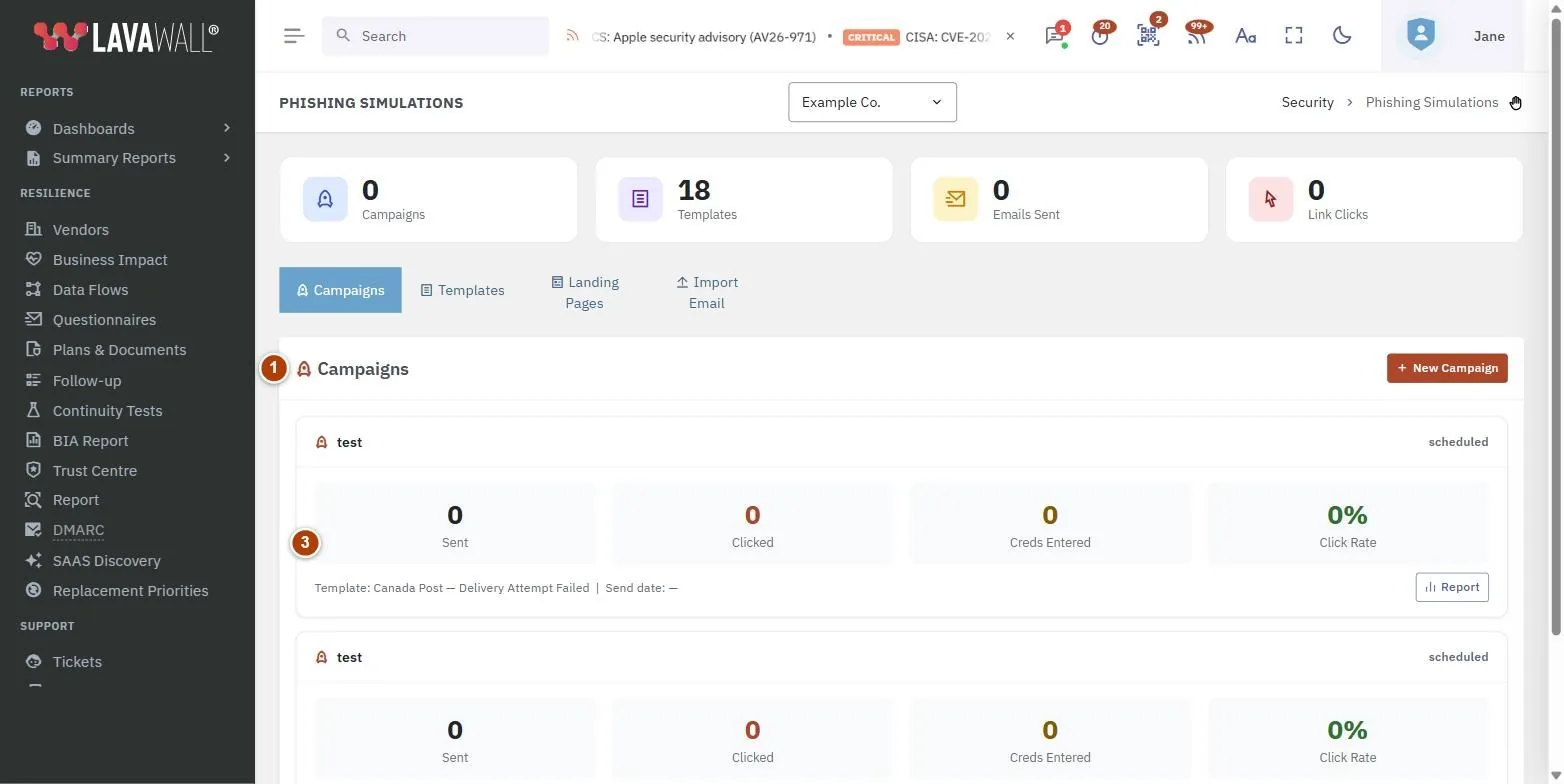
- Summary figures: Campaigns, Templates, Emails Sent and Link Clicks.
- Tabs: Campaigns, Templates, Landing Pages and Import Email.
- Campaign cards: name and status (draft, active, paused or completed), Sent, Clicked, Submitted sign-in (people who pressed Sign in on a simulated sign-in page; passwords are never recorded) and Click Rate, the template and send date, and Report. New Campaign starts a new one.
- New Phishing Simulation Campaign: Campaign Name, Schedule Send, Email Template, Educational Landing Page and Who to target (Training Groups, Individual Emails or All Active Users), with Save as Draft and Create Campaign.
How to run a phishing simulation
- On Campaigns, click New Campaign.
- Enter a Campaign Name.
- Choose an Email Template and, optionally, an Educational Landing Page (or keep the default).
- Under Who to target, choose Training Groups and tick groups, Individual Emails and search for people, or All Active Users.
- Set Schedule Send, or leave it blank to keep a draft.
- Click Create Campaign, or Save as Draft to finish later.
- Watch Clicked, Submitted sign-in and Click Rate on the campaign card.
How to write your own template
- Open Templates and click New Template.
- Enter a Template Name, Difficulty (Easy, Medium, Hard or Expert) and Category.
- Enter the From Name, From Email and Subject Line.
- Write the Email Body. Use the { } toolbar button to insert placeholders such as the person's first name, company name and the simulated phishing link.
- List the Red Flags, one per line. They are shown on the landing page.
- Save the template.
How to create an educational landing page
- Open Landing Pages and click New Page.
- Enter a Page Name and Page Title.
- Write an optional Intro Message and the Educational Content.
- To see who would type a password, choose a Simulated sign-in page (Microsoft 365 or Google Workspace). People who click see the fake sign-in first, then this page. Passwords typed there are never sent or recorded; Lavawall notes only that Sign in was pressed.
- Without a simulated sign-in page, you can tick Include a basic inline sign-in form instead. It works the same way and never records passwords either.
- Save the page. Use the preview button to check it.
How to turn a real phishing email into a template
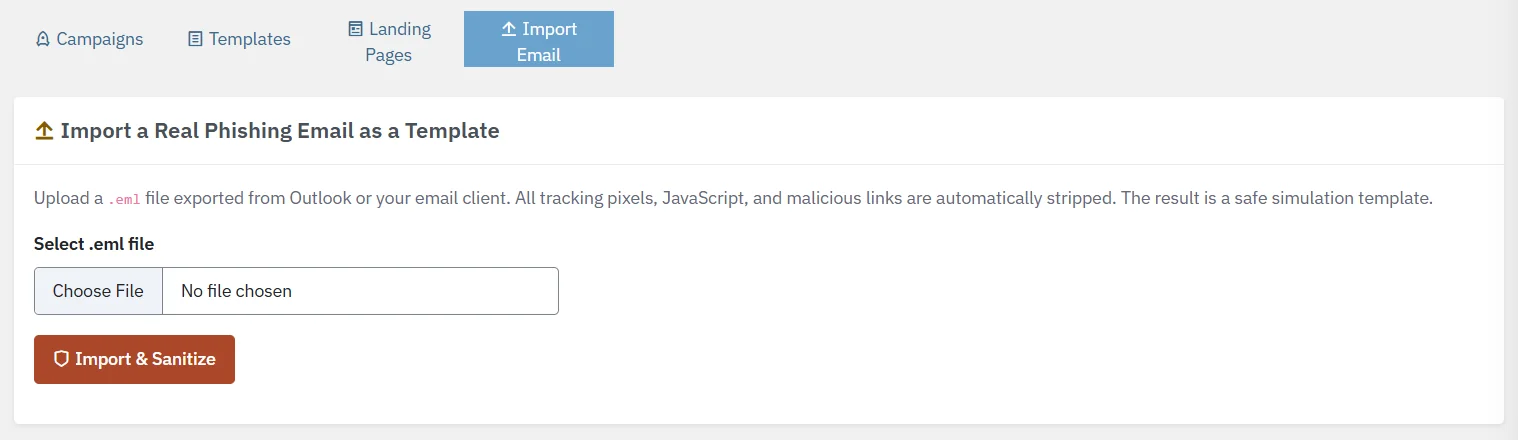
- Save the phishing email as a .eml file from Outlook or your email client.
- Open Import Email, choose the file in Select .eml file and click Import & Sanitize.
- The new template appears under Templates, ready to edit and use.
Tips
- Start with an Easy or Medium template, then increase difficulty as click rates fall.
- Click Rate turns amber above 10% and red above 30%.
- Templates and landing pages marked Global are provided by Lavawall. You can preview them but only edit your own.
- Use Training Groups to test one department at a time; add the groups on the Training page.
- When staff report a simulation with the Phishing Reporter add-in, they are credited for catching it automatically.
Troubleshooting
- Does Lavawall record the passwords people type?
- No. Passwords typed into a simulated sign-in page are never sent, stored or logged, and neither is their length. Lavawall records only that Sign in was pressed and whether the password box was empty.
- "No campaigns yet. Create your first campaign."
- Click New Campaign.
- No training groups to pick.
- Create groups on the Training page first, then click the refresh button in the campaign form.
- "No templates found."
- Set the category filter back to All categories.
- There is no edit button on a template or landing page.
- It is a Global item provided by Lavawall. Import or create your own to customize it.
Task guides that use this page
Related articles
Still need help?
Search the support centre, or contact our support team and tell us which page you were on:
- Chat now: use the chat button in the bottom-right corner of this page to reach our team right away. Where cookie consent is needed, the chat starts after you accept (cookie settings).
- Email: send our support team a message through the contact page. It goes straight to a person.
- Phone: AB: 1-403-538-5053, BC: 1-778-731-1339, ON: 1-289-724-8829, US: 1-406-988-7333, UK: +44 20 3695 9786.
Names, companies, devices and figures in the pictures are examples. Other product and company names are trademarks of their respective owners.