Security Controls
Track the implementation status, owner, review date, documents and evidence for every security control in your compliance programme.
What the page is for
Security Controls is a page in the Lavawall® console, in the Compliance (GRC) area. Lavawall is the RMM, security, and compliance platform from ThreeShield, built and hosted in Canada. About this feature.
Every compliance framework boils down to a set of controls: things your organization does to protect information, such as enforcing multi-factor sign-in or testing backups. This page lists every control that applies to you, shows how far along each one is, and lets you update status, owners and review dates, one at a time or many at once.
For each control you can open a details window that shows what Lavawall already knows about it from your environment (Lavawall Insights), link the policies and procedures that support it, and upload evidence. Uploaded files are encrypted as they upload.
This is the classic controls page. The same controls and statuses are also available on Control Design, which adds the design, observation and attestation trail auditors ask for. This page remains available for now.
What you see
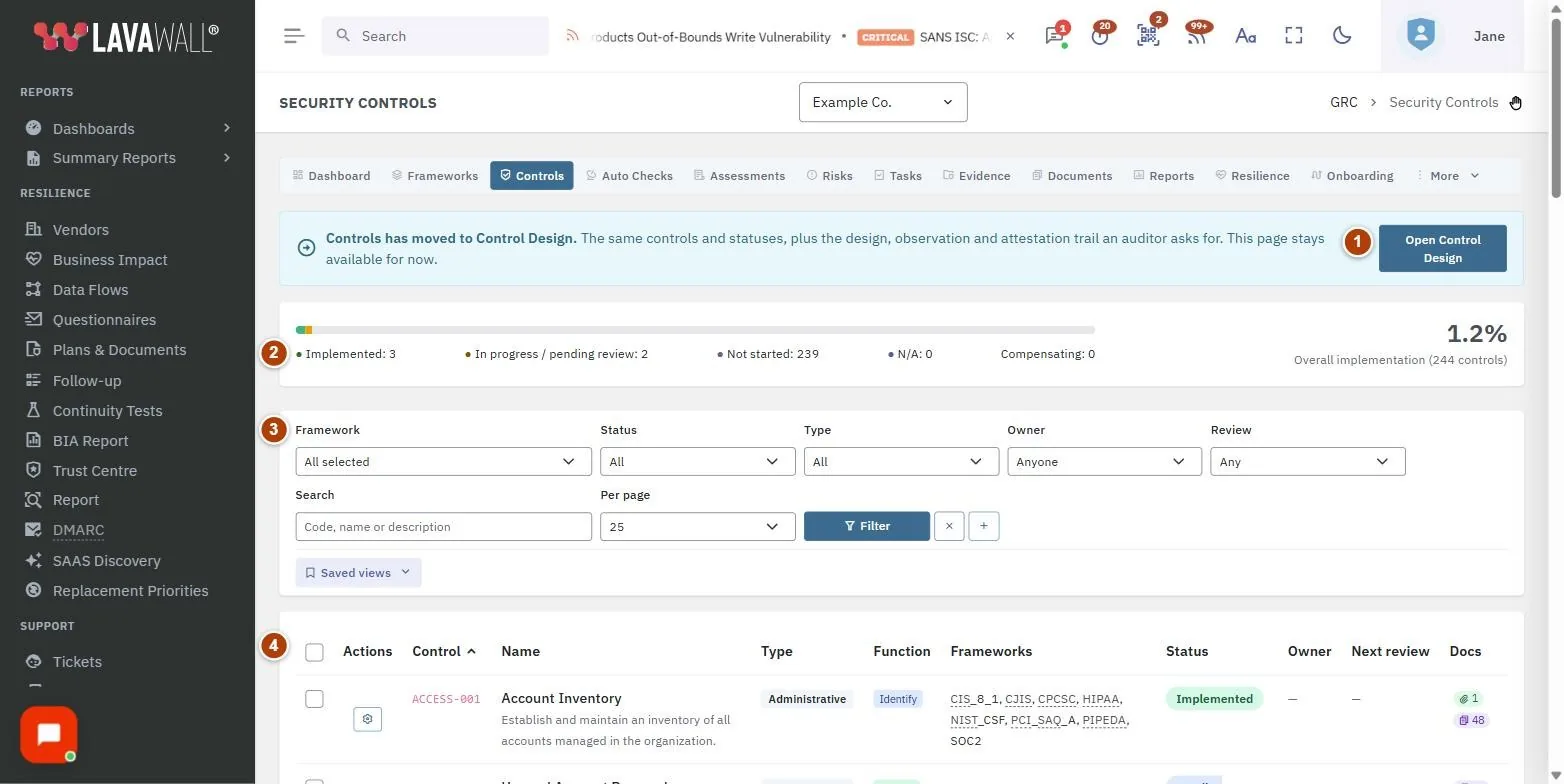
- Move notice: a reminder that Controls has moved to Control Design, with Open Control Design.
- Implementation summary: how many controls are implemented, in progress or pending review, not started, and compensating, with an overall implementation percentage.
- Filters and views: Framework, Status, Type, Owner, Review, Search and Per page, with Filter, saved views under My views and Shared with the company, and a button to add a company control.
- Controls table: Control, Name, Type, Function, Frameworks, Status, Owner, Next review and Docs, with a Manage button on each row. Sort by selecting a column heading.
- Bulk bar: appears when you tick controls: Clear and Edit the selected controls.
- Control details: Status, Notes and the tabs Lavawall Insights, Documents and Evidence.
How to update a control
- Find the control using the filters or Search, and select Manage on its row.
- In Control details, change the Status and add Notes.
- Review Lavawall Insights for what Lavawall has found in your environment for this control.
- Select Save.
How to attach documents and evidence
- Open the control with Manage.
- On the Documents tab, choose an existing document and select Link, or use Create from template to start a new policy. Open Document Library takes you to all your documents.
- On the Evidence tab, under Upload evidence, choose the file and select Upload. Large files are fine; the upload resumes if the connection drops.
How to edit several controls at once
- Tick the controls on the current page (or tick the header box to select every control on the page).
- Select Edit the selected controls.
- Tick only the things you want to change: Owner, Implementation state, Review frequency, Next review date or Applicability (In scope or Not applicable). Anything left unticked stays as it is.
- Select Review the change, check the summary, and confirm.
How to add a company control
- Select the add button next to the filters (Add a company control).
- Enter the Code, Type, Function, Name and Description. MSPs can tick Make it available to all of your MSP's clients.
- Under Map it to a framework, choose one of your own frameworks and enter the Reference and Requirement text, or choose Do not map now.
- Select Add.
How to save a view
- Set the filters you want.
- Select Save these filters as a view…, give it a Name, and choose whether to Open this view by default when I come to Controls and Share it with everyone in this company.
- Select Save the view. It appears under My views or Shared with the company.
Tips
- Check the shared library before adding a company control. A second control for a requirement the library already covers splits its evidence across two records.
- A control that is not mapped to a framework counts toward nothing.
- Marking a control Not applicable also sets its state to Not Applicable, because that is what readiness figures count. The reason, who decided and when are kept with the control.
- Selection is per page: paging or filtering clears it, so you only change what you can see.
- Use the Review filter to find controls whose review is due.
Troubleshooting
- "No controls found."
- Adjust the filters. If you filtered by a framework, it may not have any requirements mapped yet; see Framework Mapping.
- "Your organization has no custom framework to map it to."
- Create a custom framework on the Compliance Frameworks page, then map requirements in Framework Mapping.
- The total shows "counted to" a number.
- Very long lists stop counting at a cap so the page stays fast. Export the list for an exact figure.
- "Your GRC role does not include access to controls."
- Ask an administrator to change your compliance role.
Related articles
Still need help?
Search the support centre, or contact our support team and tell us which page you were on:
- Chat now: use the chat button in the bottom-right corner of this page to reach our team right away. Where cookie consent is needed, the chat starts after you accept (cookie settings).
- Email: send our support team a message through the contact page. It goes straight to a person.
- Phone:
 AB: 1-403-538-5053
 US: 1-406-988-7333
 UK: +44 20 3695 9786
Names, companies, devices and figures in the pictures are examples. Other product and company names are trademarks of their respective owners.