Compliance Settings
Decide who can do what in your compliance program and set the rules that every compliance page follows for your organization.
What the page is for
Compliance Settings is a page in the Lavawall® console, in the Compliance (GRC) area. Lavawall is the RMM, security, and compliance platform from ThreeShield, built and hosted in Canada. About this feature.
Compliance Settings has two jobs. First, it lets a GRC administrator give each person a compliance role, such as approver or auditor, so that the people who write policies and controls are not always the same people who approve them. A role only applies where the person can already sign in; it never gives them access to another company.
People who have not been given a role here get one automatically from their console role: administrators become GRC administrators, managers become compliance managers, end-user portal accounts become viewers, and everyone else is a contributor. Console super admins are always GRC administrators.
Second, the page holds the company-wide compliance settings: separation of duties, risk appetite, reminder timing, evidence expiry warnings, AI drafting, which email domains may receive scheduled reports, and whether reminder emails are sent. Every role change and setting change is recorded in the activity log with the old and new value.
What you see
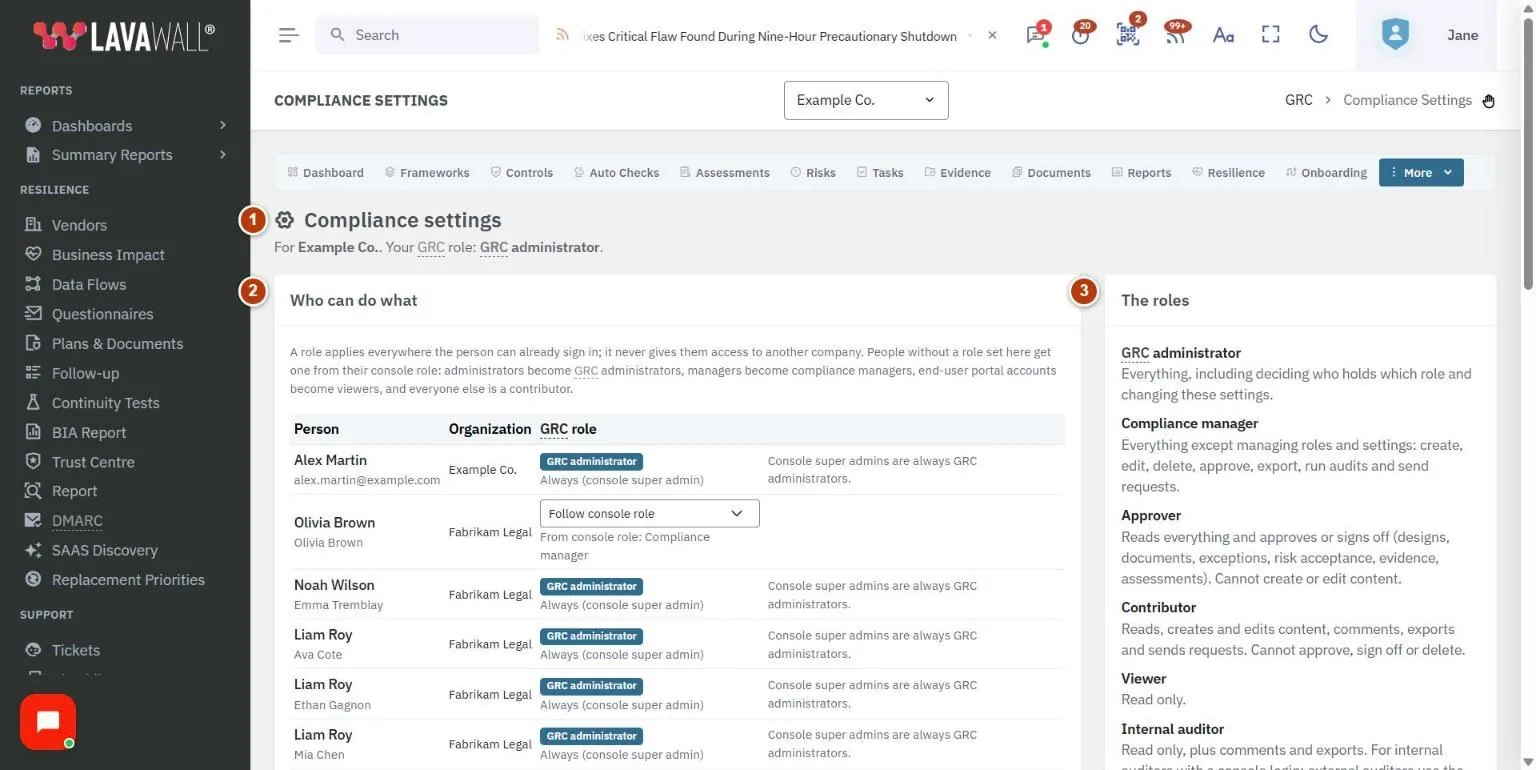
- Header: the company you are working in and your own GRC role. If you cannot make changes, a note says only a GRC administrator can.
- Who can do what: a table of the people who can be assigned compliance work, with Person, Organization and GRC role. Administrators see a role picker on each row they can manage.
- The roles: a plain description of each role: administrator, manager, approver, contributor, viewer and auditor.
- Company settings: each setting with its current value, a help line, and "Using the default" when it has never been changed.
- Save settings: saves the company settings (shown to GRC administrators only).
How to change someone's compliance role
- In Who can do what, find the person.
- Open the role list on their row and choose a role, or choose Follow console role to go back to the automatic role.
- Read the description in the confirmation and select Change role.
- The row updates and shows "Set here" or "From console role" under the picker.
How to change the company settings
- In Company settings, change the values you need:
- Separation of duties: Strict: nobody approves their own work (the default) or Allow self-approval, with a written reason.
- Risk appetite (residual score): 1 to 25, default 12. Risks with a residual score above this need a formal risk acceptance.
- Reminder lead time (days): 1 to 30, default 3. How early the "due soon" email goes out; a second reminder is sent on the due date.
- Evidence expiry warning (days): 1 to 90, default 30.
- AI drafting: Off (default) or On.
- Scheduled reports may be emailed to: a comma-separated list of email domains, for example example.com, example.ca.
- Reminder emails: On (default) or Off.
- Select Save settings. The page confirms "Settings saved" (or "Nothing changed") and reloads.
How to allow self-approval for a one-person practice
- Set Separation of duties to Allow self-approval, with a written reason.
- Select Save settings.
- In Allow people to approve their own work?, type a reason of at least ten characters (for example "One-person practice") and select Allow.
- From then on, each self-approval needs its own reason, is flagged on the record and is shown as self-approved in reports and to auditors.
Tips
- Keep Strict separation of duties unless one person genuinely does everything. It is what auditors expect.
- Use the Auditor role for internal auditors who have a console login. External auditors use the auditor portal instead.
- Leave Scheduled reports may be emailed to empty to keep scheduled reports going only to console users of your company. That is the safe default.
- Turning Reminder emails off stops the daily reminders only. Emails someone sends on purpose, such as evidence requests and attestation links, still go out.
- AI drafting never saves or sends a draft on its own; a person must edit and approve it first.
Troubleshooting
- I cannot change anything on this page.
- Only a GRC administrator can change roles and settings. Everyone else sees the page read-only.
- A person's role cannot be changed.
- Console super admins are always GRC administrators. People who belong to your service provider show "Managed by …" and are managed by their own organization.
- "This is the last GRC administrator…"
- You cannot remove the last GRC administrator of a company. Make someone else an administrator first.
- "Allowing self-approval needs a reason of at least ten characters."
- Enter a longer reason in the confirmation box.
- "Your GRC role does not include viewing compliance data."
- Ask a GRC administrator to give you a role that can view compliance data.
Task guides that use this page
Related articles
Still need help?
Search the support centre, or contact our support team and tell us which page you were on:
- Chat now: use the chat button in the bottom-right corner of this page to reach our team right away. Where cookie consent is needed, the chat starts after you accept (cookie settings).
- Email: send our support team a message through the contact page. It goes straight to a person.
- Phone:
 AB: 1-403-538-5053
 US: 1-406-988-7333
 UK: +44 20 3695 9786
Names, companies, devices and figures in the pictures are examples. Other product and company names are trademarks of their respective owners.