Help a user remotely and record it in a ticket
Connect to a user's computer, fix the problem, and keep a record of what you did in the ticket, whether or not the computer has Lavawall installed.
A Lavawall® task guide: 5 steps across 3 console pages.
Before you start
- Who can do this: People whose account includes attended support. The check is made against your own organization's subscription.
- Plan: Ad-hoc remote support for computers without Lavawall (per named agent; add-on, or included in Complete) or Help desk + ad-hoc remote support (per named agent; add-on). RMM Agent (Windows / Mac / Linux; included in Grow, Professional, and Complete). Remote support for Lavawall computers (included in Professional and Complete). See pricing.
- Where to start: open Ad-Hoc Support in your console.
Steps
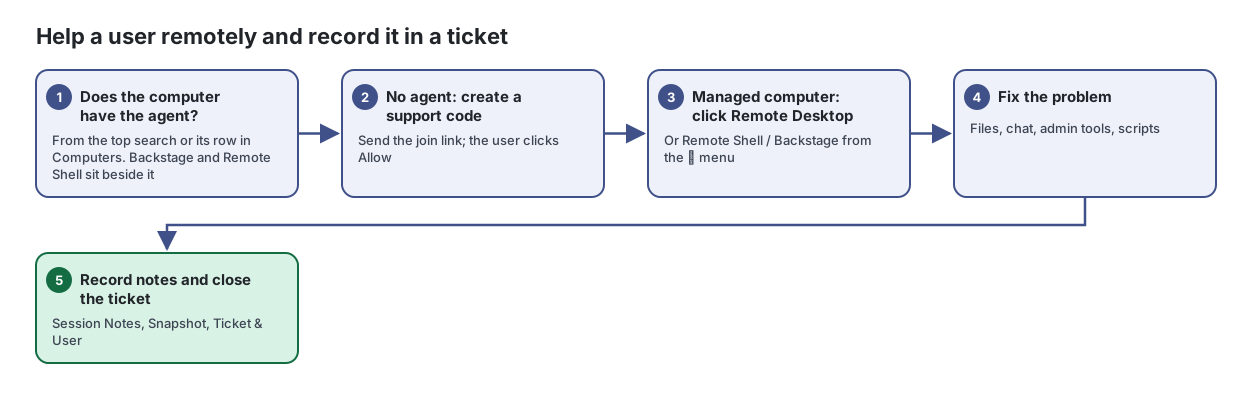
- Does the computer have the agent? From the top search or its row in Computers. Backstage and Remote Shell sit beside it
- No agent: create a support code. Send the join link; the user clicks Allow
Help someone whose computer does not have Lavawall installed, using a one-time support code.
From the article: How to start a session
- Click Create support code.
- Send the person the join link. Click Copy message to copy a ready-to-send message with the link and simple instructions, or Email to open a new email with it.
- Ask them to open the link, enter the code, run the downloaded tool and click Allow.
- Watch the status change from Waiting for connection… to Connected. The page takes you into the live session when they connect.
- Managed computer: click Remote Desktop. Or Remote Shell / Backstage from the ⋮ menu
Every computer and server running the Lavawall agent, in one list you can filter, search, export and act on.
From the article: How to connect remotely
- From any console page, type the computer's name in the Search box at the top. In the results, click the remote desktop, Backstage or remote shell icon beside the computer.
- Or, in the Computers list, click the remote desktop icon on the computer's row. It is always shown, and the session opens in a new tab.
- For Backstage (a hidden desktop that does not disturb the user) or Remote Shell, click its icon on the row. On a narrow screen they are in the ⋮ menu.
- Fix the problem. Files, chat, admin tools, scripts
Connect to a managed computer's screen or command line, fix the problem, and record what you did in a ticket, all from your browser.
From the article: How to use the shell and admin tools
- In the Remote Shell, choose the shell to open, for example PowerShell (System), CMD (System), PowerShell (User), or bash (root) on Linux and Mac.
- Open the Admin Launcher to start tools such as Task Manager, Services, Event Viewer, Registry Editor or Disk Management on Windows, or Activity Monitor, Disk Utility and Terminal on a Mac.
- Click Scripts to pick a saved script and click Run Now. The output appears in the panel.
- Record notes and close the ticket. Session Notes, Snapshot, Ticket & User
From the article: How to add session notes to a ticket
- In Session Notes, type what you did. Click Snapshot to attach a screen capture to the notes.
- In Ticket & User, open or create the ticket, set its status (Open, In Progress, Pending, Resolved or Closed) and confirm the end user.
- When you finish, click Disconnect, or stop and close the ticket.
When you are done
The problem is fixed and the ticket holds your session notes, so the next technician can see what was done.
Articles for the pages in this guide
- Ad-Hoc Support: Help someone whose computer does not have Lavawall installed, using a one-time support code.
- Computers: Every computer and server running the Lavawall agent, in one list you can filter, search, export and act on.
- Remote Support: Connect to a managed computer's screen or command line, fix the problem, and record what you did in a ticket, all from your browser.
Still need help?
Search the support centre, or contact our support team and tell us which step you are on:
- Chat now: use the chat button in the bottom-right corner of this page to reach our team right away. Where cookie consent is needed, the chat starts after you accept (cookie settings).
- Email: send our support team a message through the contact page. It goes straight to a person.
- Phone: AB: 1-403-538-5053, BC: 1-778-731-1339, ON: 1-289-724-8829, US: 1-406-988-7333, UK: +44 20 3695 9786.