Run your first compliance assessment
Choose your frameworks, record who holds each role, and work through your first compliance assessment to sign-off.
A Lavawall® task guide: 7 steps across 5 console pages.
Before you start
- Who can do this: Anyone with a GRC role that can view compliance data; running checks and asking for exceptions needs edit rights; approving exceptions needs an approver
- Plan: GRC Compliance Platform (included in Complete). See pricing.
- Where to start: open Automatic Compliance Checks in your console.
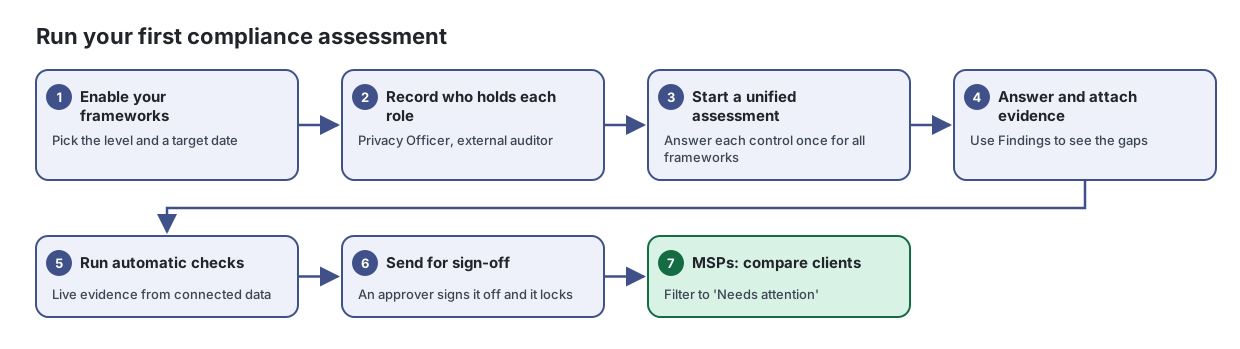
Steps
- Enable your frameworks. Pick the level and a target date
Choose which security, privacy and industry frameworks apply to your organization, at what level, and by when you want to be compliant.
From the article: How to enable a framework
- Search for the framework or use the region filter.
- Turn on the switch on its card.
- If the card shows Implementation Level, choose the level you are aiming for. Select Compare all levels to see what each adds.
- If it shows Audit Scope, tick every scope that applies.
- Optionally set a Target compliance date.
- Record who holds each role. Privacy Officer, external auditor
Keep one list of everyone who holds a compliance role, such as your Privacy Officer or external auditor, whether or not they have a console login.
From the article: How to assign a compliance role
- Select Set GRC roles (the star icon) on the person's row.
- Choose one or more roles. Hold Ctrl (or Cmd) to choose more than one.
- Select Save roles.
- Start a unified assessment. Answer each control once for all frameworks
Work through a compliance questionnaire, answer each control once, attach evidence, and get the result signed off.
From the article: How to start an assessment
- Select New Assessment.
- Choose Start Unified Assessment to cover all your enabled frameworks at once, or select one questionnaire below.
- Enter an Assessment Name (for example "Q1 2026 CIS Assessment") and an optional Due Date.
- Select Create & Start.
- Answer and attach evidence. Use Findings to see the gaps
From the article: How to attach evidence
- On the question, select Attach Evidence and choose the file.
- The file appears under the question. Remove it with the bin icon if you added the wrong one.
- Run automatic checks. Live evidence from connected data
Test your controls against live data Lavawall already collects, see exactly which accounts or devices fail, and keep a dated history an auditor can rely on.
From the article: How to run the checks
- Select Run all checks, or the play button on one check's row.
- Wait for the message to finish; the table and tiles update.
- Send for sign-off. An approver signs it off and it locks
From the article: How to send for sign-off and sign off
- When every question is answered, select Send for sign-off. The assessment cannot be changed while it waits.
- An approver selects Sign off to lock it, or Return for changes. The sender can Withdraw it.
- A signed-off assessment can be unlocked by someone allowed to do so, which records who did it.
- MSPs: compare clients. Filter to 'Needs attention'
See the compliance position of every client you manage on one page, and spot the ones that need attention first.
From the article: How to find the clients that need attention
- In the filter, choose Needs attention (any issue).
- Sort by Readiness or Overdue tasks.
- Select a client's name to open its compliance dashboard.
When you are done
The assessment is answered, evidenced, and signed off, and MSPs can compare it with their other clients.
Articles for the pages in this guide
- Automatic Compliance Checks: Test your controls against live data Lavawall already collects, see exactly which accounts or devices fail, and keep a dated history an auditor can rely on.
- Client Compliance Portfolio: See the compliance position of every client you manage on one page, and spot the ones that need attention first.
- Compliance Assessments: Work through a compliance questionnaire, answer each control once, attach evidence, and get the result signed off.
- Compliance Contacts: Keep one list of everyone who holds a compliance role, such as your Privacy Officer or external auditor, whether or not they have a console login.
- Compliance Frameworks: Choose which security, privacy and industry frameworks apply to your organization, at what level, and by when you want to be compliant.
Still need help?
Search the support centre, or contact our support team and tell us which step you are on:
- Chat now: use the chat button in the bottom-right corner of this page to reach our team right away. Where cookie consent is needed, the chat starts after you accept (cookie settings).
- Email: send our support team a message through the contact page. It goes straight to a person.
- Phone: AB: 1-403-538-5053, BC: 1-778-731-1339, ON: 1-289-724-8829, US: 1-406-988-7333, UK: +44 20 3695 9786.