Answer a customer's security questionnaire and publish your Trust Centre
Answer a customer's security questionnaire from your approved answers, then publish a Trust Centre so the next customer can help themselves.
A Lavawall® task guide: 6 steps across 2 console pages.
Before you start
- Who can do this: Anyone whose compliance (GRC) role includes security questionnaires; importing, drafting, approving, exporting and editing the answer library each need the matching compliance permission
- Plan: GRC Compliance Platform (included in Complete). Resilience: Plans, Policies & Trust Centre (add-on, or included in Complete). See pricing.
- Where to start: open Security Questionnaires in your console.
Steps
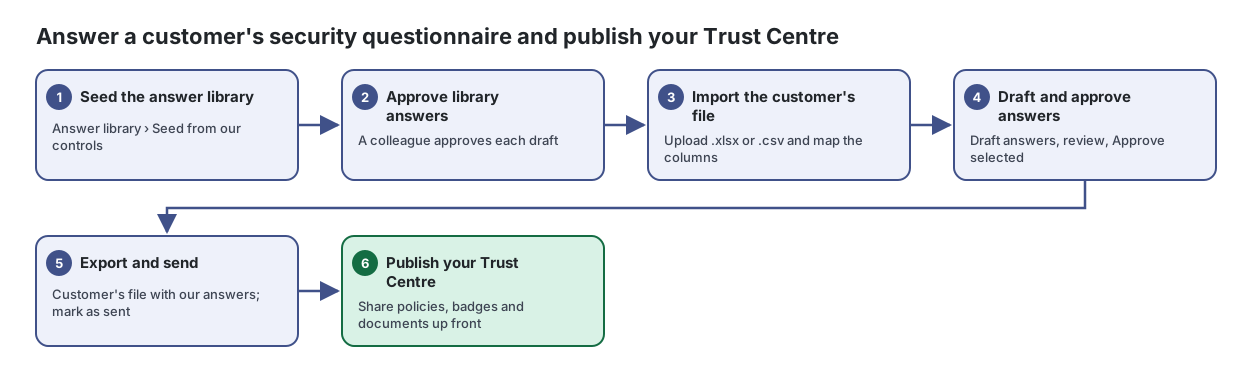
- Seed the answer library. Answer library › Seed from our controls
Answer the security questionnaires your customers send you in a fraction of the time, using a library of approved answers.
From the article: How to build your answer library
- Open the Answer library tab.
- Select Seed from our controls to create draft answers from implemented controls, or New answer to write one.
- Enter the Question, Short answer and Answer, and optionally link a Control, Evidence, Tags and a Review by date.
- Select Save as draft. Ask a colleague to approve it.
- Approve library answers. A colleague approves each draft
- Import the customer's file. Upload .xlsx or .csv and map the columns
From the article: How to import a customer's questionnaire
- On the Questionnaires tab, select Import questionnaire.
- Enter a Title, From (customer) and Due date, and choose The customer's file (.xlsx or .csv).
- Select Upload and continue.
- Under Which columns hold the questions and answers?, check each sheet: the question column, the answer column Lavawall writes into, an optional comment column for longer explanations, and the first row that holds a question. Lavawall has guessed these from the header row.
- Select Import questions.
- Draft and approve answers. Draft answers, review, Approve selected
From the article: How to draft and approve answers
- Open the questionnaire.
- Choose Use a library answer when the match is at least a given percentage. Lower finds more drafts to check; 90% matches near-identical questions only.
- If available, tick Ask AI when nothing matches (drafts must cite approved material).
- Select Draft answers. Use Try again for unanswered after you add to the library.
- Filter by state (Unanswered, Drafted, Flagged, Approved) or source (Library, AI draft, Written by a person) to work through the list.
- Edit an answer and select Save, then Approve. Use Flag for answers that need attention, or To library to save a good answer to the library as a draft.
- More steps in the article
- Export and send. Customer's file with our answers; mark as sent
From the article: How to export the completed questionnaire
- In the questionnaire, select Export.
- Choose Customer's file with our answers (their own workbook with answers in their cells) or Clean workbook (every question).
- Tick Include answers not yet approved only if you want drafts included.
- When you have sent it, select More › Mark as sent to the customer.
- Publish your Trust Centre. Share policies, badges and documents up front
Publish a public security and privacy page that answers customer due-diligence questions and shares your security documents safely.
From the article: How to set up your Trust Centre
- Open Trust Centre and select Create the Trust Centre.
- On the Public page tab, enter a Headline and Introduction.
- Under Public sections, switch on the sections you want: security and compliance frameworks, our policies, subprocessors and key service providers, where data is processed, responsible AI statement, Questions? (contact section), security documents and measured security summary.
- Choose how the "Questions?" section works: Contact form (recommended), Show an email address or No contact section. Enter where enquiries and access requests are delivered; this address is never shown publicly.
- Tick the published policies to list by title. Only titles and short descriptions are shown, never the content.
- Switch on Trust Centre is public and select Save and publish.
When you are done
The questionnaire is answered and sent, and customers can find your security information in your Trust Centre.
Articles for the pages in this guide
- Security Questionnaires: Answer the security questionnaires your customers send you in a fraction of the time, using a library of approved answers.
- Trust Centre: Publish a public security and privacy page that answers customer due-diligence questions and shares your security documents safely.
Still need help?
Search the support centre, or contact our support team and tell us which step you are on:
- Chat now: use the chat button in the bottom-right corner of this page to reach our team right away. Where cookie consent is needed, the chat starts after you accept (cookie settings).
- Email: send our support team a message through the contact page. It goes straight to a person.
- Phone: AB: 1-403-538-5053, BC: 1-778-731-1339, ON: 1-289-724-8829, US: 1-406-988-7333, UK: +44 20 3695 9786.