PCI Compliance: Clone Systems
Run PCI ASV scans through Lavawall's partner Clone Systems and see your targets, scan results, open vulnerabilities and PCI reports in one place.
What the page is for
PCI Compliance: Clone Systems is a page in the Lavawall® console, in the Domains & web area. Lavawall is the RMM, security, and compliance platform from ThreeShield, built and hosted in Canada. About this feature.
If you accept card payments, PCI DSS requires external vulnerability scans by an Approved Scanning Vendor (ASV). Lavawall has partnered with Clone Systems to provide these scans. This page connects your Clone Systems account to Lavawall so you can manage it without switching tools.
Once connected, you can set the IP addresses to scan, see each scan's PCI pass or fail result with counts by severity, review open vulnerabilities with suggested fixes, and download PCI reports, including the Attestation of Compliance. If you turn on SAQ tracking, your Self-Assessment Questionnaires and their progress appear here too.
Scan, vulnerability and report data comes from your Clone Systems account. Your credentials are encrypted at rest.
What you see
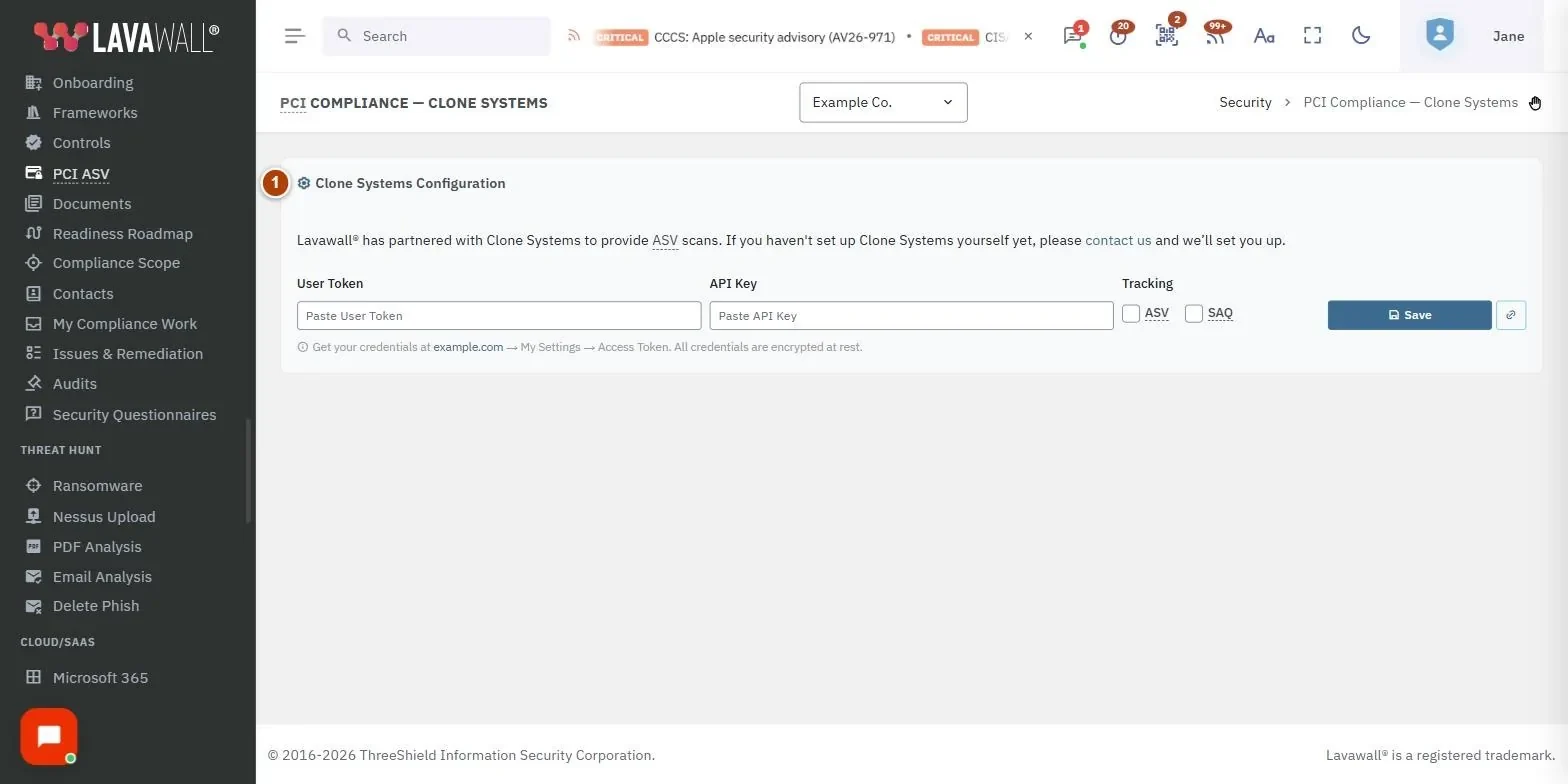
- Clone Systems Configuration: your User Token and API Key, the ASV and SAQ tracking options, Save, a test-connection button and (once connected) a disconnect button. A Connected badge and the last sync time appear when set up.
- Scan Targets (IP Addresses): the targets being scanned, their IPs and limits, a count of IPs in use, and the Add New Target form.
- ASV Scan Results: recent scans with Status, PCI (PASS or FAIL), Completed date, Critical, High, Med, Low and Hosts.
- Open Vulnerabilities: Severity, Vulnerability, Host, Port, PCI Fail, CVEs and Solution, for all scans or the scan you clicked.
- Self-Assessment Questionnaires: shown when SAQ tracking is on: Type, Name, Status, Completion, Approved, Expires.
- PCI Reports: one row per scan with Executive, Detailed, Attestation and Remediation download buttons.
How to connect Clone Systems
- Sign in to your Clone Systems portal and copy your access token and API key from My Settings › Access Token.
- In Lavawall, paste them into User Token and API Key.
- Tick ASV to track scans, and SAQ if you also want to track Self-Assessment Questionnaires.
- Click the test-connection button (the link icon next to Save) to check the credentials.
- Click Save. The page reloads and shows the Connected badge.
How to add a scan target
- In Scan Targets (IP Addresses), under Add New Target, enter a Target Name (for example "CDE Web Servers").
- In IP Addresses / CIDR Ranges, type an IP address (such as 203.0.113.10) or a range (such as 203.0.113.0/28) and press Enter or a comma. Repeat for each entry.
- Check the IP count badge. It turns red if the total exceeds your plan limit.
- Click Add Target.
To remove a target, click its delete button and confirm Yes, delete it. This removes it from Clone Systems and cannot be undone.
How to review scan results and vulnerabilities
- In ASV Scan Results, check the PCI column for PASS or FAIL.
- Click a scan row to show only that scan's vulnerabilities in Open Vulnerabilities.
- Sort by Severity and use PCI Fail to find the items that cause a failing result.
- Read the Solution column for the suggested fix. Hover over a vulnerability name for its description.
How to download a PCI report
- In PCI Reports, find the scan.
- Click Executive (summary for management), Detailed (full technical report), Attestation (PCI DSS Attestation of Compliance) or Remediation (step-by-step fixes).
- Wait while the button shows Generating… and then Downloading…. Each report takes 10 to 30 seconds.
How to disconnect
- Click the disconnect button (the broken-link icon) in Clone Systems Configuration.
- Confirm Yes, disconnect. Saved credentials are removed and syncing stops.
Tips
- Start with PCI FAIL items: the PCI Fail badge marks the vulnerabilities that stop you passing.
- Severity colours run from dark red (critical) through red (high) and amber (medium) to green (low).
- Enter a range with CIDR notation (for example /28) instead of typing each IP. The count badge shows how many IPs the range covers.
- Press Backspace in an empty IP box to remove the last entry.
- If you don't have a Clone Systems account yet, use the contact link on the page and Lavawall will set it up.
Troubleshooting
- "Sync Error" appears in the configuration panel.
- Check that your User Token and API Key are still valid, then test the connection and save again.
- "Subscription expired".
- Renew your subscription in the Clone Systems portal.
- "Exceeds plan limit".
- The target has more IPs than your plan allows. Reduce the list or upgrade your plan.
- A report shows "Not Available".
- Some reports (such as Executive and Attestation) may not be included in every plan, or the report has not been generated yet. Use the link in the message to open the Clone Systems portal.
- "No scans returned".
- No scans have run yet for your account. Scans appear after the first one completes.
Related articles
Still need help?
Search the support centre, or contact our support team and tell us which page you were on:
- Chat now: use the chat button in the bottom-right corner of this page to reach our team right away. Where cookie consent is needed, the chat starts after you accept (cookie settings).
- Email: send our support team a message through the contact page. It goes straight to a person.
- Phone:
 AB: 1-403-538-5053
 US: 1-406-988-7333
 UK: +44 20 3695 9786
Names, companies, devices and figures in the pictures are examples. Other product and company names are trademarks of their respective owners.