Google Workspace Rules & DLP
See every time a Google Workspace data loss prevention (DLP) rule or activity rule fired, in one read-only record you can filter and export.
What the page is for
Google Workspace Rules & DLP is a page in the Lavawall® console, in the Google Workspace area. Lavawall is the RMM, security, and compliance platform from ThreeShield, built and hosted in Canada. About this feature.
Google does not let outside tools read how DLP rules are configured, but it does record when they trigger. This page collects that record so you can show an auditor what your rules actually caught: which rule fired, for which user and file, in which app, and what action Google took.
The DLP Assessment section combines DLP rule firings with DLP-related alerts from Google's Alert Center. The Rules Activity section shows the full rules log, including both DLP rules and admin activity or automation rules. Both read from your connected Google Workspace and cover the last 90 days by default.
Nothing on this page changes your Google settings.
What you see
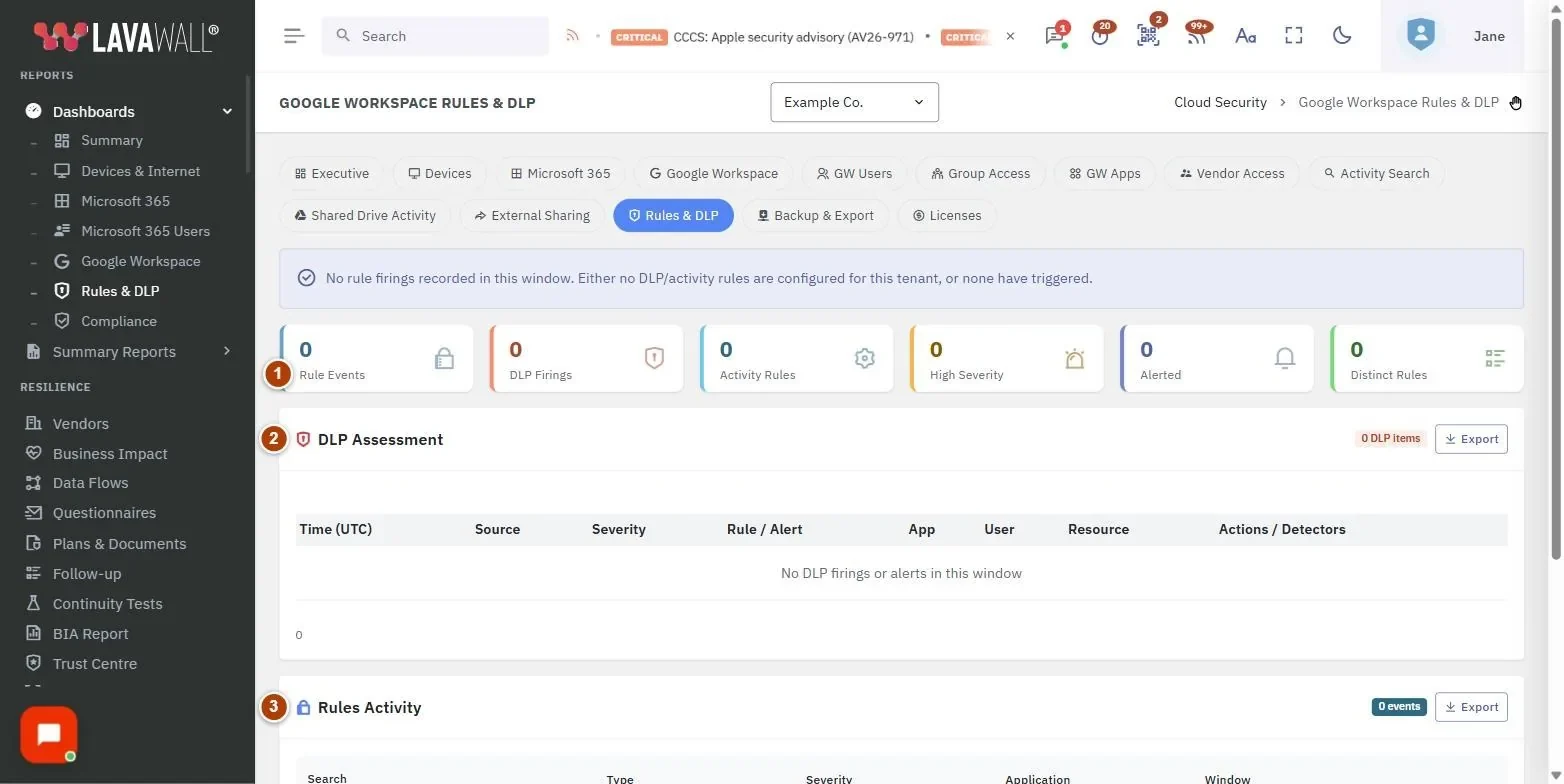
- Summary tiles: Rule Events, DLP Firings, Activity Rules, High Severity, Alerted and Distinct Rules. Click a tile to filter Rules Activity; click it again to clear.
- DLP Assessment: DLP firings and alerts with Time (UTC), Source (Rule or Alert), Severity, Rule / Alert, App, User, Resource and Actions / Detectors, an item count and Export.
- Rules Activity filters: Search (rule, user, resource), Type (DLP or Activity), Severity, Application, Window (30, 90, 180 or 365 days) and a reset button.
- Rules Activity: every rule event with Time (UTC), Type, Severity, Rule, App, User, Resource, Actions / Detectors and Alert, an event count and Export.
How to review DLP firings
- Look at DLP Assessment. The newest items are at the top.
- Check Actions / Detectors to see what Google detected (for example, a credit card number) and what it did.
- Click Export in that section to download the list as a CSV file.
How to find high-severity rule events
- Click the High Severity tile, or set Severity to High.
- Narrow further with Application or Search.
How to change the time window
- Choose 30 days, 90 days, 180 days or 365 days in Window.
- The page reloads both sections for that period.
How to see only events that raised an alert
- Click the Alerted tile.
- Rows with an alert show a bell badge in the Alert column.
How to export rule activity
- Click Export in the Rules Activity header to download a CSV file.
Tips
- Severity badges: red HIGH, amber MEDIUM, grey LOW. Events without a severity are shown as medium.
- Sort Rules Activity by time by clicking Time (UTC).
- Times on this page are in UTC.
- Each table shows the first 1,000 rows. Use filters or a shorter window for large tenants.
Troubleshooting
- "This domain's Google Workspace edition does not include DLP."
- DLP rules are only available on Enterprise, Frontline, Education and Enterprise Essentials Plus editions. An empty DLP list is expected. Activity rules still appear under Rules Activity.
- "No rule firings recorded in this window."
- Either no DLP or activity rules are set up in Google, or none triggered. Try a longer Window.
- "Rules & DLP data not available yet."
- Lavawall has not collected rules data for this tenant yet. It fills in after the next Google Workspace sync.
- "No rule events match."
- Your filters exclude everything. Click the reset button.
Related articles
Still need help?
Search the support centre, or contact our support team and tell us which page you were on:
- Chat now: use the chat button in the bottom-right corner of this page to reach our team right away. Where cookie consent is needed, the chat starts after you accept (cookie settings).
- Email: send our support team a message through the contact page. It goes straight to a person.
- Phone:
 AB: 1-403-538-5053
 US: 1-406-988-7333
 UK: +44 20 3695 9786
Names, companies, devices and figures in the pictures are examples. Other product and company names are trademarks of their respective owners.