Onboard a new client's compliance (MSPs)
Run a new client through the same compliance onboarding steps every time.
A Lavawall® task guide: 7 steps across 5 console pages.
Before you start
- Who can do this: Anyone with a GRC role that can view compliance data can read the page; only a GRC administrator can change roles or settings
- Plan: GRC Compliance Platform (included in Complete). GRC Client Onboarding (included in Professional and Complete). See pricing.
- Where to start: open Compliance Settings in your console.
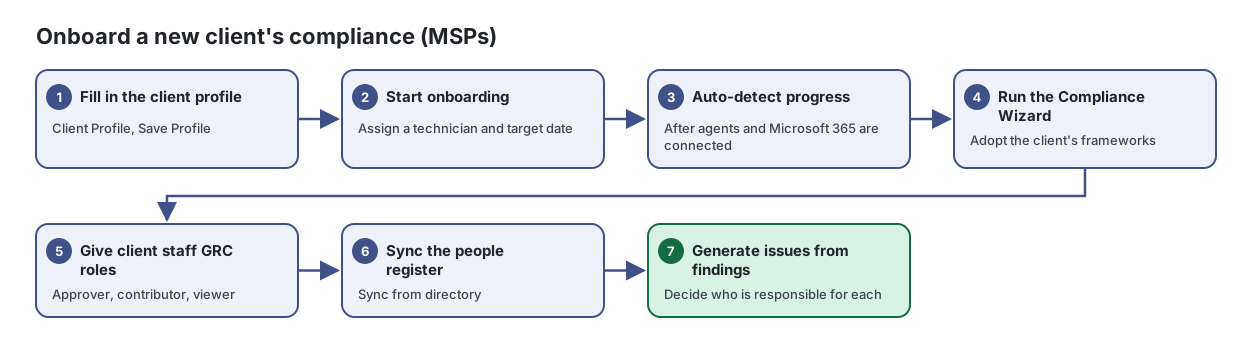
Steps
- Fill in the client profile. Client Profile, Save Profile
Run every new client through the same onboarding steps, see where each client stands, and let Lavawall detect progress for you.
From the article: How to fill in the client profile
- Open the client and select Client Profile.
- Choose Industry, Sub-industry, Country and Province/State, and enter Employee count and Target device count.
- Set Current email and Target email, and tick any Compliance requirements that apply: PCI DSS (payment cards), US healthcare (HIPAA), US government clients (NIST 800-171 / CMMC), Canadian defence supplier (CPCSC), Publicly traded (SOX / C-SOX) or Needs email migration.
- Review Suggested frameworks, then select Save Profile.
- Turn the suggested frameworks on from the Frameworks page, or run the Compliance Wizard for a fuller analysis.
- Start onboarding. Assign a technician and target date
From the article: How to start onboarding a client
- On All Clients, find the client and select Start.
- In Start onboarding, select Set Profile First if the client profile is not filled in yet (recommended).
- Enter Assigned to (the technician) and a Target completion date.
- Select Start Onboarding.
- Auto-detect progress. After agents and Microsoft 365 are connected
- Run the Compliance Wizard. Adopt the client's frameworks
Answer a few questions about your organization to find out which frameworks and regulations apply, see your gaps, generate your first policies and get a prioritized action plan.
From the article: How to find the frameworks that apply to you
- On Profile, answer each question. Select every country or region and every type of sensitive data that applies.
- Select Analyze My Requirements.
- Review Your Applicable Frameworks. Use Select Required to pick the ones you must meet, or select others by hand.
- Select Adopt selected frameworks to add them to your compliance program. Frameworks you already have are left alone.
- Give client staff GRC roles. Approver, contributor, viewer
Decide who can do what in your compliance program and set the rules that every compliance page follows for your organization.
From the article: How to change someone's compliance role
- In Who can do what, find the person.
- Open the role list on their row and choose a role, or choose Follow console role to go back to the automatic role.
- Read the description in the confirmation and select Change role.
- The row updates and shows "Set here" or "From console role" under the picker.
- Sync the people register. Sync from directory
Keep a register of joiners, leavers and background checks, and spot any leaver whose account is still switched on.
From the article: How to sync from your directory
- Select Sync from directory.
- The Directory sync summary shows how many accounts were read, added, updated and marked as leavers.
- If any leaver still has an enabled account, the summary says so and an issue is raised for each one. Disable those accounts, then sync again to close the red flags.
- Generate issues from findings. Decide who is responsible for each
Keep one list of everything that needs fixing, who is responsible for it, who is doing it, when it is due and where it stands.
From the article: How to generate issues from findings
- Select Generate from findings.
- Tick the sources to use: Failing automated checks, "No" answers in the latest assessments and, where available, Resilience follow-up findings.
- Select Generate. The summary shows how many issues were created, reopened, updated and closed. Issues whose finding has gone away are closed; your own responsibility, assignee, due date and status choices are kept.
When you are done
The client's profile, frameworks, roles, people register, and open issues are all set up.
Articles for the pages in this guide
- Compliance Settings: Decide who can do what in your compliance program and set the rules that every compliance page follows for your organization.
- Compliance Wizard: Answer a few questions about your organization to find out which frameworks and regulations apply, see your gaps, generate your first policies and get a…
- Issues & Remediation: Keep one list of everything that needs fixing, who is responsible for it, who is doing it, when it is due and where it stands.
- MSP Client Onboarding: Run every new client through the same onboarding steps, see where each client stands, and let Lavawall detect progress for you.
- People Security: Keep a register of joiners, leavers and background checks, and spot any leaver whose account is still switched on.
Still need help?
Search the support centre, or contact our support team and tell us which step you are on:
- Chat now: use the chat button in the bottom-right corner of this page to reach our team right away. Where cookie consent is needed, the chat starts after you accept (cookie settings).
- Email: send our support team a message through the contact page. It goes straight to a person.
- Phone: AB: 1-403-538-5053, BC: 1-778-731-1339, ON: 1-289-724-8829, US: 1-406-988-7333, UK: +44 20 3695 9786.