Map a client's office network and watch for outages
Scan a client's office network, keep an inventory of the equipment you find and get told when something goes offline.
A Lavawall® task guide: 7 steps across 5 console pages.
Before you start
- Who can do this: Anyone who can see the page
- Plan: System Monitoring (included in Grow, Professional, and Complete) or LAN Scan / Asset Discovery (add-on, or included in Complete). LAN Scan / Asset Discovery (add-on, or included in Complete). Included with every Lavawall® account. Ubiquiti UniFi Monitoring (included in Professional and Complete). See pricing.
- Where to start: open Assets in your console.
Steps
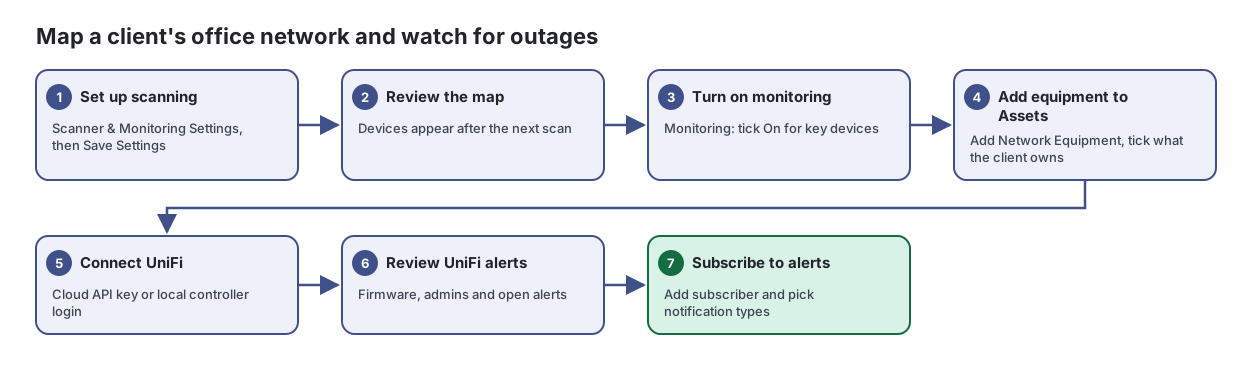
- Set up scanning. Scanner & Monitoring Settings, then Save Settings
See everything on a client's office network, from the internet connection down to printers, and get told when something goes offline.
From the article: How to start scanning a network
- Select the company in the company picker.
- Open Scanner & Monitoring Settings. Leave Auto-assign ARP scanning on to let Lavawall choose scanners, or turn it off and tick the computers under Allowed scanners (manual assignment).
- Turn on Auto-assign subnet scanning if you also want whole subnets scanned.
- Under Intervals & Thresholds, set Consumable Alert, Monitor Check, ARP Scan and Subnet Scan.
- Enter your SNMP Communities (comma-separated) so printers and switches can be read.
- Click Save Settings. Devices appear after the next scan.
- Review the map. Devices appear after the next scan
- Turn on monitoring. Monitoring: tick On for key devices
From the article: How to monitor a device for outages
- Click Monitoring.
- In Device Monitoring, find the device with Filter devices..., choose what to monitor (for example ping or a port), set Outage and Re-ntfy (re-notify) times, and tick On.
- For a web port, add HTTP Checks, including a string that must appear on the page.
- Use Enable Selected or Disable Selected for several devices at once.
- Click Save Device Settings.
- Add equipment to Assets. Add Network Equipment, tick what the client owns
Keep one inventory of every piece of company equipment, where it is, who has it and what state it is in.
From the article: How to add network equipment from the LAN scan
- Click Add Network Equipment.
- Review the devices the LAN scan found that are not assets yet (Name, IP, MAC, Type, Vendor, Company).
- Tick the ones your company owns, or use Select all / Select none.
- Optionally choose a location and leave Mark as company-owned ticked.
- Click Add selected.
- Connect UniFi. Cloud API key or local controller login
Connect your clients' Ubiquiti UniFi networks to Lavawall so their gear is monitored alongside everything else.
From the article: How to connect through the UniFi cloud
- Select the company.
- In Add a controller, enter a Label (for example "HQ UDM Pro").
- Choose Connection type: Ubiquiti Cloud: unifi.ui.com (API key).
- Create a key at unifi.ui.com under Settings › API Keys, signed in as the console owner, and paste it into Site Manager API key.
- Optionally enter a Console / host ID to limit monitoring to one console; leave it blank to cover every console the key can see.
- Set the Poll interval (s), leave Monitoring enabled on and click Save controller.
- Review UniFi alerts. Firmware, admins and open alerts
Watch your clients' Ubiquiti UniFi networks for outdated firmware, risky settings and signs of compromise, all from one screen.
From the article: How to deal with alerts
- Review Open alerts, starting with Critical and High.
- Investigate the change on the controller.
- Click Acknowledge once you have confirmed it was expected or fixed it.
- Subscribe to alerts. Add subscriber and pick notification types
Decide who hears about what, how quickly and on which device, so the right person gets the right alert without being flooded.
From the article: How to add a subscriber
- Select the company.
- Click Add subscriber, enter the email address and click Add.
- The new subscriber receives every notification type by default. Click the edit button on their row to narrow it.
When you are done
You have a network map, an asset inventory, UniFi monitoring, and outage alerts going to the right people.
Articles for the pages in this guide
- Assets: Keep one inventory of every piece of company equipment, where it is, who has it and what state it is in.
- Network Diagram: See everything on a client's office network, from the internet connection down to printers, and get told when something goes offline.
- Notification Setup: Decide who hears about what, how quickly and on which device, so the right person gets the right alert without being flooded.
- UniFi Controllers: Connect your clients' Ubiquiti UniFi networks to Lavawall so their gear is monitored alongside everything else.
- UniFi Monitoring: Watch your clients' Ubiquiti UniFi networks for outdated firmware, risky settings and signs of compromise, all from one screen.
Still need help?
Search the support centre, or contact our support team and tell us which step you are on:
- Chat now: use the chat button in the bottom-right corner of this page to reach our team right away. Where cookie consent is needed, the chat starts after you accept (cookie settings).
- Email: send our support team a message through the contact page. It goes straight to a person.
- Phone: AB: 1-403-538-5053, BC: 1-778-731-1339, ON: 1-289-724-8829, US: 1-406-988-7333, UK: +44 20 3695 9786.