Scan a client's domain and fix email security
Scan a client's domain the way an attacker sees it, then fix the most important email security gaps first.
A Lavawall® task guide: 6 steps across 3 console pages.
Before you start
- Who can do this: Anyone who can see the page
- Plan: DMARC Monitoring (included in every plan). Domain Attack-Surface Scanner (included in every plan). See pricing.
- Where to start: open DMARC Setup in your console.
Steps
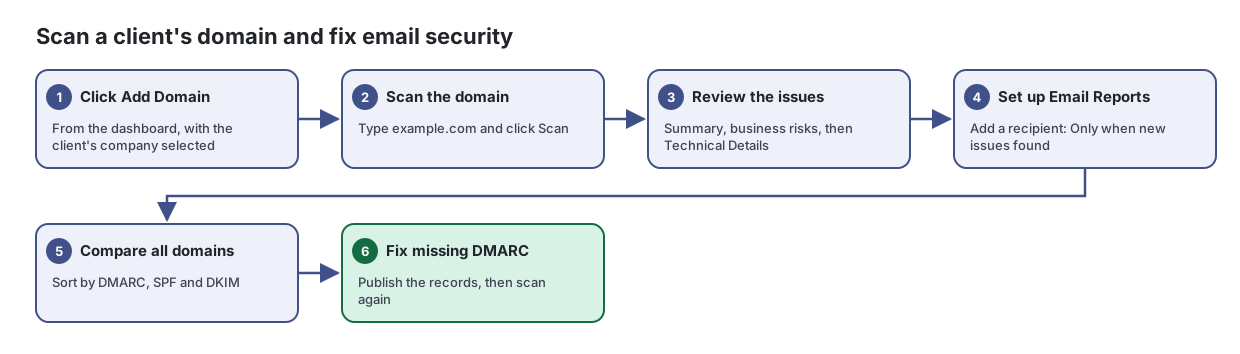
- Click Add Domain. From the dashboard, with the client's company selected
Scan a domain from the outside, the way an attacker would see it, and get a clear list of website, email and DNS issues to fix.
- Scan the domain. Type example.com and click Scan
From the article: How to scan a domain
- Select the company the domain belongs to.
- Type the domain in Scan a domain (for example example.com). Web addresses are trimmed to the domain automatically.
- Leave Include admin services (SSH, RDP) on to also check for exposed administrative services.
- Turn on Scan exact hostname / subdomain to scan, for example, a staging site exactly as typed instead of the main domain.
- Click Scan and watch the progress bar. Sections fill in as results arrive.
- Review the issues. Summary, business risks, then Technical Details
From the article: How to review an existing domain
- Click the domain in Your monitored domains. Use Filter domains… when you have many.
- Read the summary and business risk context first, then the area counts.
- Open Technical Details for the evidence behind each issue.
- Set up Email Reports. Add a recipient: Only when new issues found
- Compare all domains. Sort by DMARC, SPF and DKIM
Compare the security of every domain you monitor in one table, so you can see which ones need work first.
From the article: How to find domains that need attention
- Click the Total Errors heading to sort the worst domains to the top.
- Or sort by DMARC, SPF or DKIM to group domains missing email protection.
- Type in the search box to find a domain or company.
- Fix missing DMARC. Publish the records, then scan again
Set up your Lavawall DMARC reporting address, get a ready-to-paste DNS record for each domain, and choose how strictly to protect your domains from spoofing.
From the article: How to set up DMARC reporting
- Check or change the Email Code. Use lowercase letters, numbers and hyphens only.
- List your domains in Authorized Sending Domains, one per line.
- Tick Enable DMARC receiver.
- Click Save Configuration.
- In DNS Record, click the copy button for each domain and add the record as a TXT record named
_dmarcat your DNS provider.
When you are done
The domain is monitored, its issues are listed in priority order, and missing DMARC records are published.
Articles for the pages in this guide
- DMARC Setup: Set up your Lavawall DMARC reporting address, get a ready-to-paste DNS record for each domain, and choose how strictly to protect your domains from spoofing.
- Domain Scan Results: Scan a domain from the outside, the way an attacker would see it, and get a clear list of website, email and DNS issues to fix.
- Domain Summary: Compare the security of every domain you monitor in one table, so you can see which ones need work first.
Still need help?
Search the support centre, or contact our support team and tell us which step you are on:
- Chat now: use the chat button in the bottom-right corner of this page to reach our team right away. Where cookie consent is needed, the chat starts after you accept (cookie settings).
- Email: send our support team a message through the contact page. It goes straight to a person.
- Phone: AB: 1-403-538-5053, BC: 1-778-731-1339, ON: 1-289-724-8829, US: 1-406-988-7333, UK: +44 20 3695 9786.