Help a user who needs administrator rights
Help a user who needs administrator rights on a Windows computer, whether it is online or offline, and check afterwards what ran.
A Lavawall® task guide: 6 steps across 3 console pages.
Before you start
- Who can do this: Anyone signed in can view it; switching the module on, choosing a mode and regenerating the bundle need the elevation Admin permission; turning off a live elevation needs the Approve permission
- Plan: Application Control + PAM (add-on, or included in Complete). See pricing.
- Where to start: open Application Elevation Dashboard in your console.
Steps
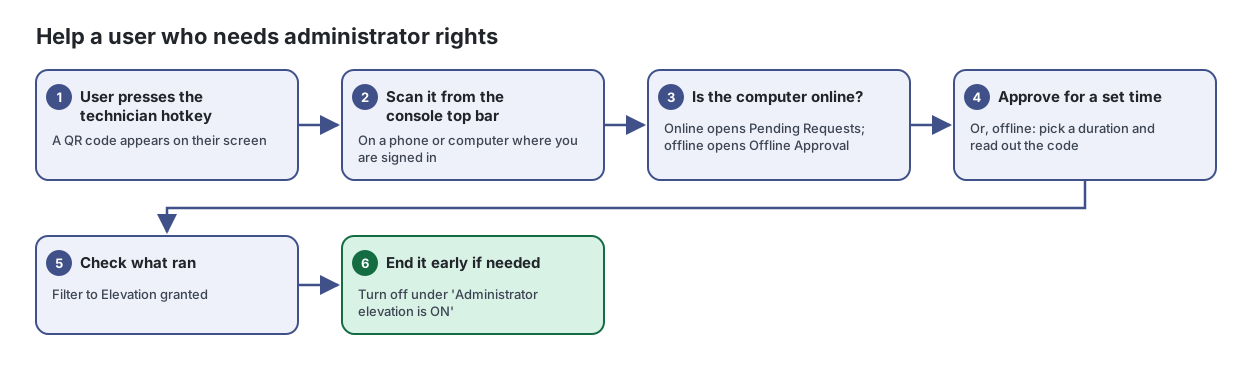
- User presses the technician hotkey. A QR code appears on their screen
- Scan it from the console top bar. On a phone or computer where you are signed in
- Is the computer online? Online opens Pending Requests; offline opens Offline Approval
- Approve for a set time. Or, offline: pick a duration and read out the code
Approve or deny requests from people who need to run a program with administrator rights, and turn good decisions into rules so the same request does not come back.
From the article: How to approve a technician session from a QR code
- Ask the user to press the technician hotkey (Ctrl+Alt+L unless you changed it in Settings).
- Scan the QR code on their screen with the scanner button in the console's top bar, on a phone or computer where you are signed in.
- Choose For how long? (15 minutes to 8 hours; your company default is preselected).
- Select Approve. The user sees a banner for the whole period, and the grant is recorded against your name.
- Check what ran. Filter to Elevation granted
A running log of what the elevation agent did on each computer: prompts it intercepted, elevations it granted or denied, ringfence blocks and policy updates.
From the article: How to see technician activity
- Choose Technician hotkey to see when users brought up the technician QR code.
- Choose Elevation granted to see what ran as a result.
- End it early if needed. Turn off under 'Administrator elevation is ON'
See at a glance how Application Elevation is running: which mode each company is in, how many computers are enrolled, what is waiting for approval, and which computers have administrator elevation switched on right now.
From the article: How to end a technician elevation early
- In Administrator elevation is ON, find the computer.
- Select Turn off and confirm. Programs on that computer need approval again straight away.
When you are done
The user has what they needed for a set time, and every elevation is in the log.
Articles for the pages in this guide
- Application Elevation Dashboard: See at a glance how Application Elevation is running: which mode each company is in, how many computers are enrolled, what is waiting for approval, and…
- Elevation Events: A running log of what the elevation agent did on each computer: prompts it intercepted, elevations it granted or denied, ringfence blocks and policy updates.
- Pending Elevation Requests: Approve or deny requests from people who need to run a program with administrator rights, and turn good decisions into rules so the same request does not…
Still need help?
Search the support centre, or contact our support team and tell us which step you are on:
- Chat now: use the chat button in the bottom-right corner of this page to reach our team right away. Where cookie consent is needed, the chat starts after you accept (cookie settings).
- Email: send our support team a message through the contact page. It goes straight to a person.
- Phone: AB: 1-403-538-5053, BC: 1-778-731-1339, ON: 1-289-724-8829, US: 1-406-988-7333, UK: +44 20 3695 9786.