Rollbacks
Plan, approve and track the reversal of Microsoft 365 configuration changes.
What the page is for
Rollbacks is a page in the Lavawall® console, in the Microsoft 365 area. Lavawall is the RMM, security, and compliance platform from ThreeShield, built and hosted in Canada. About this feature.
When a configuration change in Microsoft 365 is a mistake or the work of an attacker, you need to put things back the way they were. Lavawall keeps snapshots of your tenant's configuration, so it can work out the steps needed to return settings to an earlier state.
A rollback starts as a plan. You choose what to revert: one change, one object back to a point in time, everything a particular user changed during a period, or the whole tenant back to a point in time. Lavawall builds a list of actions, you review and approve it, and only then are changes made to your tenant. You can also run a dry run, which builds the plan without changing anything.
This page lists all rollbacks and their status, and opens each one to show its individual actions and results.
What you see
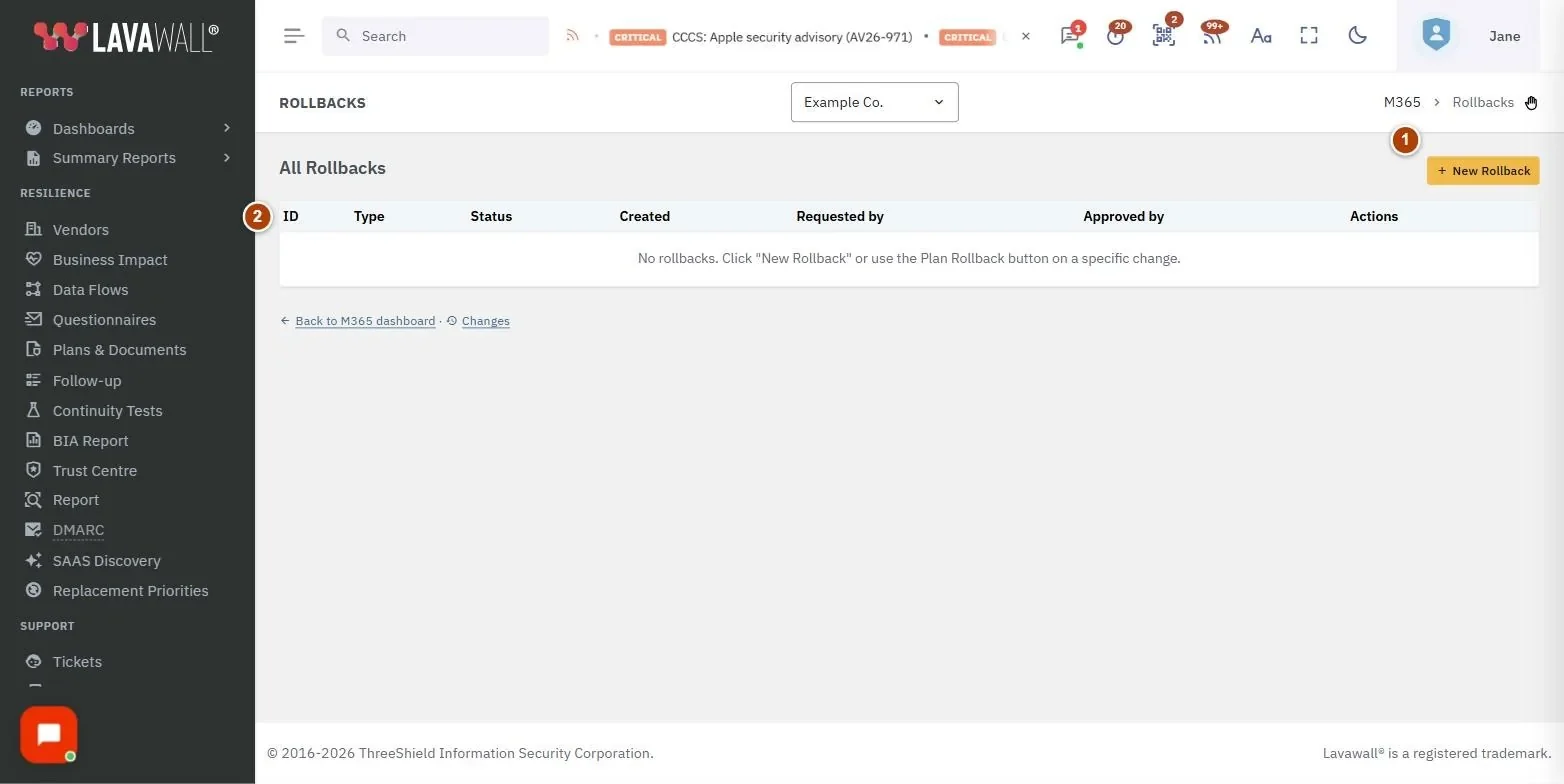
- All Rollbacks header with New Rollback.
- Rollbacks table: ID, Company (all-companies view only), Type (with a dry run badge where applicable), Status, Created, Requested by, Approved by and Actions.
- Rollback detail: the rollback's type and status, Approve and Abort buttons, and a table of actions with Tier, Object Type, Object, Action, Status and Result.
- New Rollback window: Rollback type, the fields for that type, Target time (UTC), Justification, Dry run and Continue on error.
How to create a rollback plan
- Click New Rollback. (To reverse a single change, you can instead use Plan Rollback of This Change on the Configuration Changes page.)
- MSPs viewing all companies: choose the Target company.
- Choose a Rollback type:
- Revert one object to a point in time: enter the Object type and Object ID.
- Revert all changes by a user: enter the User UPN and the From (UTC) and To (UTC) times.
- Revert ENTIRE tenant to a point in time.
- For point-in-time types, set Target time (UTC). Settings return to how they were at or before this time.
- Enter a Justification. It is recorded for audit.
- Tick Dry run to build the plan without changing anything, and leave Continue on error ticked so one failed action doesn't stop the rest.
- Click Create Plan.
How to approve or abort a rollback
- Click a rollback in the list to open it.
- Review every action in the actions table before approving.
- Click Approve when the status is planned, and confirm. Changes are made to your tenant when the rollback runs, not at approval.
- To cancel, click Abort while the rollback is planning, planned or approved. A rollback that has started running cannot be aborted.
How to check the result
- Open the rollback.
- Check its status: completed, partial, failed or dry_run_complete.
- Check each action's Status and Result. Actions can be succeeded, failed, skipped, requires_manual (you must make this change yourself) or skipped_no_permission.
Tips
- Start with a dry run for anything larger than a single change, especially a whole-tenant rollback.
- Status colours: blue for planned, orange for executing, green for completed, amber for partial, red for failed, and struck through for aborted.
- skipped_no_permission usually means Lavawall has read-only access. Re-authorize Microsoft 365 with Read + Write access to allow rollbacks.
- Use Back to all rollbacks to return to the list.
Troubleshooting
- "Rollback execution is not enabled for this company."
- The rollback add-on is not active. Enable it from the billing link in the message.
- "No rollbacks."
- Click New Rollback, or use Plan Rollback of This Change on a specific change.
- "No actions yet."
- The plan is still being built. Check back shortly.
- "Pick a target company first."
- In the all-companies view, choose a Target company in the New Rollback window.
- "Read-only connection: authorize read and write access to use this."
- The company connected Microsoft 365 with read access only, so Lavawall does not change anything in its tenant and the button is disabled. A Microsoft 365 administrator can click Authorize read and write access and grant consent; the button works after that.
Related articles
Still need help?
Search the support centre, or contact our support team and tell us which page you were on:
- Chat now: use the chat button in the bottom-right corner of this page to reach our team right away. Where cookie consent is needed, the chat starts after you accept (cookie settings).
- Email: send our support team a message through the contact page. It goes straight to a person.
- Phone:
 AB: 1-403-538-5053
 US: 1-406-988-7333
 UK: +44 20 3695 9786
Names, companies, devices and figures in the pictures are examples. Other product and company names are trademarks of their respective owners.