Compliance Scope
Show exactly what your compliance program covers, and prove that every in-scope device, application and account has a control over it.
What the page is for
Compliance Scope is a page in the Lavawall® console, in the Compliance (GRC) area. Lavawall is the RMM, security, and compliance platform from ThreeShield, built and hosted in Canada. About this feature.
Compliance Scope keeps a register of the things your compliance program covers: devices, assets, applications, cloud accounts and business processes. Nothing new is collected. The items are drawn from the rest of the platform, for example the computers reporting to Lavawall, and you decide which ones are in scope, how sensitive they are and who owns them.
The first question an assessor asks is "You say this is in scope. Which control covers it?" The page answers it in both directions: which in-scope items have no control linked to them, and which in-scope controls have nothing under them.
A third view lists recent Microsoft 365 incidents, the controls each one touches, and lets you open an issue from an incident with one click.
What you see
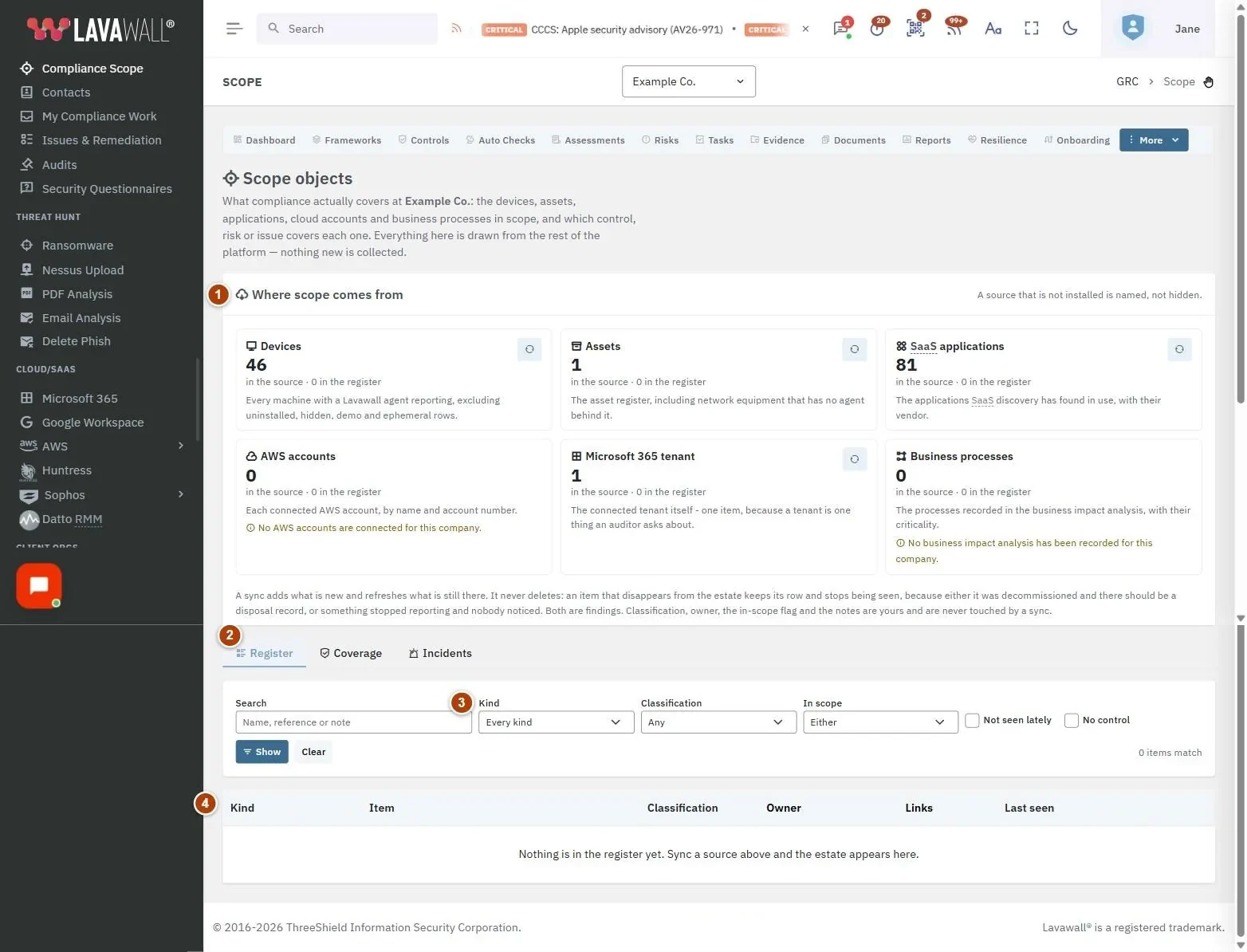
- Where scope comes from: one cell per source, showing how many items are in the source and how many are in the register, when it was last seen, items not seen lately, and a sync button.
- Tabs: Register, Coverage and Incidents.
- Register filters: Search, Kind, Classification, In scope, Not seen lately and No control, with Show and Clear.
- Register table: Kind, Item, Classification, Owner, Links and Last seen, with a links button on each row that opens its details.
- Coverage: Items with no control over them, Controls covering nothing, Coverage by kind, and lists of Uncovered items and Controls with nothing under them.
- Incidents: Microsoft 365 incidents with Incident, Severity, Account, Controls it touches, Last event and Issue.
How to bring items into the register
- In Where scope comes from, find a source that has items.
- Select its sync button (Pull the current rows in).
- New items are added and existing ones refreshed. Your classification, owner, in-scope setting and notes are never changed by a sync.
How to classify an item and link it to a control
- On the Register tab, find the item and select its links button (Links and details).
- Set Classification and Owner, turn In scope for compliance on or off, add Notes, and select Save.
- Under Covered by, choose what to link in Link to (for example a control), pick Which one, and select Add the link.
- To remove a link, select the Remove (×) button beside it and confirm Remove. The item stops being counted as covered by it.
How to find coverage gaps
- Open the Coverage tab.
- Review Uncovered items and select Link it next to one to jump to it in the register.
- Review Controls with nothing under them. A policy control may cover the whole organization, but a technical control with nothing under it needs attention.
How to turn a Microsoft 365 incident into an issue
- Open the Incidents tab.
- Check Controls it touches for the incident.
- Select Open an issue and confirm Open the issue. The issue goes into the issues register with the controls it touches. Doing it twice does not create a second issue.
Tips
- Tick No control on the Register tab to see only items that need a control linked.
- Tick Not seen lately to find items that have stopped reporting. Either they were decommissioned (and need a disposal record) or something stopped reporting.
- A sync never deletes anything. Items that disappear keep their row and simply stop being seen.
- Filtered lists have their own web address, so you can bookmark one or send it to a colleague.
- A source that is not installed is still shown, marked "not collected here", so you know it exists.
Troubleshooting
- "Nothing is in the register yet."
- Sync a source in Where scope comes from.
- "No item matches those filters."
- Select Clear to reset the filters.
- "No incidents have been recorded for this tenant."
- Nothing has been recorded from Microsoft 365 for this company, or Microsoft 365 is not connected.
- "None of the mapped controls are in your catalogue."
- The controls this incident relates to are not in your control set, so no links are shown.
- The sync button is missing.
- Syncing needs a GRC role that can edit, and the source must have items.
Related articles
Still need help?
Search the support centre, or contact our support team and tell us which page you were on:
- Chat now: use the chat button in the bottom-right corner of this page to reach our team right away. Where cookie consent is needed, the chat starts after you accept (cookie settings).
- Email: send our support team a message through the contact page. It goes straight to a person.
- Phone:
 AB: 1-403-538-5053
 US: 1-406-988-7333
 UK: +44 20 3695 9786
Names, companies, devices and figures in the pictures are examples. Other product and company names are trademarks of their respective owners.